The add-on won't load
If the add-on panel opens and stays empty, or shows Blocked by your organization, Google is refusing the add-on's requests before any of our code runs. The panel itself loads. Everything it asks for is denied.
There are two common reasons, and they need different fixes.
1. You are signed into more than one Google account
This is the more common one, and it looks exactly like a block.
When you are signed into several Google accounts in the same browser, Google may run the add-on as your default account, the first one you signed in with, even though you are viewing the form as a different account. If that default account belongs to an organization that has not approved the add-on, every request is refused and the panel comes up empty.
How to tell. Look at the address bar. A Google URL carries an account index: docs.google.com/forms/u/0/... is your first account, /u/1/ the second, and so on. Multiple accounts in one browser is the condition that causes this.

How to fix it.
- Open the form in an Incognito or Private window, signed in with only the account you want to use. This is the fastest check and confirms the diagnosis in about a minute.
- Or use a separate browser profile for each account.
- Or make the right account your default: sign out of all accounts, then sign back in with that one first.
Switching accounts from the Forms account menu often does not stick, and reloading the page snaps back to the default account. This is Google multi-account behaviour that affects all add-ons, not only ours. Common Questions covers the other symptoms it produces.
2. Your Workspace administrator has not approved the add-on
If your organization runs Google Workspace with Marketplace access restricted, an administrator has to allow each add-on before anyone in the domain can use it.
Only an administrator can change this. Send them this:
Please allow this add-on for our domain: Google Admin console, Apps, Google Workspace Marketplace apps, Apps list, Add app. Search for the add-on and allow it for the relevant organizational units.
Once they have allowed it, close and reopen the form. It can take a few minutes to take effect.
3. The panel says "Can't Load Your Settings" or "Google Refused the Request"
Google let the add-on run, but one of its requests did not come back. The panel names which of two things happened.
"Can't Load Your Settings": the request that reads your form did not answer within 15 seconds. It happens most on large forms with many questions, and sometimes when Google Forms itself is slow.
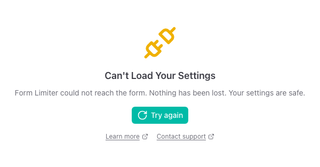
- Press Try again. The second request usually lands.
- If it does not, close the panel and open the add-on again from the puzzle-piece menu. A large form can take a moment.
"Google Refused the Request": Google rejected the request outright instead of answering it. Pressing Try again rarely helps here. Usually the add-on is running as a different Google account than the one you are viewing the form with, the multi-account case in section 1, or the add-on's authorization has expired.
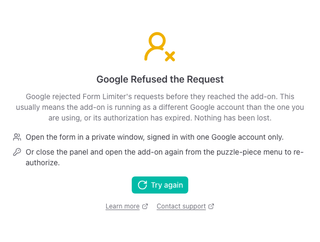
- Open the form in an Incognito or Private window, signed in with only the account you want to use.
- Or close the panel and open the add-on again from the puzzle-piece menu. If Google asks you to authorize it, accept.
In both cases nothing is lost. Your limits, schedule and other settings are stored with the form and keep working in the background.
If it still fails after a few tries, contact us and tell us the form's title and which Google account you are using: the settings did not load or Google refused the request.
Still stuck?
If neither applies, you are signed into one account and your administrator says the add-on is allowed, contact us. Tell us which add-on and which Google account you are using and we will check the logs for that account.