
Getting Started
Form Builder reads the questions out of a text or file and adds them to your Google Form. This guide takes you from install to your first questions on the form.
Installation
- Find Form Builder in the Google Workspace Marketplace
- Click Install and follow the prompts
- Grant the permissions it asks for
Open the dialog
- Open the Google Form you want to add questions to. A new, empty form works, and so does one that already has questions
- Click the Add-ons (puzzle piece) icon, then Form Builder, then Start
The dialog opens on your results. The first time it is empty and shows Read your first text or file.
Read your first text
- Click New, then Paste text
- Paste your text: a list of questions, an agenda, a syllabus, the text of an old form
- Click Read questions
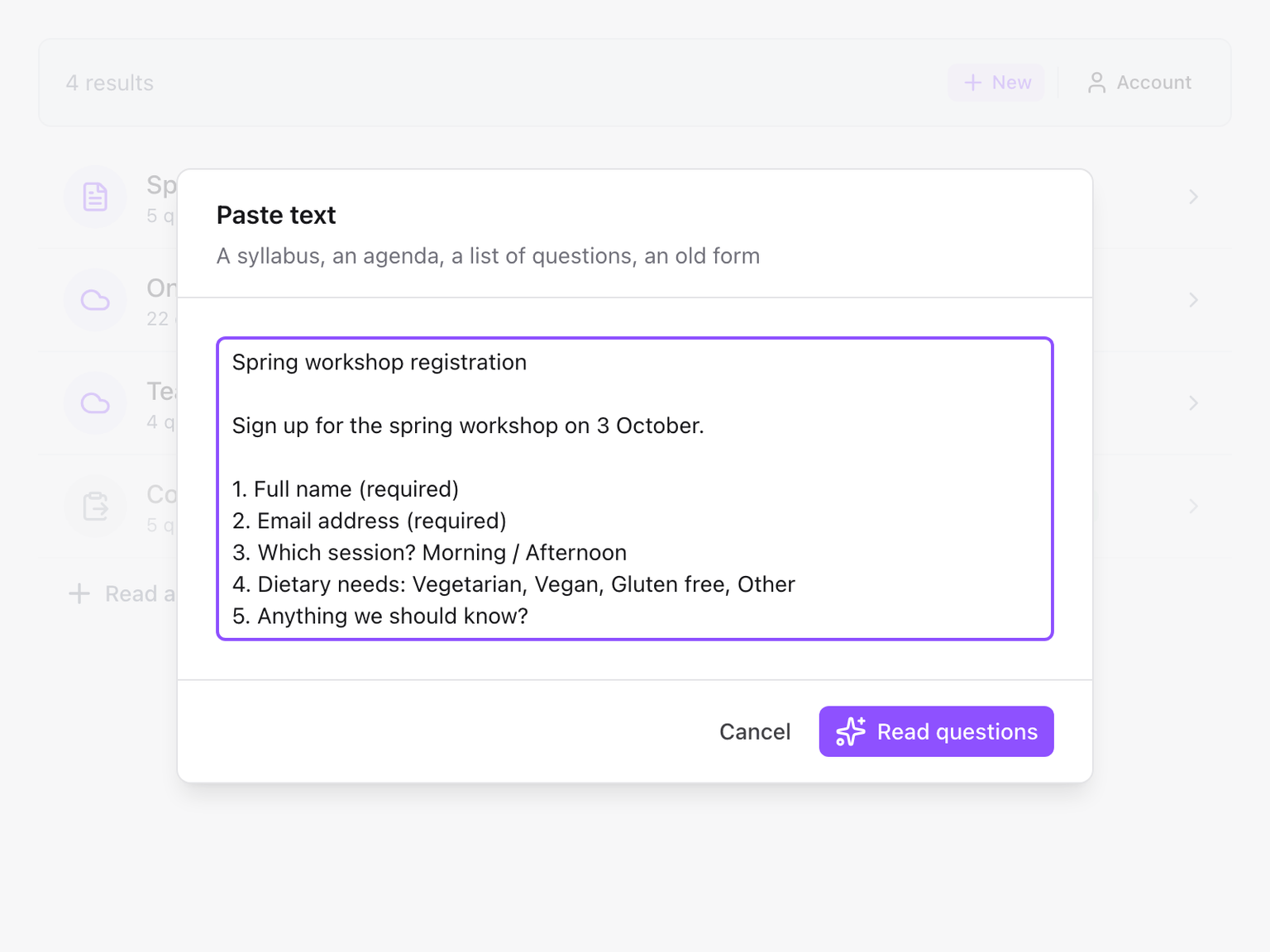
Reading usually takes 10 to 30 seconds. To start from a file instead, choose Upload or Google Drive under New. See Sources.
Each read uses one of your 5 free builds a month, unless you have a paid plan. See Free builds.
Check the questions
The questions found are listed with their type and options. Drag a row to move it, click the eye to skip a question, or click the pencil to change its wording, type or options.
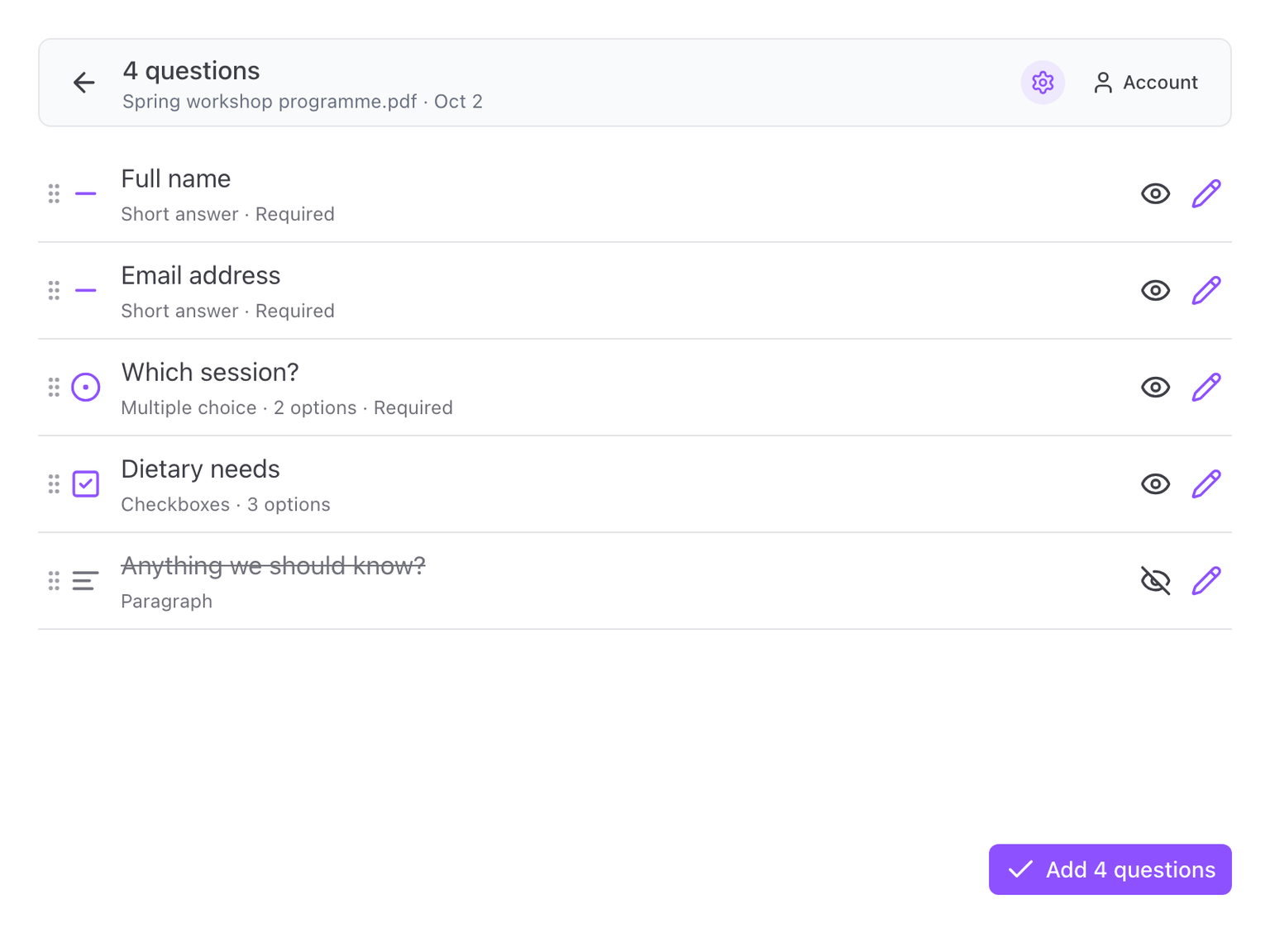
See Check and edit the questions.
Add them to the form
Click Add questions at the bottom right. The button shows how many will be added. The questions are written into your Google Form and the dialog confirms how many were added.
Close the dialog and you will see them in the form editor, ready to edit like any question you typed yourself.