
Check and Edit the Questions
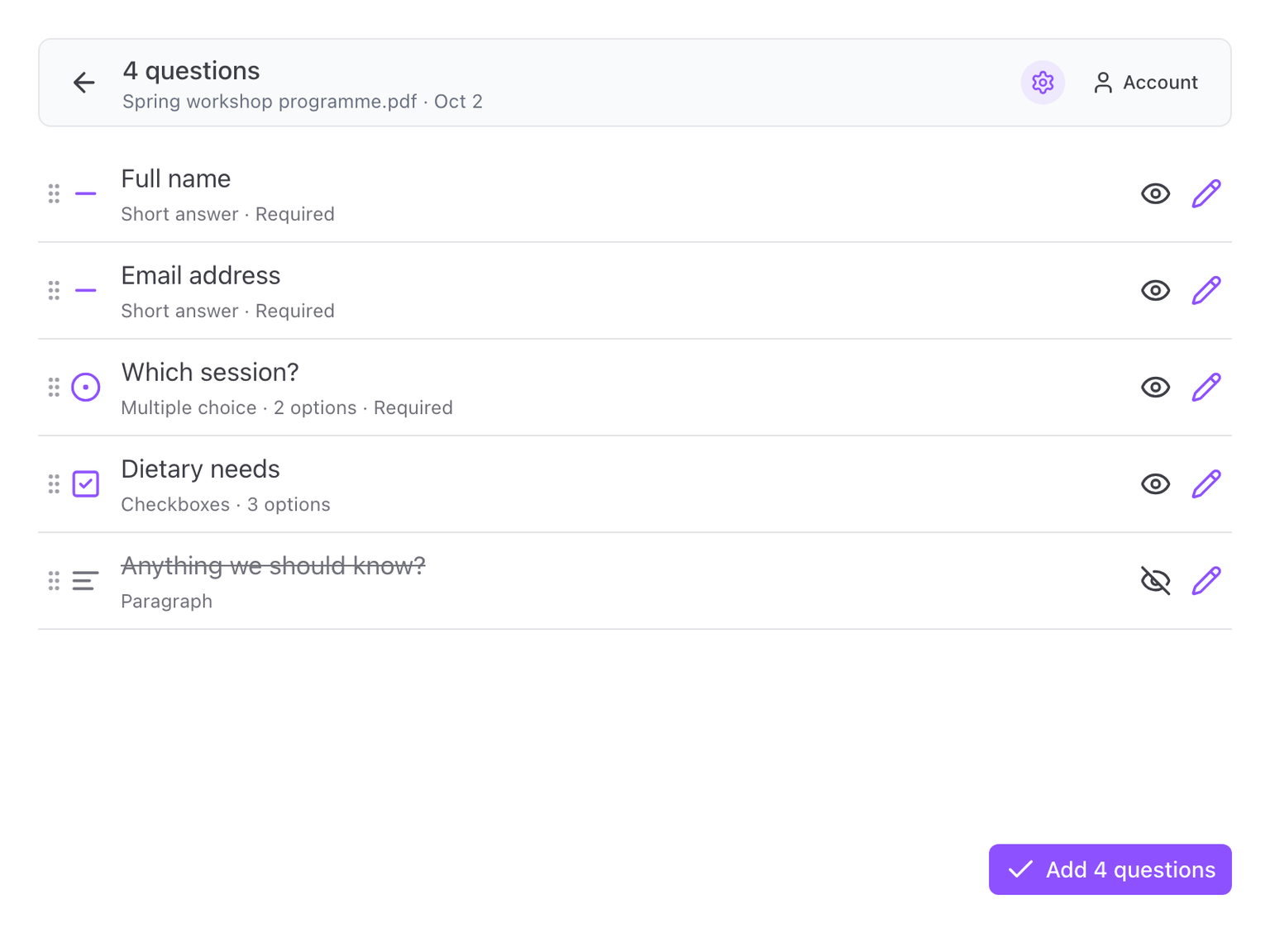
After a read, the questions found are listed, one row each. The row shows the question, its type, how many options it has and whether it is required. Nothing is on your form yet.
Reorder
Drag a row by the handle on its left to move it. The questions are added to your form in the order you see.
You can also open a question and use Move up and Move down.
Skip a question
Click the eye on a row to skip that question. It is struck through and is not added. Click the eye again to bring it back.
The button at the bottom counts only the questions that will be added.
Edit a question
Click the pencil on a row. In the Edit question dialog you can change:
- Question. The wording.
- Type. Short answer, paragraph, multiple choice, checkboxes, dropdown, linear scale, date, time or section.
- Options. For multiple choice, checkboxes and dropdown: change, add and remove options, and allow "Other".
- Description. The help text under the question.
- Required. Whether respondents must answer it.
Check the assumptions
Click the cog at the top right to open Options. Under Assumptions made the add-on lists what it had to guess, for example that a note after a line meant a required question, or which items of a copied form were skipped.
Your changes are kept
Edits are saved with the result as you make them. Go back to the results and open it again later, and the questions are as you left them.