
Sources
A source is what Form Builder reads the questions from. Click New in the dialog and choose one of three.
Paste text
Choose Paste text, paste into the box and click Read questions.
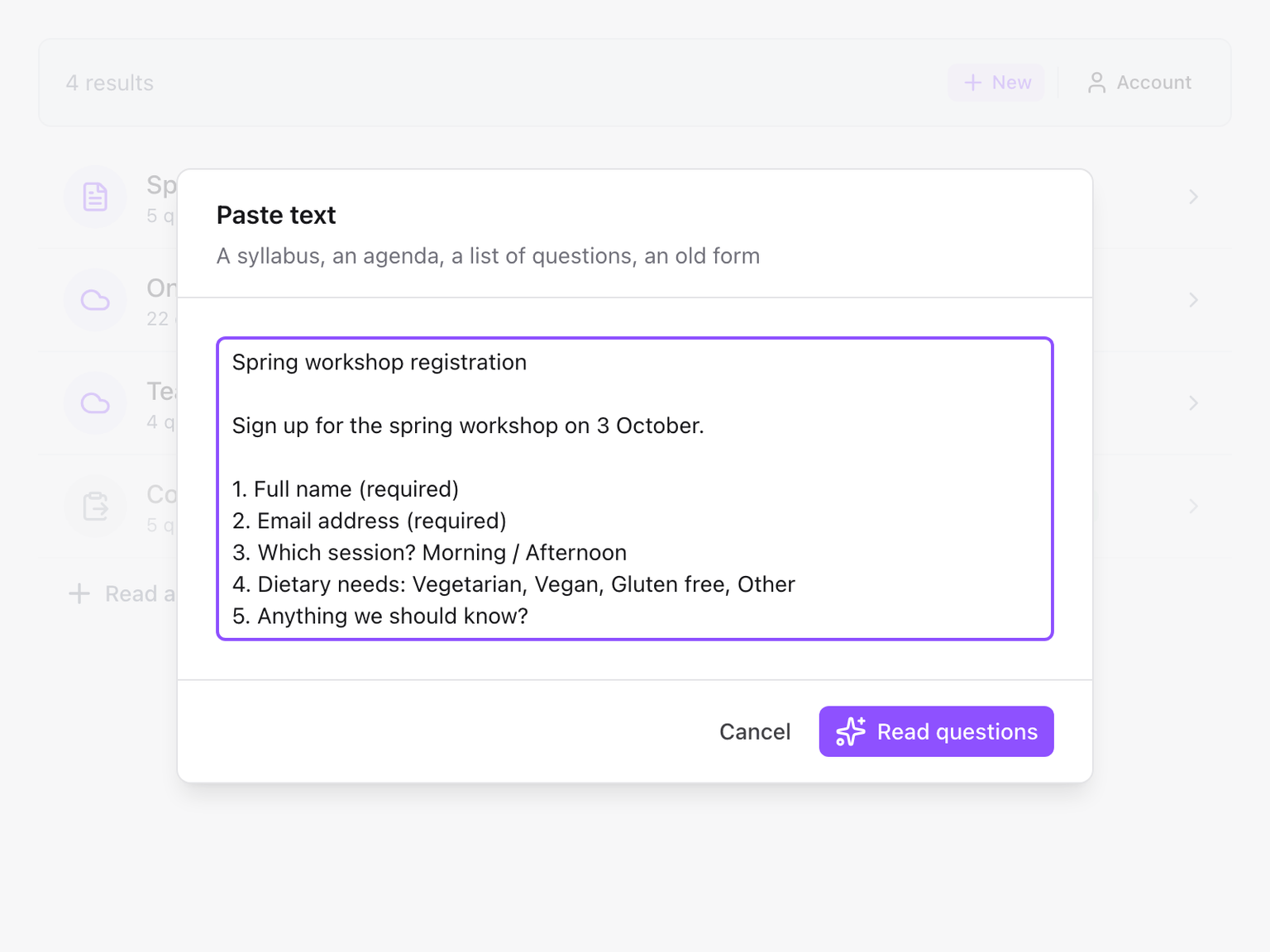
Anything with questions in it works: a numbered list, a syllabus, an agenda, a worksheet, the text of an old form. Options written on the same line ("Morning / Afternoon") or on the lines below are usually picked up, and a note such as "(required)" is read as a required question. You check all of it before anything is added.
Up to about 20,000 characters can be pasted at once. For a longer text, read it in parts.
Upload a file
Choose Upload, then drop a file on the dialog or click to choose one, and click Read questions.
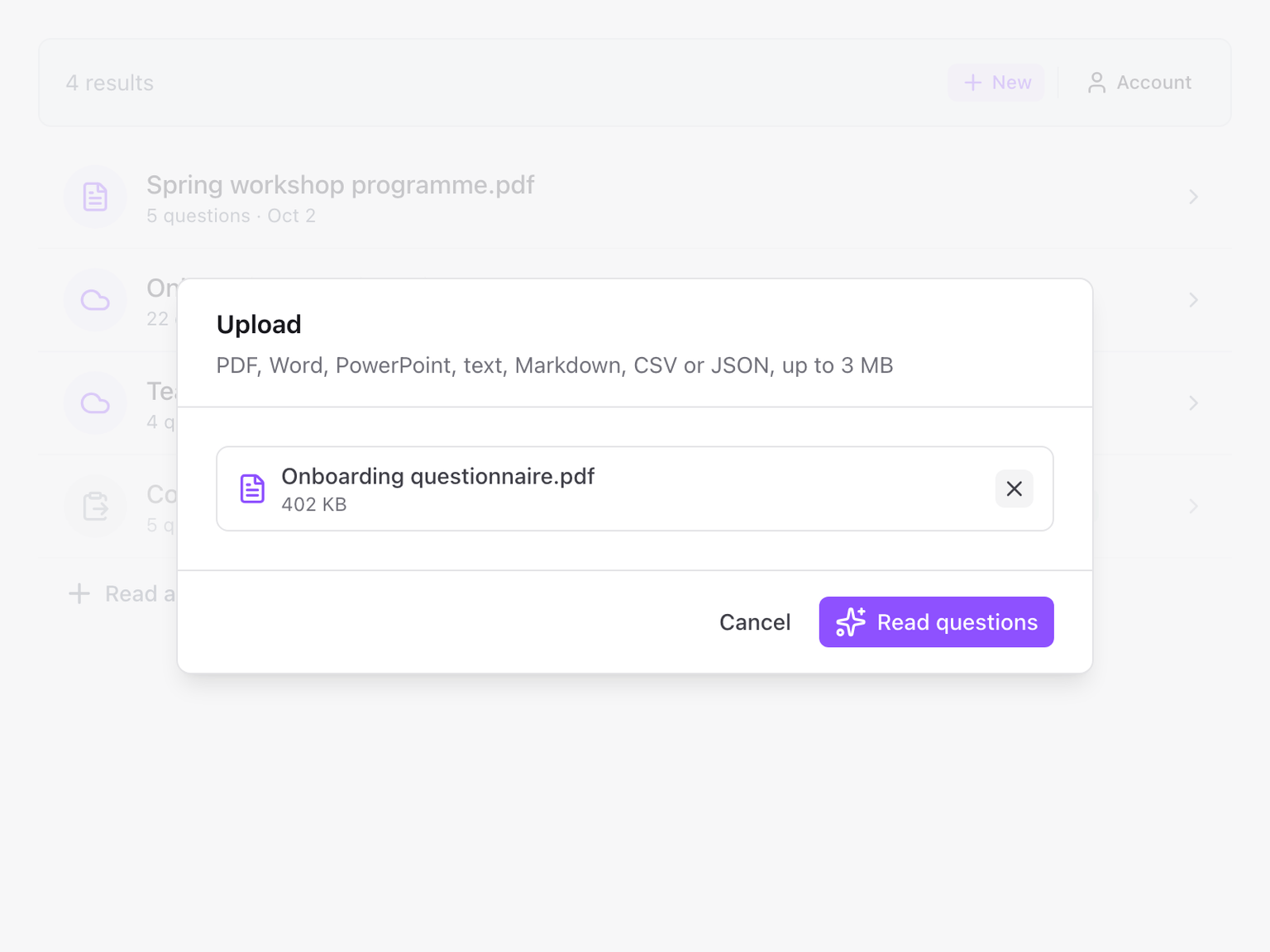
These file types work, up to 3 MB each:
- Word (.docx)
- PowerPoint (.pptx)
- Text, Markdown, CSV and JSON
- Images: PNG, JPG, WebP and HEIC (a photo or screenshot of a paper form, worksheet or quiz)
A scanned PDF, one that is images of pages with no selectable text, is read from its first 20 pages. See Limits.
Pick from Google Drive
Choose Google Drive. Google's file picker opens. Pick a file and the read starts straight away.
You can pick:
- A Google Doc, Sheet or Slides deck
- A PDF, Word or PowerPoint file, or a text file
- An image: PNG, JPG, WebP or HEIC
- Another Google Form. See Copy another Google Form
Only the file you pick is shared with the add-on. It cannot list or open anything else in your Drive.
If nothing was read
The dialog says why. The most common reasons:
- No questions were found in that text. The source has no lines that read as questions. Add them, or paste the part that has them.
- That file could not be read. Export it as PDF, or paste its text instead.
- That file is too large. Files up to 3 MB work. Split it, or paste the relevant pages as text. For a photo, a screenshot of it is usually small enough.