
Getting Started
Form Quiz turns a lesson, a file or a photo into a keyed quiz on your Google Form, and grades the typed answers as they come in. This guide takes you from install to your first graded answer.
Installation
- Find Form Quiz in the Google Workspace Marketplace
- Click Install and follow the prompts
- Grant the permissions it asks for
Open the sidebar
- Open the Google Form you want to turn into a quiz. A new, empty form works, and so does one that already has questions
- Click the Add-ons (puzzle piece) icon, then Form Quiz, then Open
The sidebar shows the Grading status of this form and a Make a quiz button.
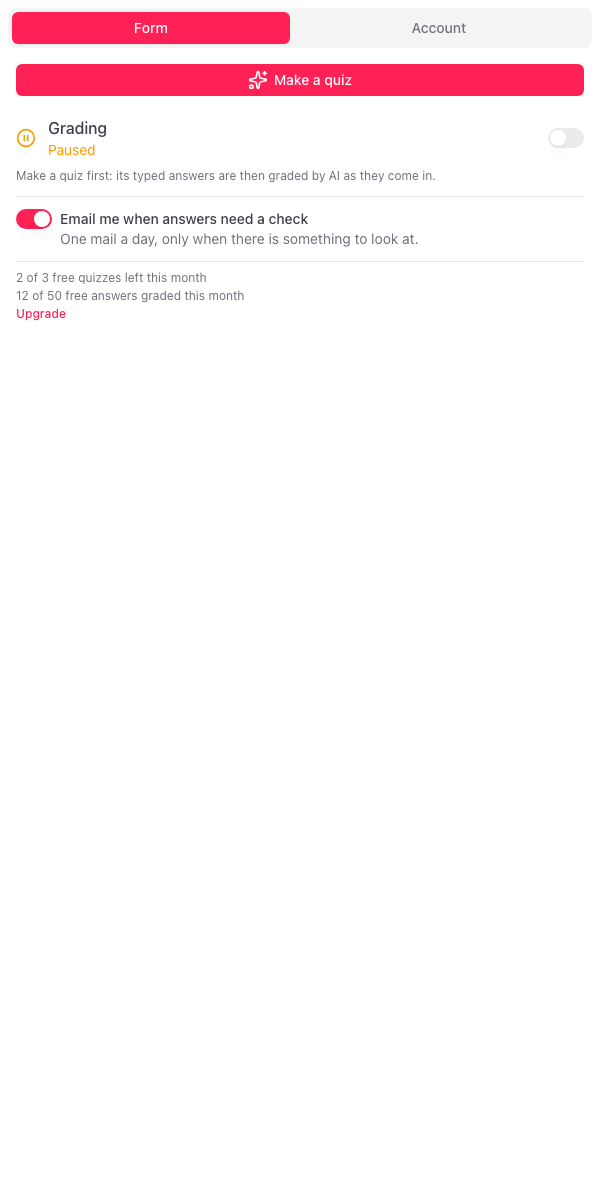
Make your first quiz
- Click Make a quiz in the sidebar. A dialog opens
- Choose Paste text and paste a lesson, your notes or questions you already have
- Click Make the quiz
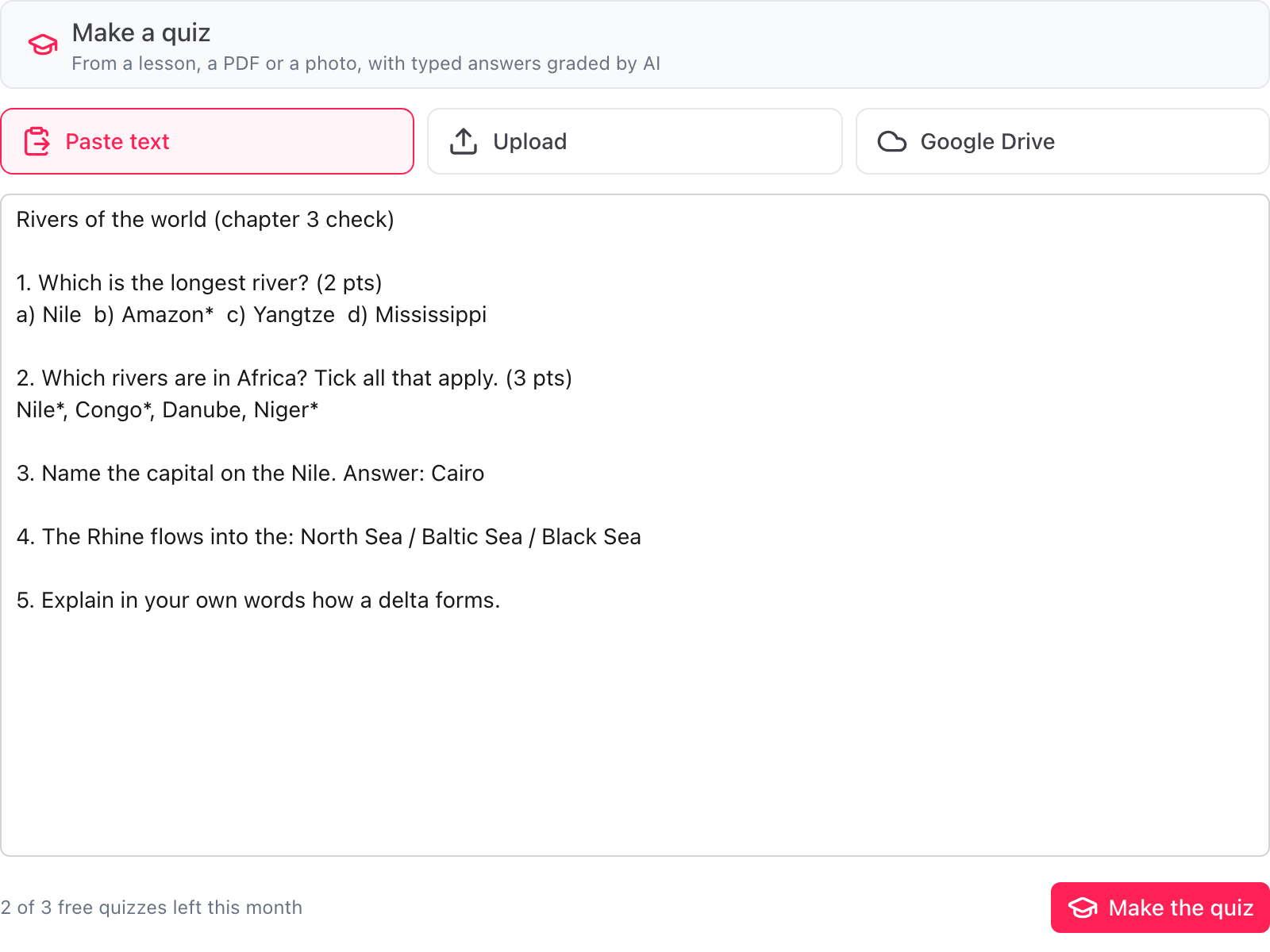
It usually takes under 20 seconds. To start from a file or a photo instead, choose Upload or Google Drive. See Make a quiz.
Each quiz uses one of your 3 free quizzes a month, unless you have a paid plan. See Limits.
Check the answer key
The questions are listed with their type, points and key. Click the pencil on a row to change the correct answer, the points or the model answer.
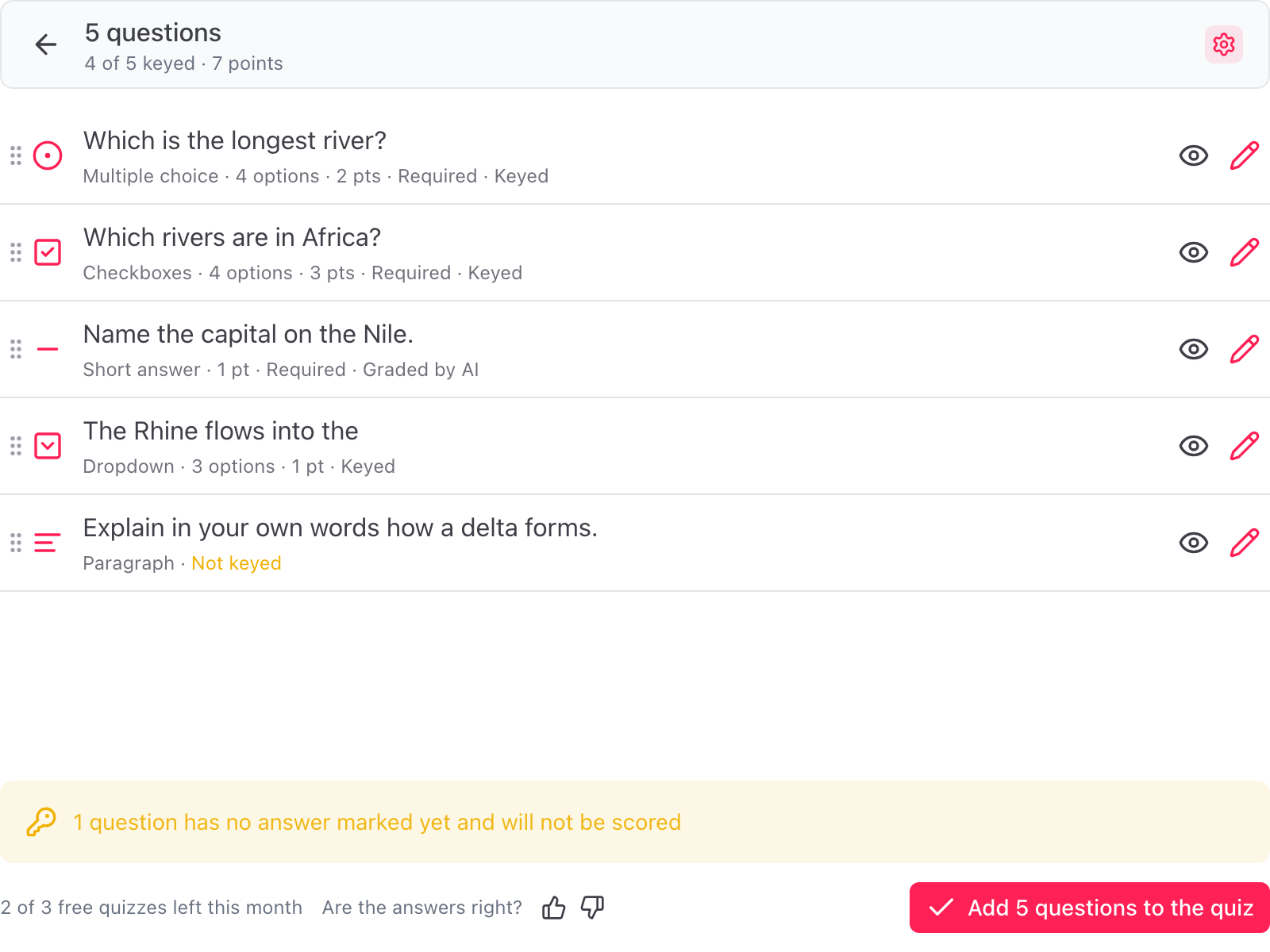
See Check the answer key.
Add it to the form
Click Add 5 questions to the quiz at the bottom right. The button shows how many will be added. The questions are written into your Google Form, quiz mode is turned on, and the dialog shows Quiz ready.
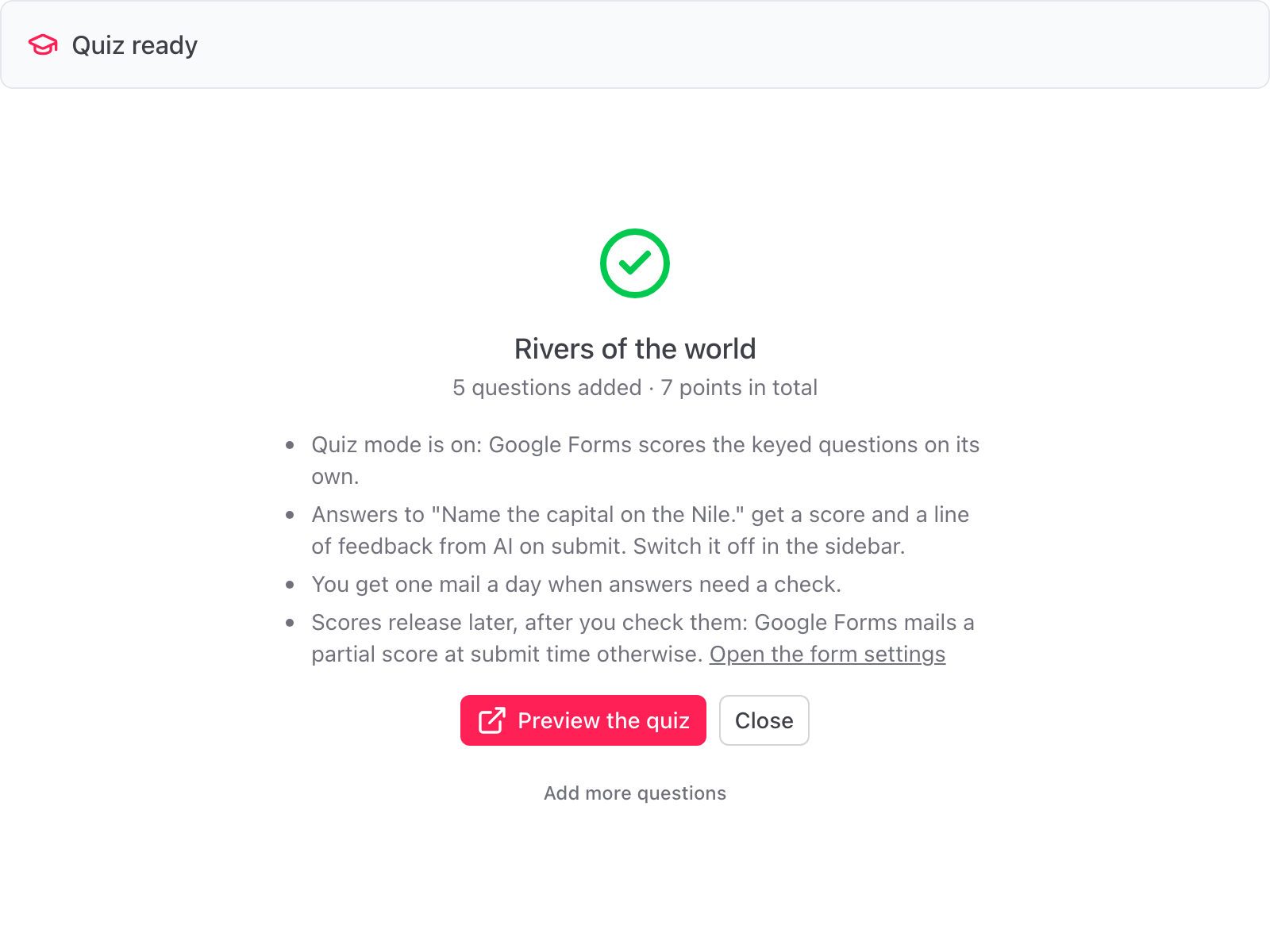
Typed answers are graded
When the quiz has short answer or paragraph questions with a model answer, grading is switched on for the form. Each typed answer that comes in gets a score and a line of feedback. See AI grading.
For a quiz with typed answers, set Release grades to Later, after manual review in the form's Settings, so students see their score after you have looked. See Check and release scores.