
Check the Answer Key
After the quiz is made, its questions are listed, one row each. Nothing is on your form yet.
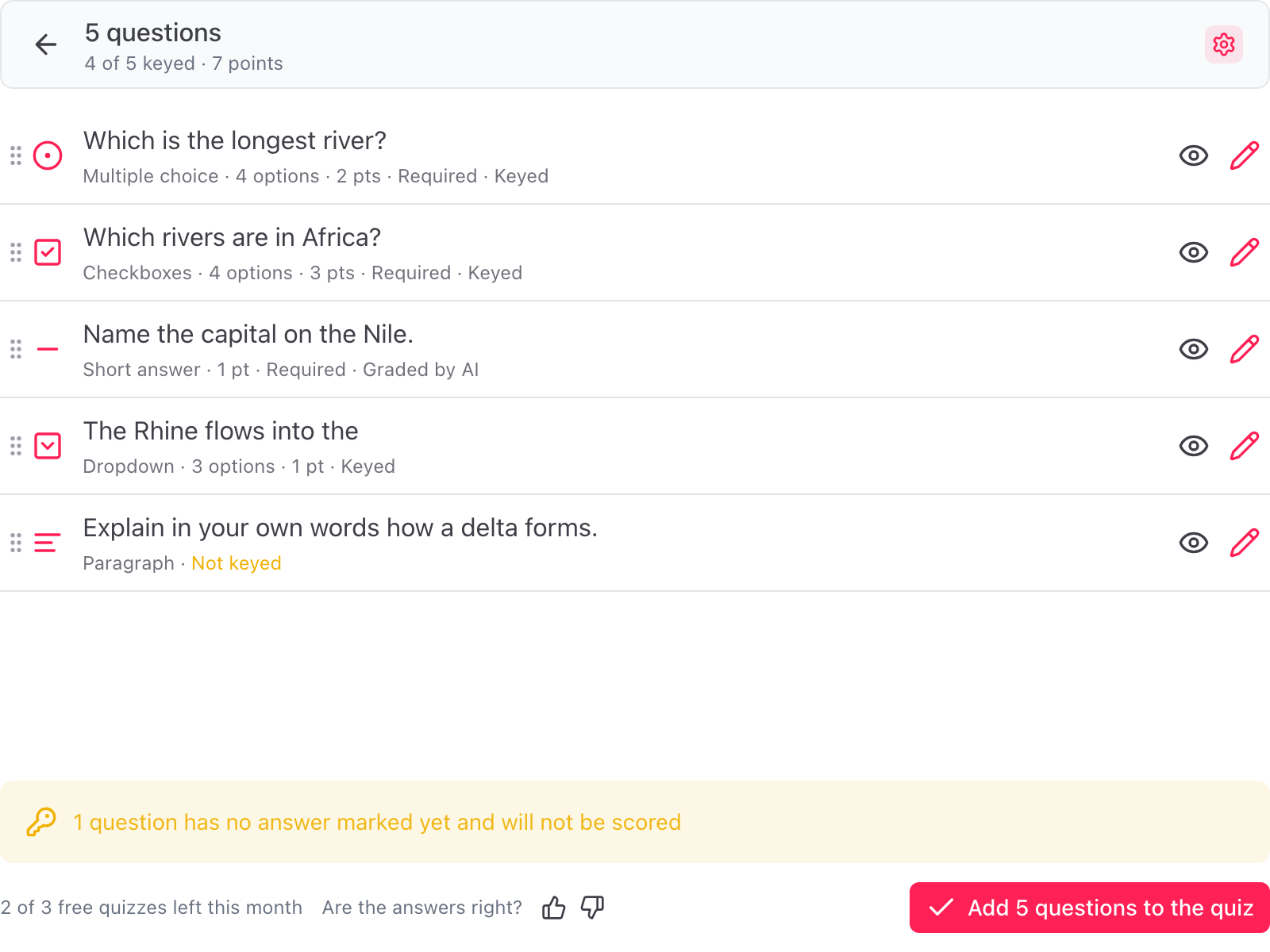
The header shows how many questions are keyed and the total points. Each row shows the question, its type, its points and its key:
- Keyed. The correct answer is set. Google Forms scores it.
- Graded by AI. A typed-answer question with a model answer. AI grading scores it.
- Not keyed. No answer is marked yet. The question is added but not scored.
- Not scored. A question type that has no score, such as a linear scale, a date or a section, or a question worth 0 points.
When questions have no answer marked, a line under the list says how many.
Edit a question
Click the pencil on a row. The Edit question dialog opens. Change the wording, the type and the description as you like, then click Save.
The key on a choice question
For multiple choice and dropdown, click the answer that is correct. For checkboxes, tick every answer that is correct.
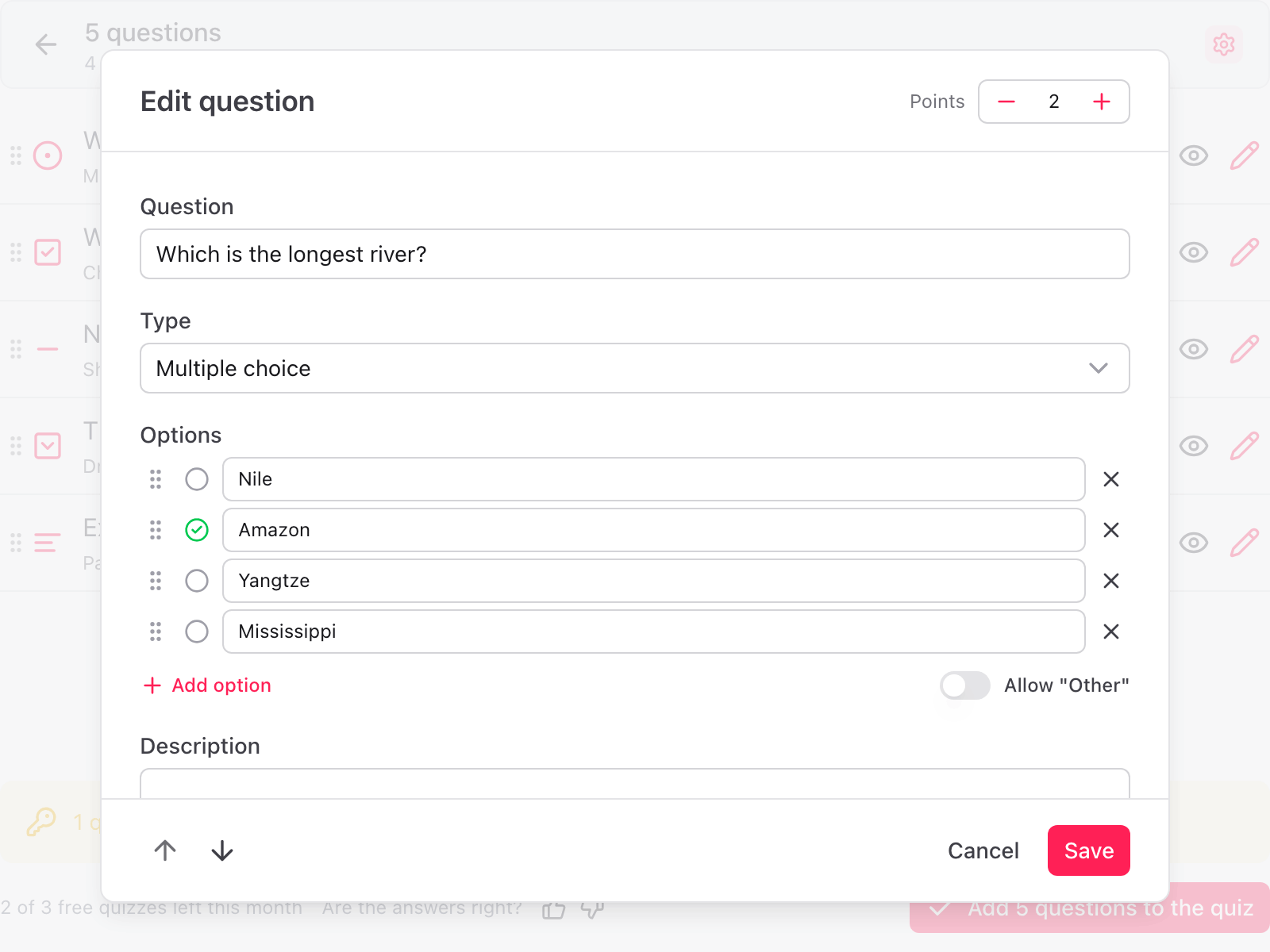
Points
Points sit in the header of the dialog, once the question has a key. Google Forms stores whole points only. A question worth more points lets the AI give partial credit on a typed answer.
The model answer on a typed question
Short answer and paragraph questions have a Model answer: what a full-marks answer contains, in a sentence or two. It is used to score answers. Students do not see it.
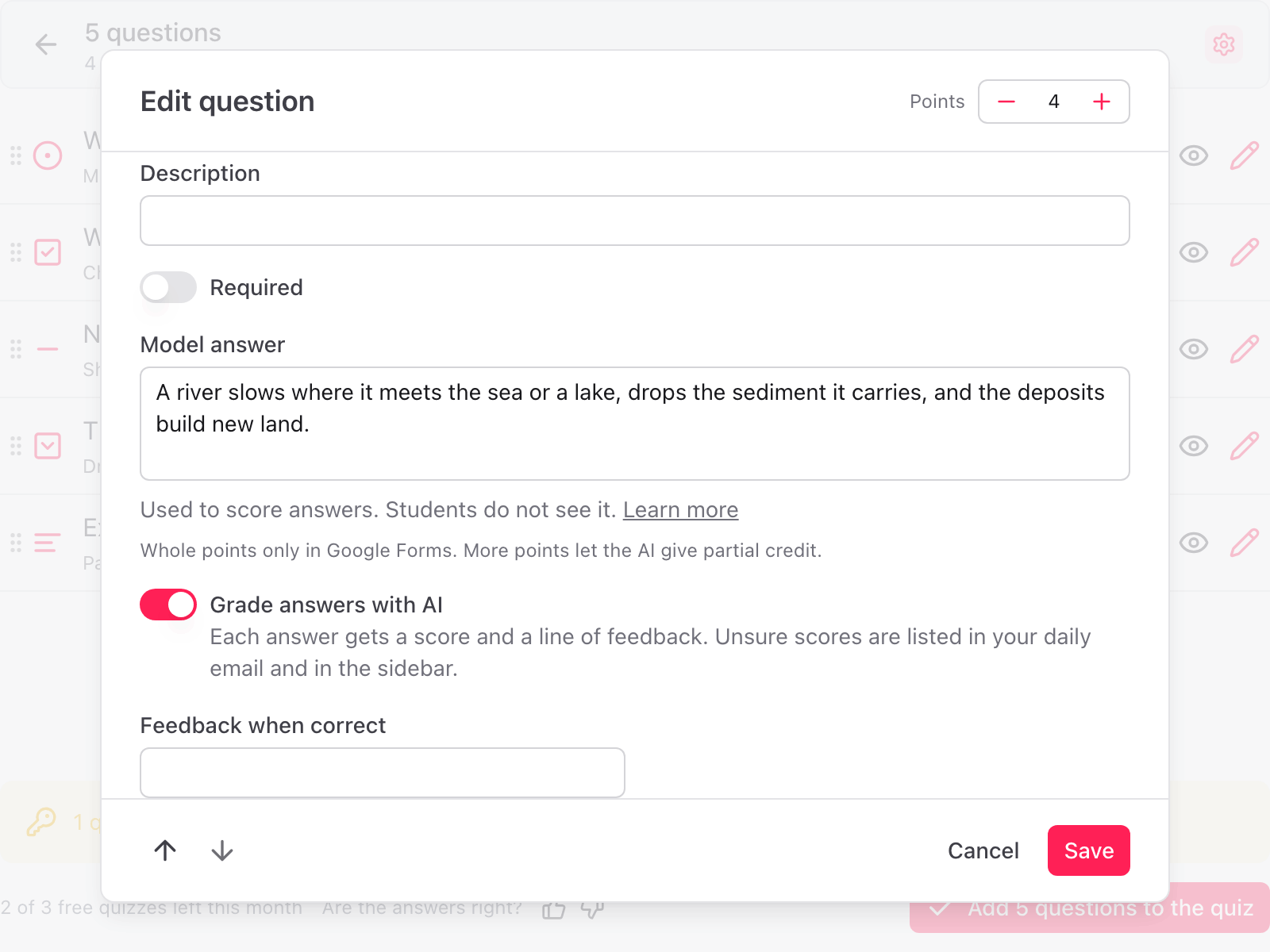
Below it, Grade answers with AI is on by default. Each answer then gets a score and a line of feedback, and unsure scores are listed in your daily email and in the sidebar. Turn it off and the model answer is written as the question's feedback instead, for you to score by hand in Google Forms. See AI grading.
Feedback
- Feedback when correct and Feedback when incorrect on a choice question are shown to students next to their answer when scores are released.
- Feedback when correct on a typed question is shown to every student on that question. Under AI grading each answer also gets its own line of feedback.
Reorder and skip
Drag a row by the handle on its left to move it, or use the arrows in the Edit question dialog. Click the eye on a row to skip that question. The button at the bottom counts only the questions that will be added.
Tell us if the answers are right
Next to the button, Are the answers right? takes a thumbs up or down. A thumbs down asks what was wrong. It helps us make the keys better.