
Make a Quiz
Click Make a quiz in the sidebar. The dialog opens with three sources: Paste text, Upload and Google Drive. Choose one, then click Make the quiz.
Paste text
Choose Paste text and paste into the box.
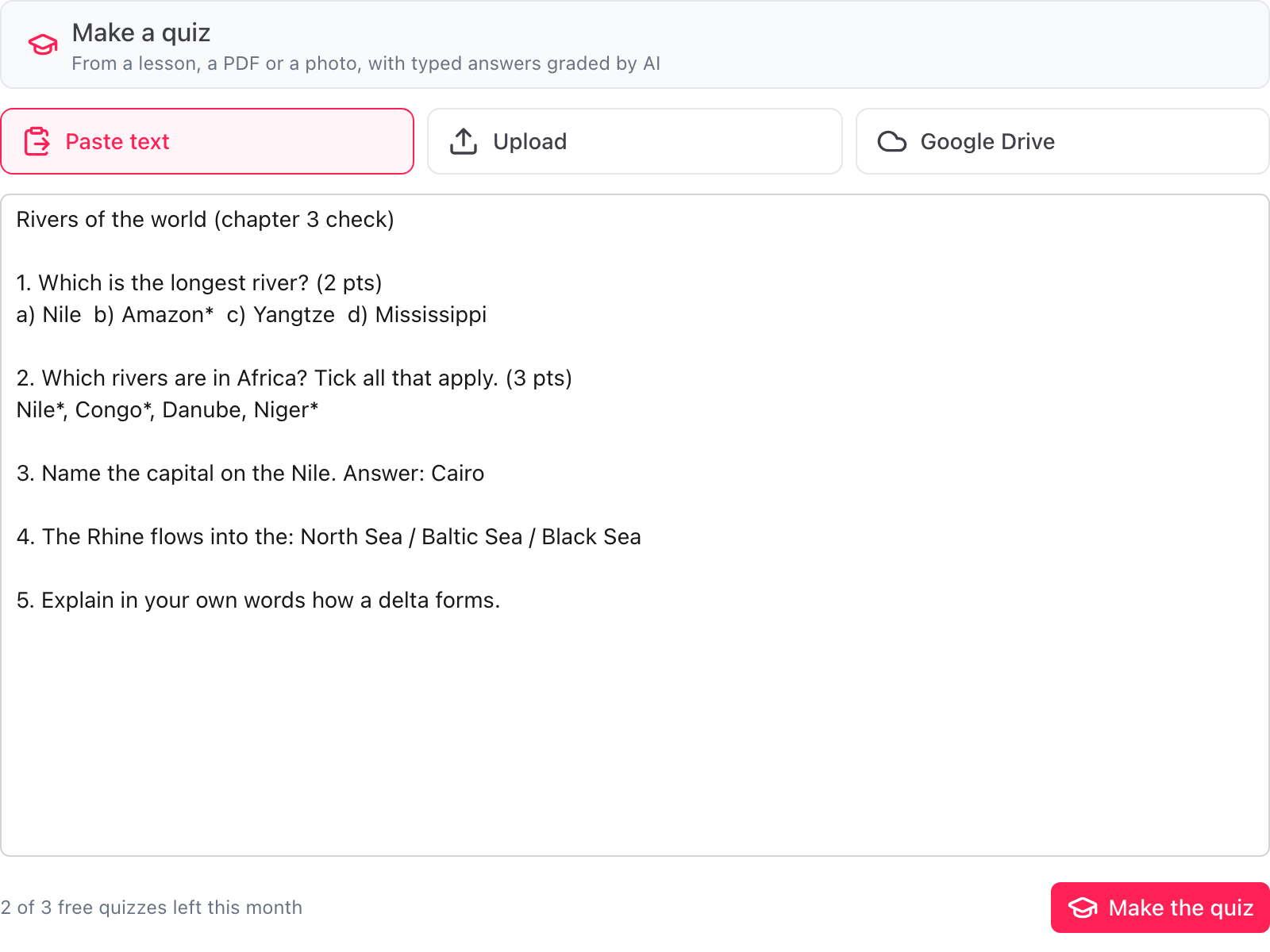
A lesson, your notes, a worksheet or questions you already have all work. Up to about 20,000 characters can be pasted at once.
Upload a file or a photo
Choose Upload, then drop a file on the dialog or click to choose one.
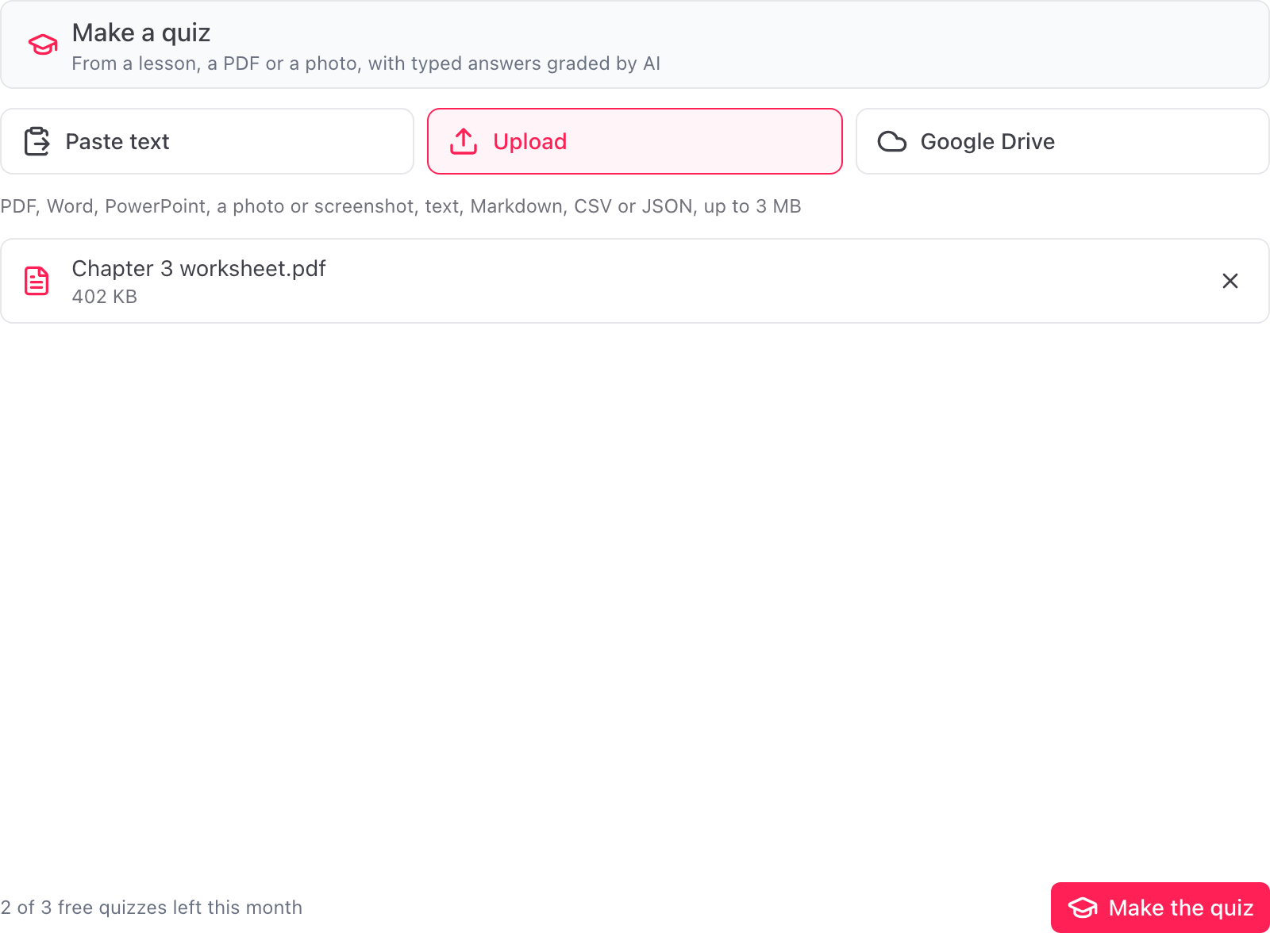
These file types work, up to 3 MB each:
- Word (.docx)
- PowerPoint (.pptx)
- Text, Markdown, CSV and JSON
- Images: PNG, JPG, WebP and HEIC (a photo or screenshot of a printed test or worksheet)
A sharp, well-lit photo taken straight on reads best.
Pick from Google Drive
Choose Google Drive, then Choose from Google Drive. Google's file picker opens.
You can pick:
- A Google Doc, Sheet or Slides deck
- A PDF or a photo
- A Google Form you want to key. Its questions are copied as they are, without a key, for you to key in the list. This never uses a quiz
Only the file you pick is shared with the add-on. It cannot list or open anything else in your Drive.
While the quiz is made
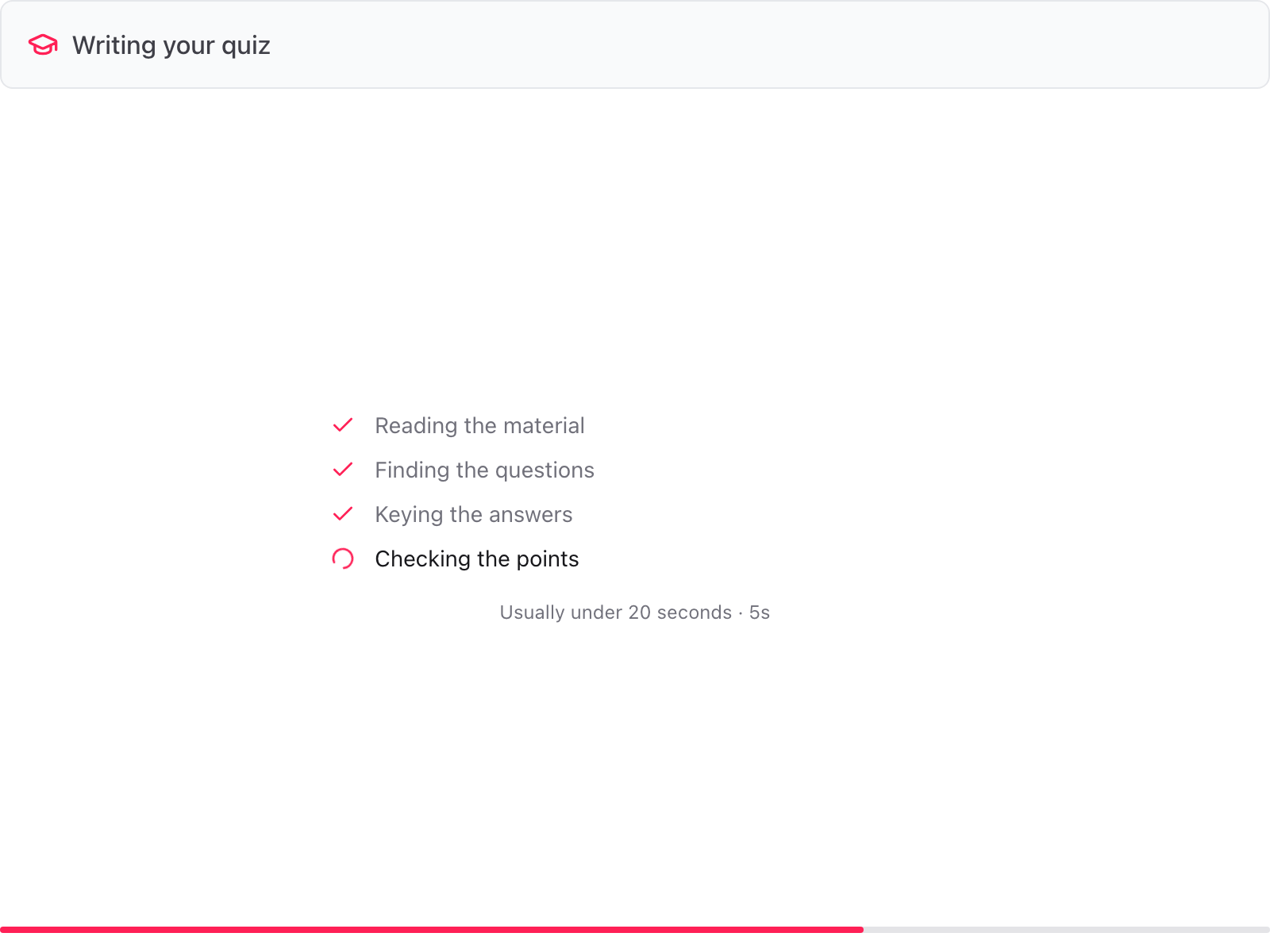
The dialog shows each step: reading the material, finding the questions, keying the answers and checking the points. It usually takes under 20 seconds.
What counts as a quiz
Each successful read is one quiz: a pasted text, an uploaded file or photo, or a Drive file turned into keyed questions. A read that fails or finds no questions does not count, and keying a Google Form you already have never does. See Limits.
Where the key comes from
- The material carries the answers. An answer block at the end, an "Answer: B" line, a starred or ticked option. Those are used, and the mark is taken out of the option text.
- It does not. A correct answer is proposed from the material, or from general knowledge when the text does not settle it. Each such question is named under Options, in Assumptions made.
- Points. Marks such as "(2 pts)" in the text are followed. Otherwise each question gets a point value for you to change.
- Typed answers. Short answer and paragraph questions get a model answer: what a full-marks answer contains. AI grading scores against it.
Check every key before you add the quiz. See Check the answer key.
If no quiz was made
The dialog says why. The most common reasons:
- No quiz questions could be made from that material. Paste the part that holds the lesson or the questions.
- That file could not be read. Export it as PDF, or paste its text instead.
- That file is too large. Files up to 3 MB work. For a photo, a screenshot of it is usually small enough.
- That text is too long. Paste up to about 20,000 characters.