
Add the Quiz to Your Form
When the key looks right, click the button at the bottom right. It reads Add 5 questions to the quiz, with the number that will be added. The questions, their keys, points and feedback are written into the Google Form you have open.
Adding many questions can take a couple of minutes. Keep the dialog open while it says so.
Options
Click the cog at the top right to open Options. Set these before you click the button.
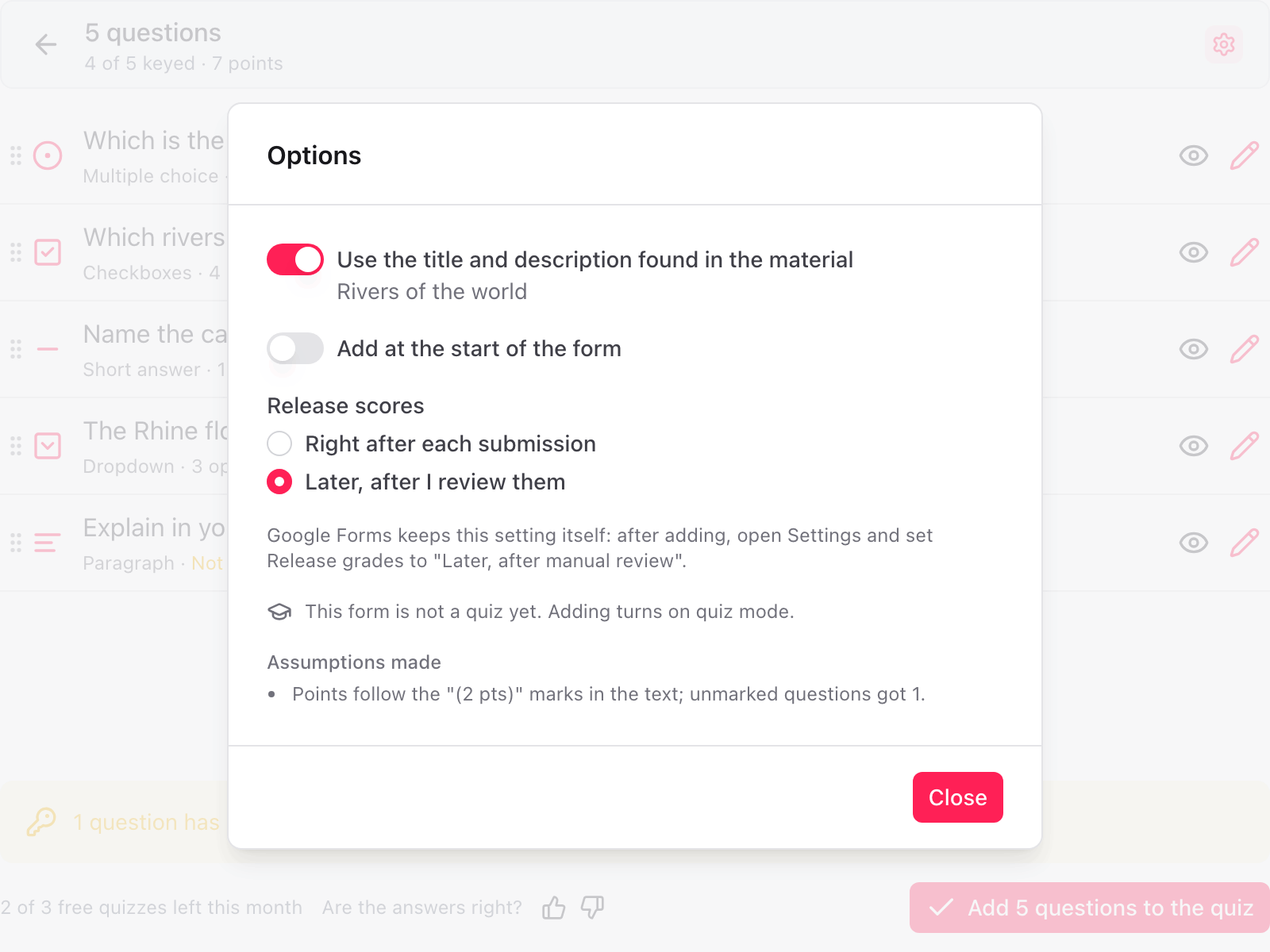
- Use the title and description found in the material. When on, the form takes the title and description of your material.
- Add at the start of the form. When off, new questions go after the ones already on the form. Turn it on to put them before.
- Release scores. Right after each submission or Later, after I review them. Google Forms keeps this setting itself, so the add-on cannot set it for you. When you choose later, open the form's Settings after adding and set Release grades to Later, after manual review.
Under Assumptions made the add-on lists what it had to guess, for example where the points came from or which keys it proposed.
Quiz mode
A form that is not a quiz yet is switched to quiz mode when you add, and Options says so. A form that is already a quiz keeps its mode and its existing points.
Google Forms then scores the keyed multiple choice, checkbox and dropdown questions on its own. Typed answers are scored by AI grading.
Quiz ready
When the questions are added, the dialog shows Quiz ready with the number of questions and the total points.
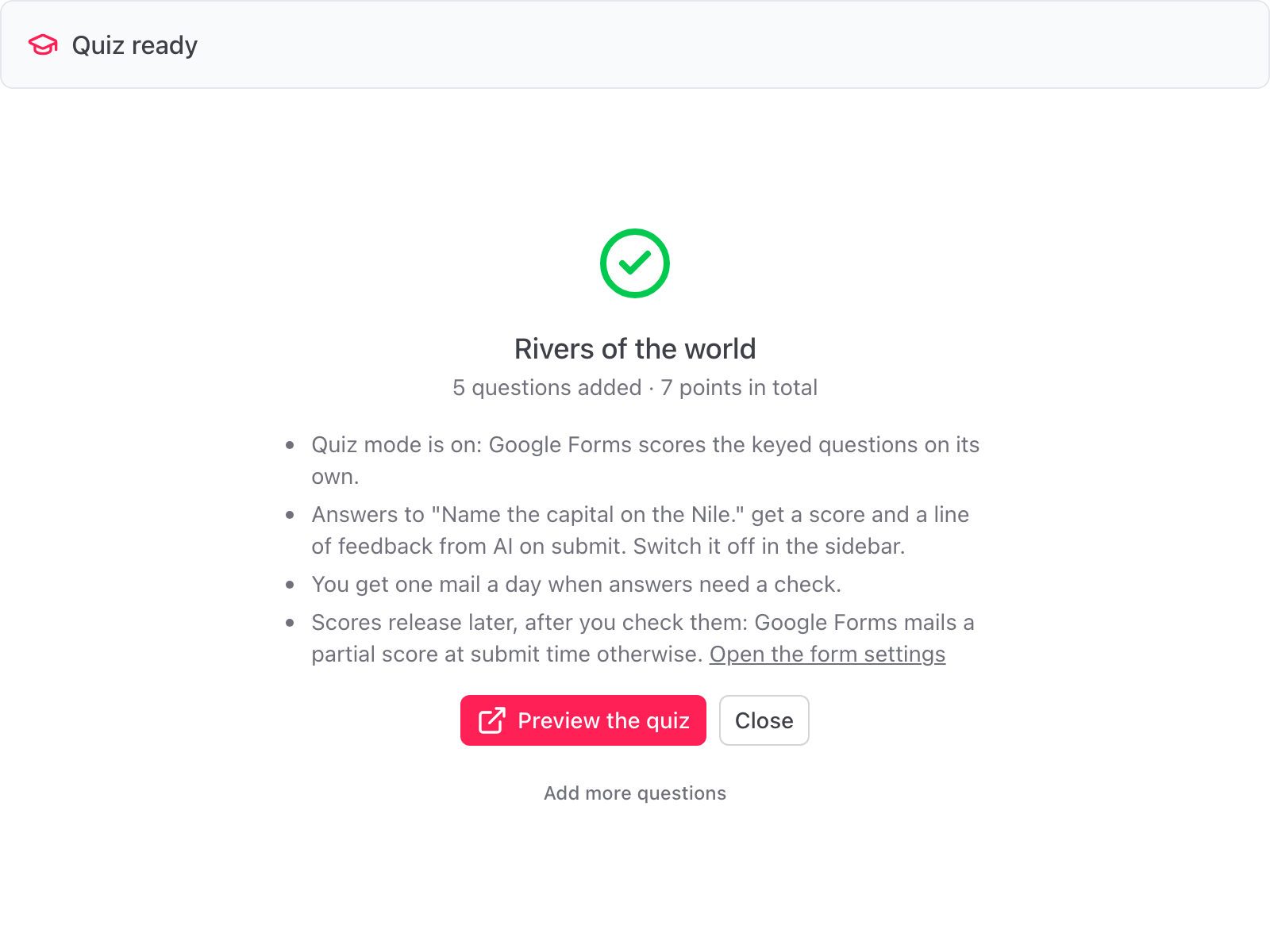
The list under it says what happens next:
- Quiz mode is on.
- Which typed-answer questions get a score and a line of feedback from AI on submit. Grading is switched on in the sidebar the first time you add such a question.
- Whether you get a daily email when answers need a check.
- That scores should be released later, after you check them, with a link to the form's Settings.
Click Preview the quiz to open it as a respondent, Close to go back to the form, or Add more questions to make another quiz on the same form.
If the questions could not be added
The dialog shows Google's own message. Nothing is left half done: the questions written so far are removed and quiz mode is switched back. Try again in a minute.