
AI Grading
Google Forms scores multiple choice, checkboxes and dropdowns on its own, but it cannot score a typed answer. Form Quiz does that first pass. Each short answer and paragraph question with a model answer and Grade answers with AI on is graded as responses come in.
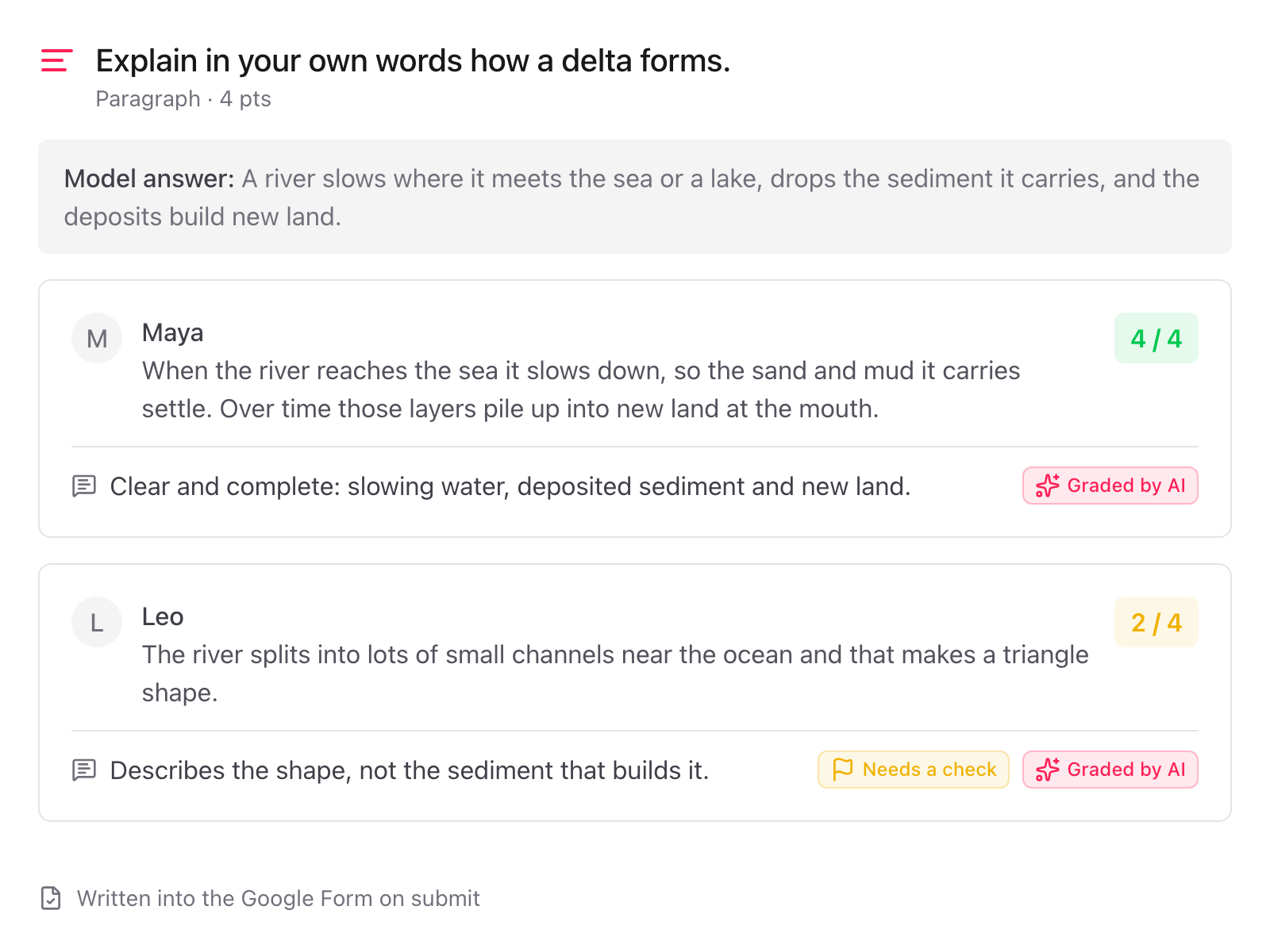
The picture above is an illustration of what a graded answer carries. In Google Forms you see the score and the feedback on each response.
How it works on submit
- A student submits the quiz.
- Each typed answer to an AI-graded question is sent with its question, the model answer and the points.
- The AI scores the answer against the model answer and writes one line of feedback.
- The score and the feedback are written into that response in Google Forms, next to the answer.
An empty answer is skipped. No answer is ever graded twice, so a score you change by hand is never overwritten.
Whole points and partial credit
Scores are whole points between 0 and the question's points, because Google Forms stores whole points only.
- Full points when the answer covers the model answer in substance, whatever the wording.
- Partial credit for a partly right answer.
- 0 for a wrong, empty or off-topic answer.
A 1-point question scores 0 or 1. Give a question more points, for example 4, to leave room for partial credit.
Feedback in the student's language
The feedback is written to the student, in the language their answer is written in, in at most 240 characters. Students see it with their score once you release scores, in the same place Google Forms shows any feedback. The model answer itself is never shown.
Sure and unsure
With each score the AI says whether it is sure. It is unsure when the answer is partly right, arguable, off-topic but possibly right, in another language than the question, or looks like an attempt to instruct the grader.
An unsure score is still written, and the feedback carries no flag: students read it as it is. The answer is listed for you in the sidebar and in the daily email instead. See Check and release scores.
What the AI sees and what is stored
- Sent: the question, the model answer, the points and the typed answer.
- Not sent: the student's name or email, and the rest of the response.
- Not stored on our side: the answer text and the feedback. They live in your Google Form.
Nothing is used to train AI models. Details are in the privacy policy.
Turn grading on and off
Grading is switched on or off per form with the Grading switch in the sidebar. It is switched on for you the first time you add a quiz with AI-graded questions.
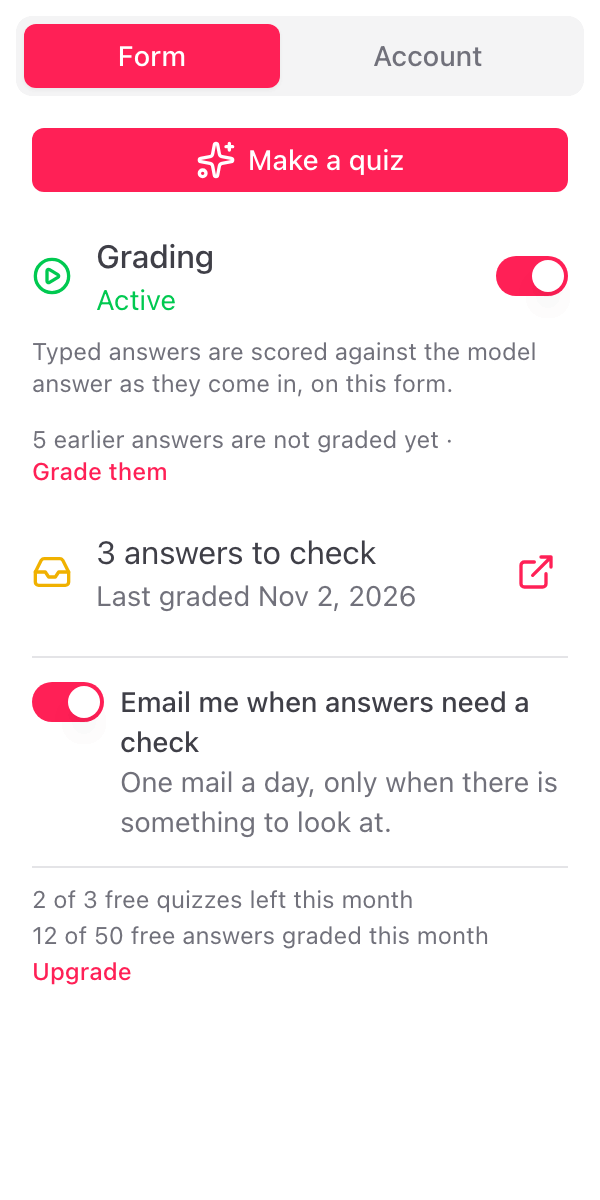
- Active. Typed answers are scored as they come in.
- Paused. Nothing is graded. Answers that come in while grading is paused can be graded later.
Before the form has a quiz with AI-graded questions, the switch stays off and the sidebar says to make a quiz first.
To leave out one question, open it in the Edit question dialog before you add the quiz and turn off Grade answers with AI.
Grade earlier answers
When responses came in before grading was on, or while it was paused, the sidebar shows a line such as 5 earlier answers are not graded yet · Grade them.
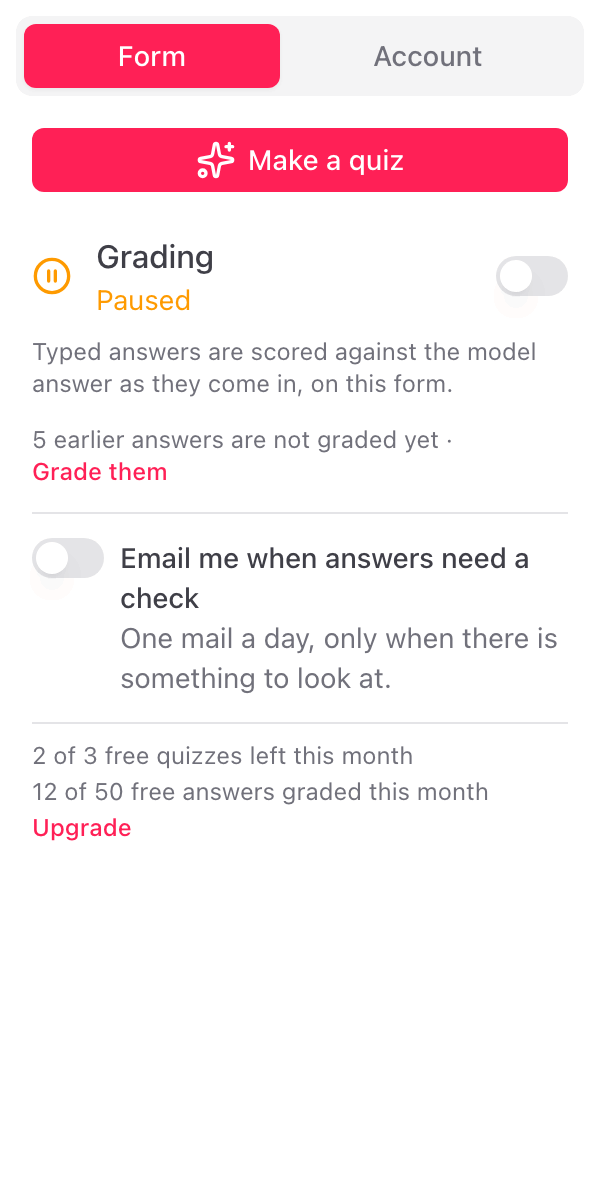
Click Grade them. The add-on goes through the responses and grades every answer not graded yet. When it is done, a message says how many were scored and how many are to check. Answers already graded are skipped.
Who grades
Grading runs under the Google account that switched it on. When a co-editor switches grading on, it runs under their account from then on.