
Getting Started
Slides Translator translates the text of a Google Slides deck with Gemini or Claude, in the deck you have open. This guide takes you from install to a translated presentation.
Installation
- Find Slides Translator in the Google Workspace Marketplace
- Click Install and follow the prompts
- Grant the permissions it asks for: your account email, the presentation you have it open in, the sidebar, and reaching skyfield.cloud. It asks for no access to Google Drive or to other presentations
Open the sidebar
- Open the presentation you want to translate in Google Slides
- Click Extensions, then Slides Translator, then Start
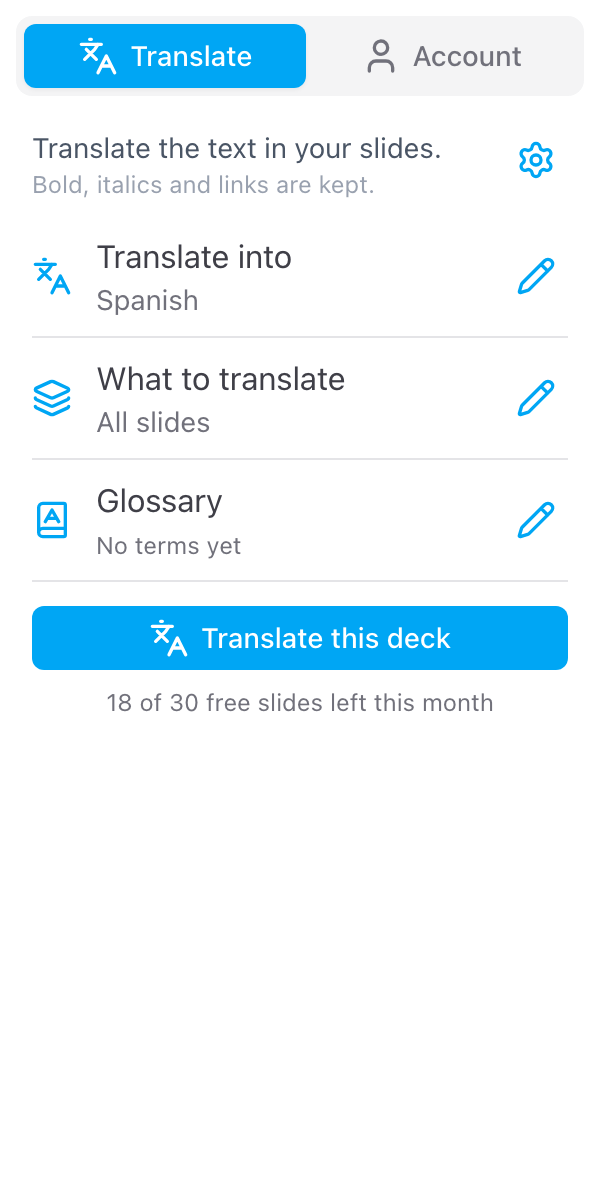
The sidebar opens on the Translate tab, next to your slides.
Keep the original, if you want to
The translation replaces the text in the deck you have open. To keep the original as it is, make a copy first and translate the copy: click the pencil on the What to translate row and then Keep the original? Make a copy first. Google's Copy document page for this deck opens in a new tab; make the copy and open Slides Translator there. See Keep the original.
Pick a language
Click the pencil on the Translate into row, choose a language from the list (type to search) and save. The languages you used last are at the top of the list, under Recent.
Check the slides
The What to translate row shows what will be translated. It starts on All slides. To translate only the slide you are on, or what you have selected, click the pencil on that row and pick Current slide or Selection. See Language and slides.
Translate
Click Translate this deck. A window asks you to confirm: the text is replaced, and File > Version history brings the original back. It has a Make a copy first link too, if you change your mind. Click Translate, and the window shows the steps as they happen:
- Read the deck
- Translate, with a count such as 2 of 5 on a long deck
- Write the translation
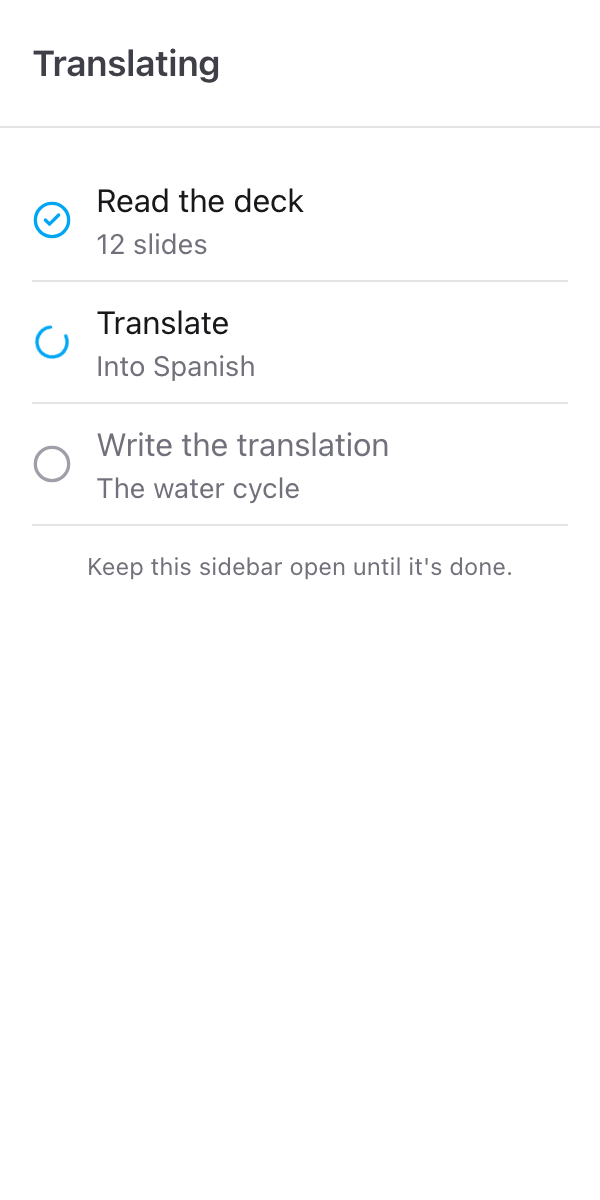
Keep the sidebar open until it is done. A small deck takes a few seconds; a long one can take a minute or more.
Look through the deck
When it is done, the same window says how many slides were translated, and into which language, with In this deck under it. The slides behind the sidebar now show the translation.
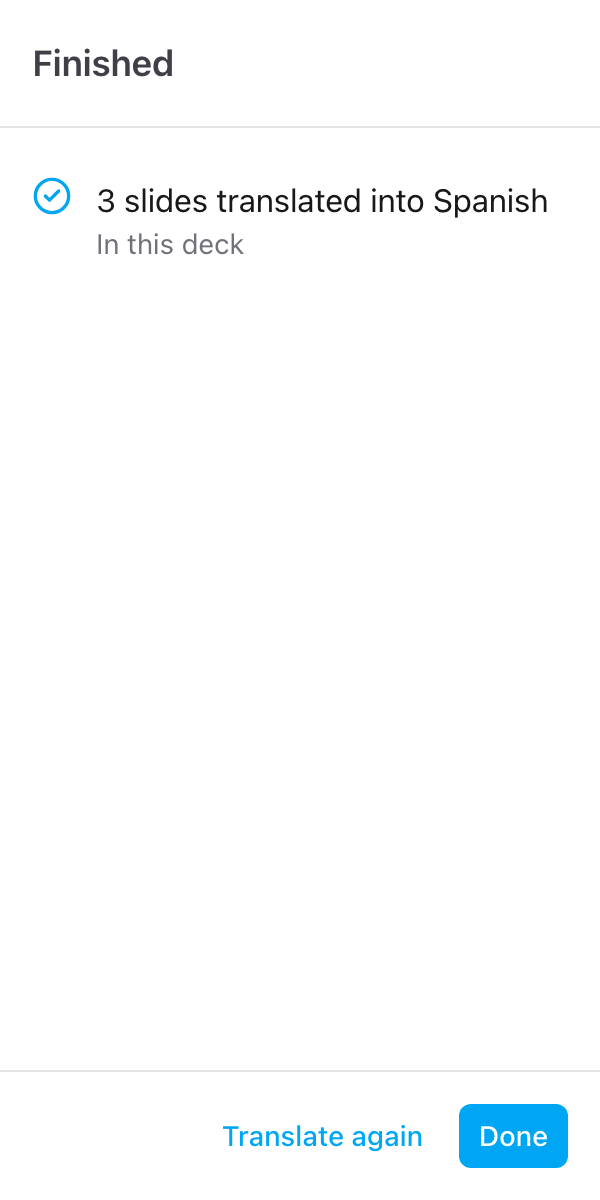
If a line needs a check, it is listed under the button. Click Done to go back to the sidebar, or Translate again to change the language or the slides. See Check the translation.
Each slide translated counts toward your 30 free slides a month, unless you have a paid plan. Slides without text do not count. See Free slides and limits.