
Check the Translation
While it runs
A window opens over the sidebar with three steps:
- Read the deck. The text of the slides you chose is read, with its formatting.
- Translate. Gemini or Claude translates it into your language. On a long deck the step counts the parts, for example 2 of 5.
- Write the translation. The translation is written into the deck, where the text was.
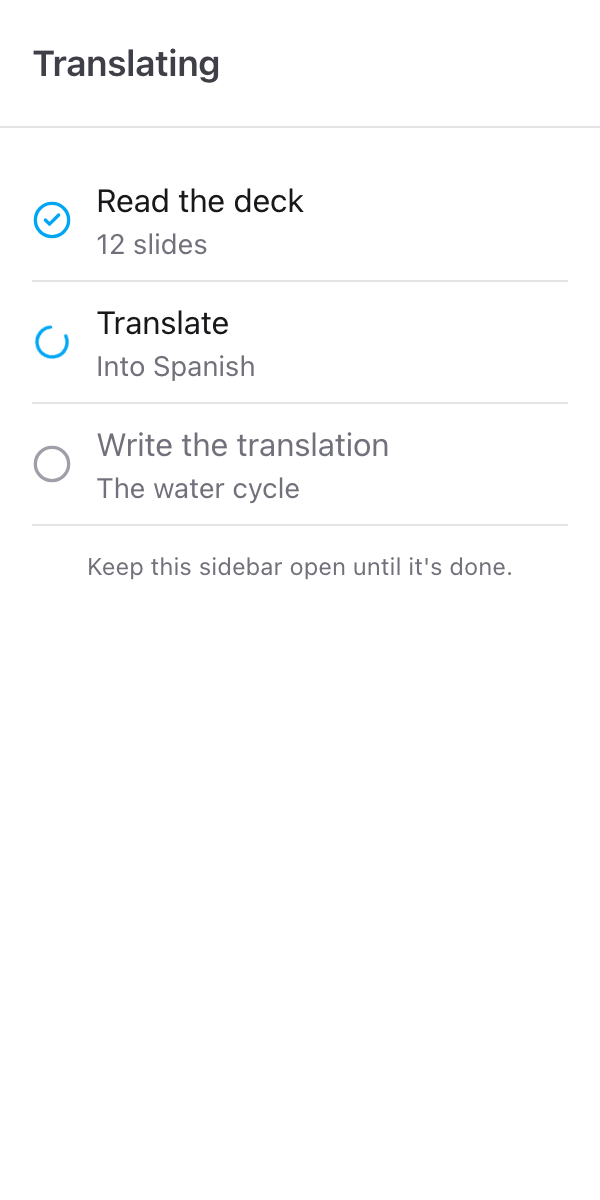
Keep the sidebar open until it is done. The window has no close button while it runs. Closing the sidebar, or the presentation, stops the run at the next step. Nothing is half-written: a run that stops before the last step has not changed anything.
When it is done
The same window says how many slides were translated and into which language, for example 12 slides translated into Spanish, with In this deck under it. The slides behind the sidebar show the translation.
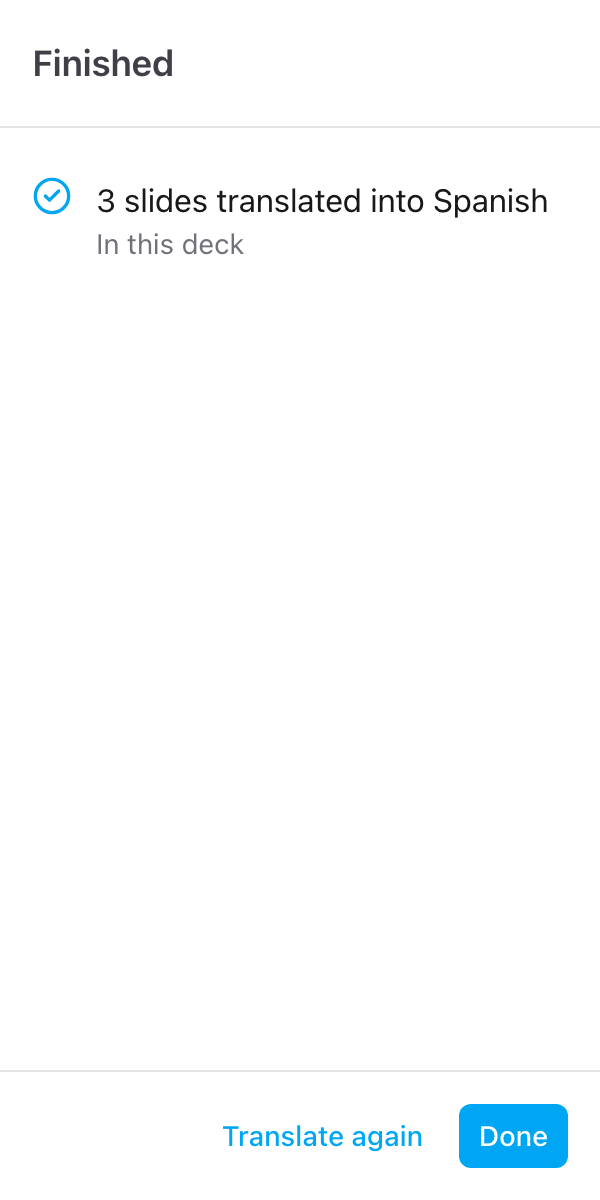
Click Done to go back to the sidebar, or Translate again to change the language or the slides and run it again. Your settings are kept.
Lines that need a check
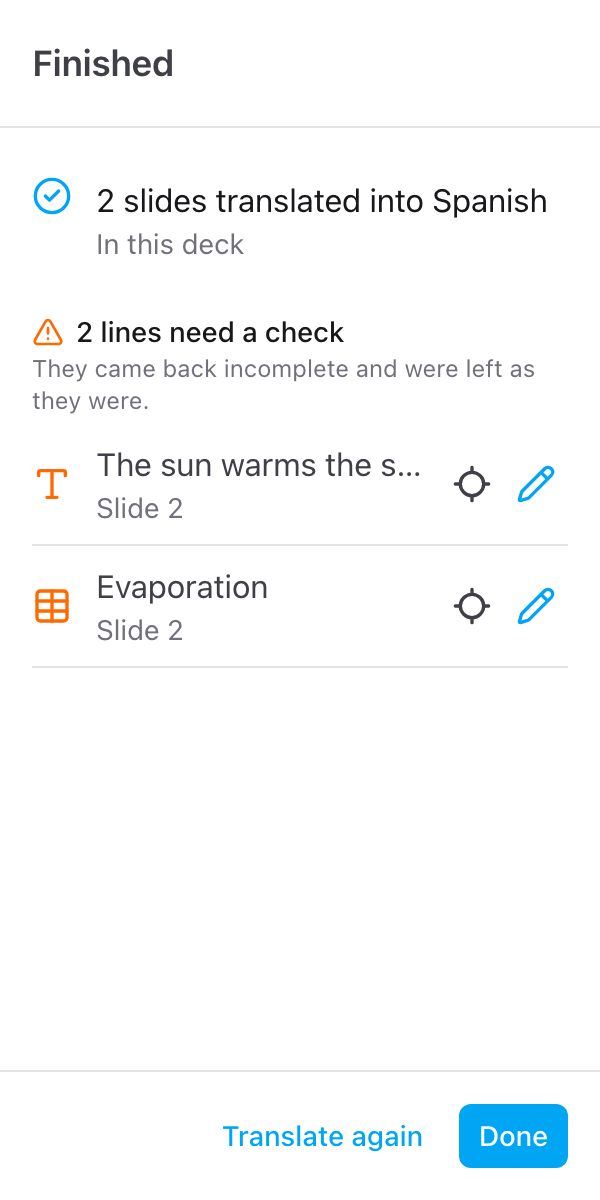
Now and then a line comes back from the translator incomplete. Rather than write half a sentence into your slides, Slides Translator leaves that line as it was and lists it under 1 line needs a check (or 2 lines need a check, and so on). Each row shows the original text and its slide number.
To fix one:
- Click the pencil on the row. Fix translation opens with the Original above and the Translation below
- Write or correct the translation
- Click Save
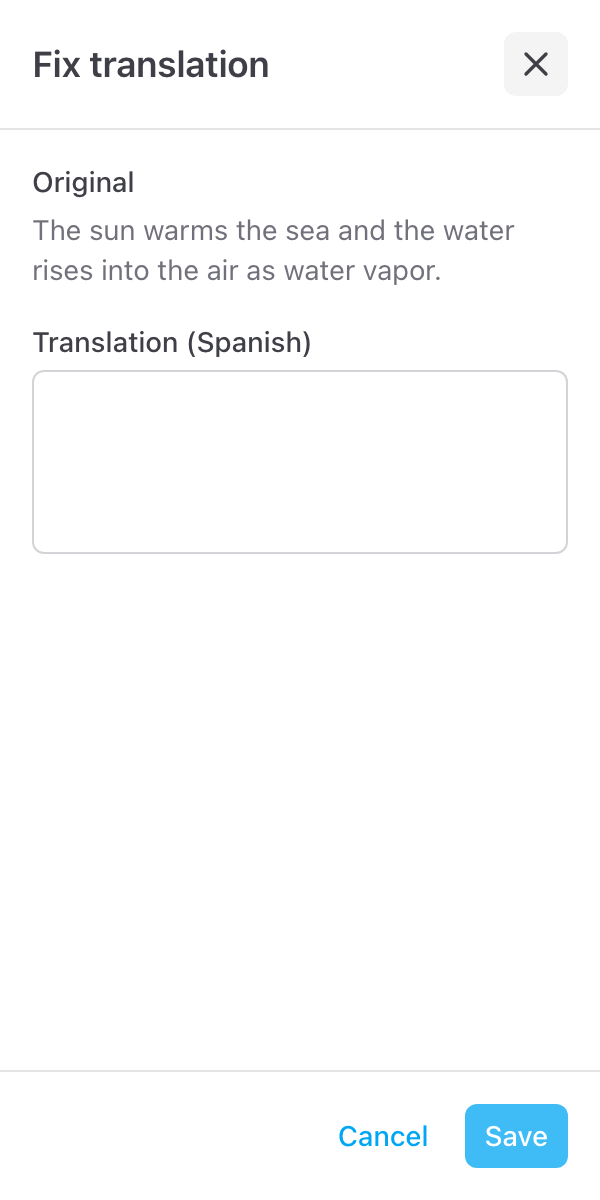
The line is written into the deck on its own. Fixing a line does not count toward your free slides.
To see the line in place first, click Go to slide on the row.
If the translation stopped
The window marks the step that failed in red and says why in plain words, with Try again and Close. Nothing is counted toward your free slides. Click Details to see the technical message, which helps when you email us. The most common reasons:
- Could not reach Skyfield. Check your connection and try again.
- No text was found on these slides. The slides you chose have no text the add-on can read, for example only images. Pick other slides.
- This is too much text for one go. Translate fewer slides at a time, for example half the deck, then the other half.
- The translator is busy right now. Try again in a minute.
- Your session expired. Close and reopen the sidebar, then try again.
- This text could not be translated. The model declined to translate this text. Try another language, or translate fewer slides to find the line it stops on.
- Could not write the translation into this deck. Google's own message is under Details. The usual cause is a deck you can no longer edit.
If the sidebar was closed
Closing the sidebar, or the presentation, stops the run at the next step. A run that stopped before Write the translation has changed nothing and counted nothing: open the sidebar again and translate again. If you closed it during that last step, the writing may have finished without you seeing it, so look through the deck before you run it again.
If the run does not fit this month
On the free plan, a run that needs more slides than you have left this month is refused as a whole, before anything is translated, and nothing is counted. The sidebar warns you first, under the button, with how many it needs and how many are left. If you press the button anyway, the window says Not enough free slides left this month, with Upgrade. Pick fewer slides, for example Current slide or a selection, or upgrade. See Free slides and limits.