
Keep the Original
Slides Translator writes the translation into the deck you have open: the text is replaced right where it is. It does not make a copy for you, and it never touches another presentation. If you want to keep the original as it is, make a copy first and translate the copy.
Make a copy first
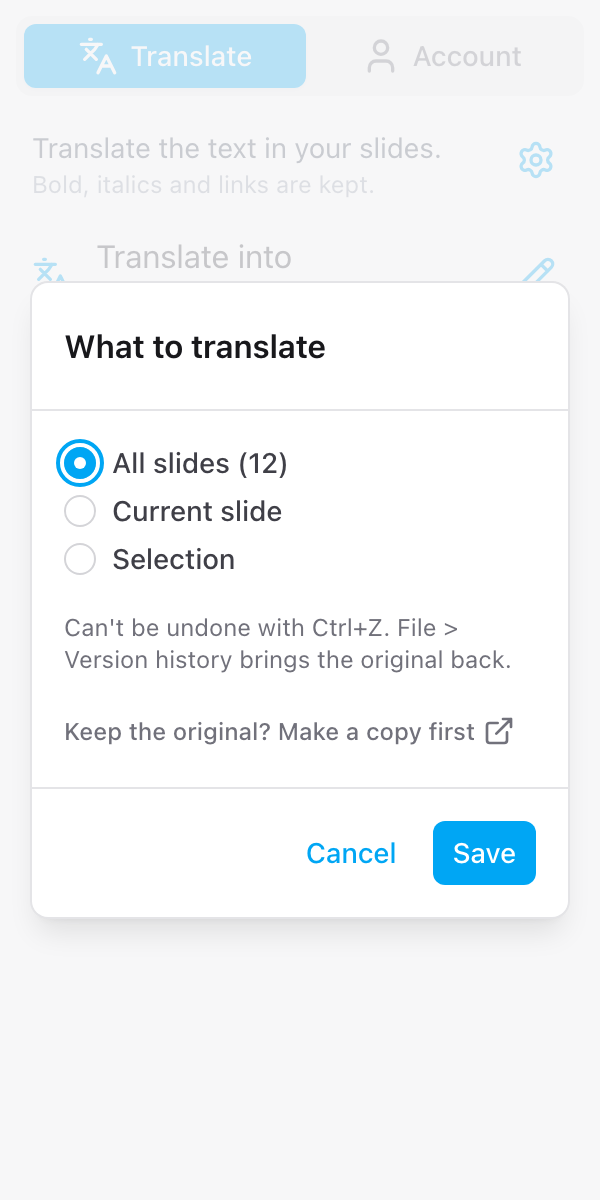
- In the What to translate window, or in the confirm window before a run, click Make a copy first
- Google's own Copy document page for this deck opens in a new tab. Give the copy a name, pick a folder if you like, and click Make a copy
- In the copy, open Extensions > Slides Translator > Start and translate there
The copy is made by Google Slides, exactly as File > Make a copy does it. Slides Translator does not create files and saves nothing to Google Drive. Your original deck is not changed.
For a second language, make another copy of the original and translate that one.
What is replaced
Under What to translate, pick All slides, Current slide or Selection. The button names what is translated: Translate this deck, Translate this slide or Translate selection. Before anything changes, the sidebar asks you to confirm. The window says that the text is replaced and that File > Version history brings the original back, and it has the same Make a copy first link.
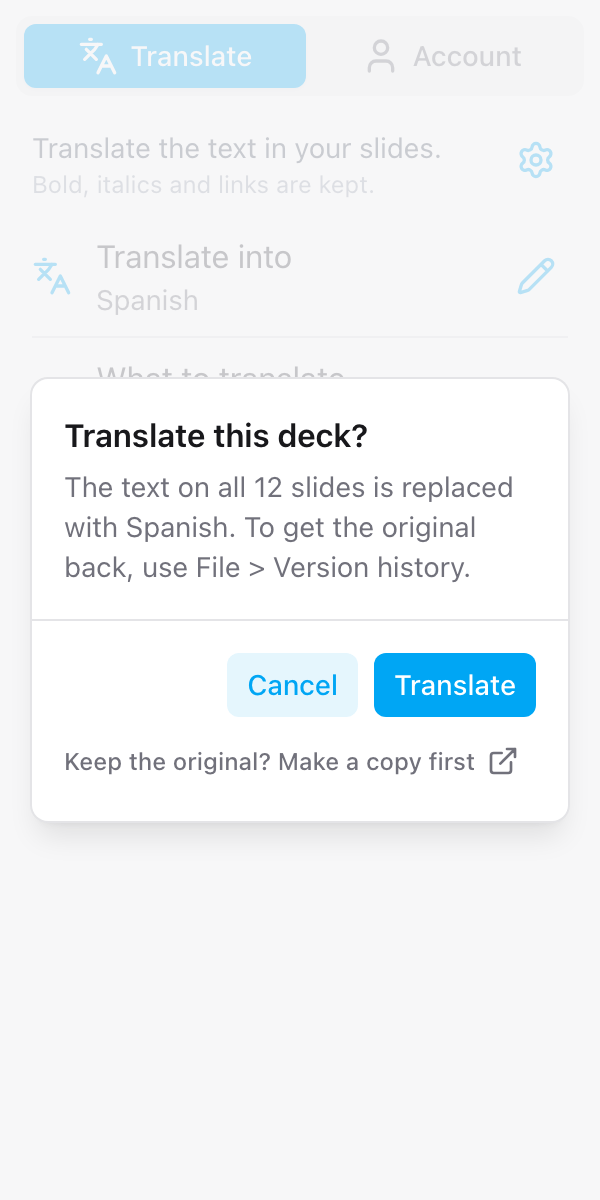
Click Translate to go ahead, or Cancel.
Getting the original back
Changes made by an add-on cannot be undone with Ctrl+Z. The What to translate window says so too. To get the original text back, use File > Version history in Google Slides and restore the version from before the translation.
What is remembered
What to translate starts on All slides each time you open the sidebar. The language and the glossary are saved with the deck, and the speaker-notes switch under the cog is remembered for you, across all your decks.