
Language and Slides
The Translate tab has three rows: Translate into, What to translate and Glossary. Each one shows its current value on the right. Click the pencil on a row to change it.
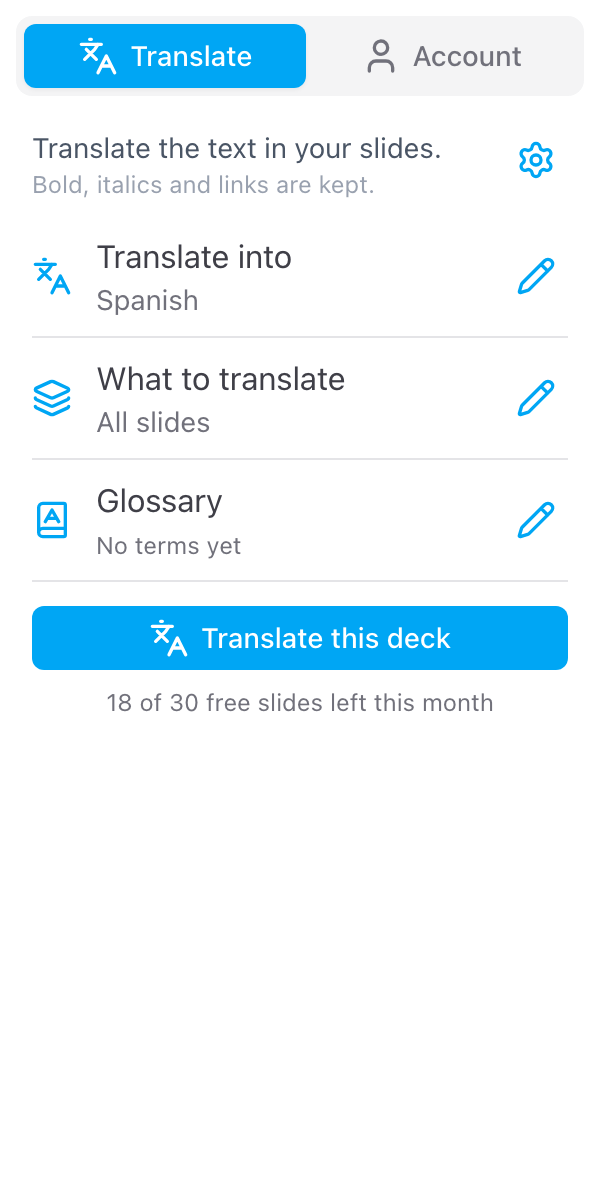
Translate into
Click the pencil on Translate into, then pick one from the list. Type in Search languages to find it faster, in English or in the language itself. Save to close.
More than 100 languages are in the list, from Afrikaans to Zulu, including Chinese (Simplified and Traditional), Portuguese (Brazil and Portugal), Haitian Creole, Hmong, Somali, Dari and Pashto. Each one shows its English name and its own name, and search finds either: Mongolian and Монгол both work. The language your slides are written in does not need to be set: it is recognised from the text.
The last languages you used are at the top of the list, under Recent, so switching back is one click. The language you pick is saved with the deck.
What to translate
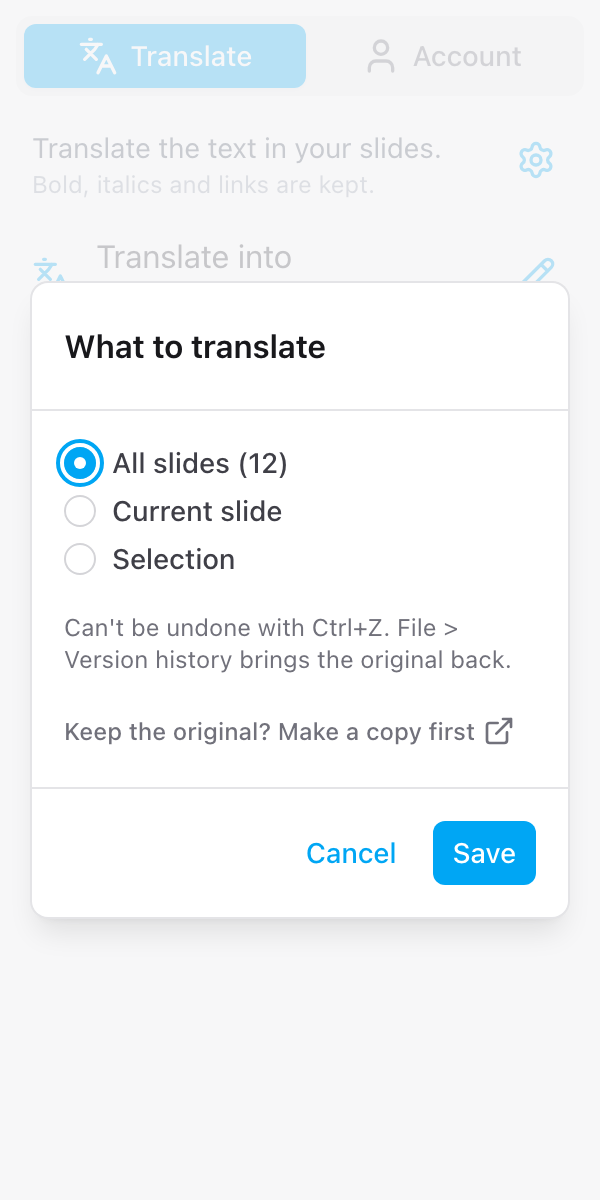
Click the pencil on What to translate. There are three choices:
- All slides. The whole deck. This is where the sidebar starts, with the number of slides in brackets, for example All slides (12).
- Current slide. The slide you are on.
- Selection. The slides or text boxes you have selected in Google Slides.
Whichever you pick, the text is replaced in the deck you have open. The window says so, and that File > Version history brings the original back. Under the choices, Keep the original? Make a copy first opens Google's Copy document page for this deck in a new tab. See Keep the original.
Translate a selection
- In Google Slides, select the slides in the filmstrip on the left, or select one or more text boxes on a slide
- Click back in the sidebar
- Click the pencil on What to translate and pick Selection
The row shows what you selected, for example 3 slides or 2 text boxes. The sidebar reads your selection again each time you click back into it, so you can change it without reopening anything.
With Selection chosen and nothing selected, the sidebar says Select text or slides in the deck first. If you translate anyway, the slide you are on is translated.
Speaker notes
Speaker notes are translated with their slide, with All slides, Current slide or a selection of slides. When you select text boxes, only those text boxes are translated.
To leave the notes as they are, open the cog at the top right of the Translate tab and turn off Translate speaker notes. The switch is remembered for you, across all your decks.
What counts
The free plan counts the slides a run translates: All slides on a 12-slide deck is 12 slides, Current slide is 1. With Translate speaker notes off, a slide whose only text is in its notes is not counted. See Free slides and limits.