
Features
Everything Form Notifications can do, at a glance.
Rules
A form has a list of rules. Each rule says when it sends, only if which answers match, via which channel, to where, and what message it carries. Add as many rules as you need. Duplicate one to change a single thing, or turn one off without deleting it. Learn more.
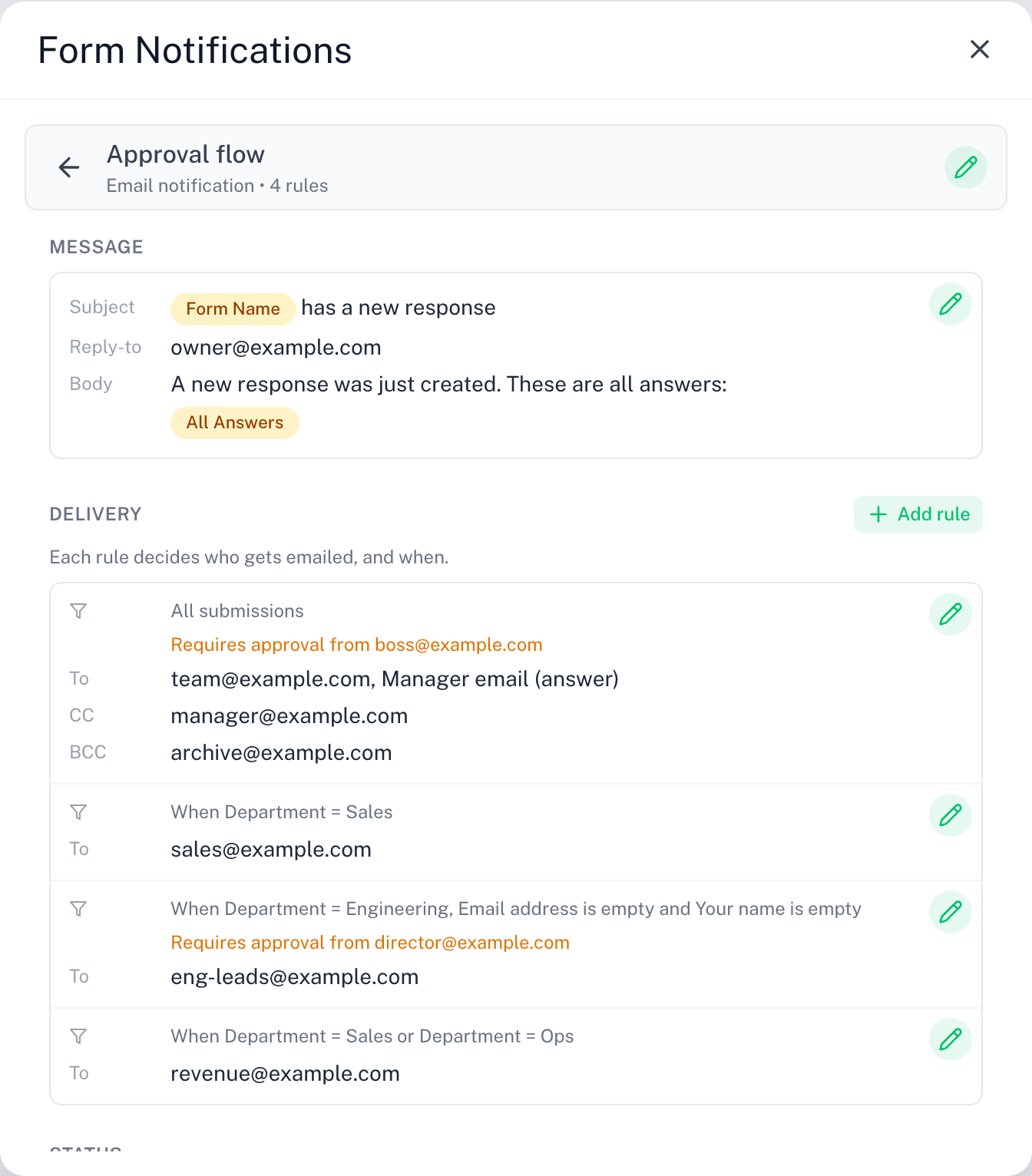
Custom email messages
Write your own subject and body in a rich-text editor: bold, italics, lists, links and headings. Set a sender name, and optionally a reply-to address.
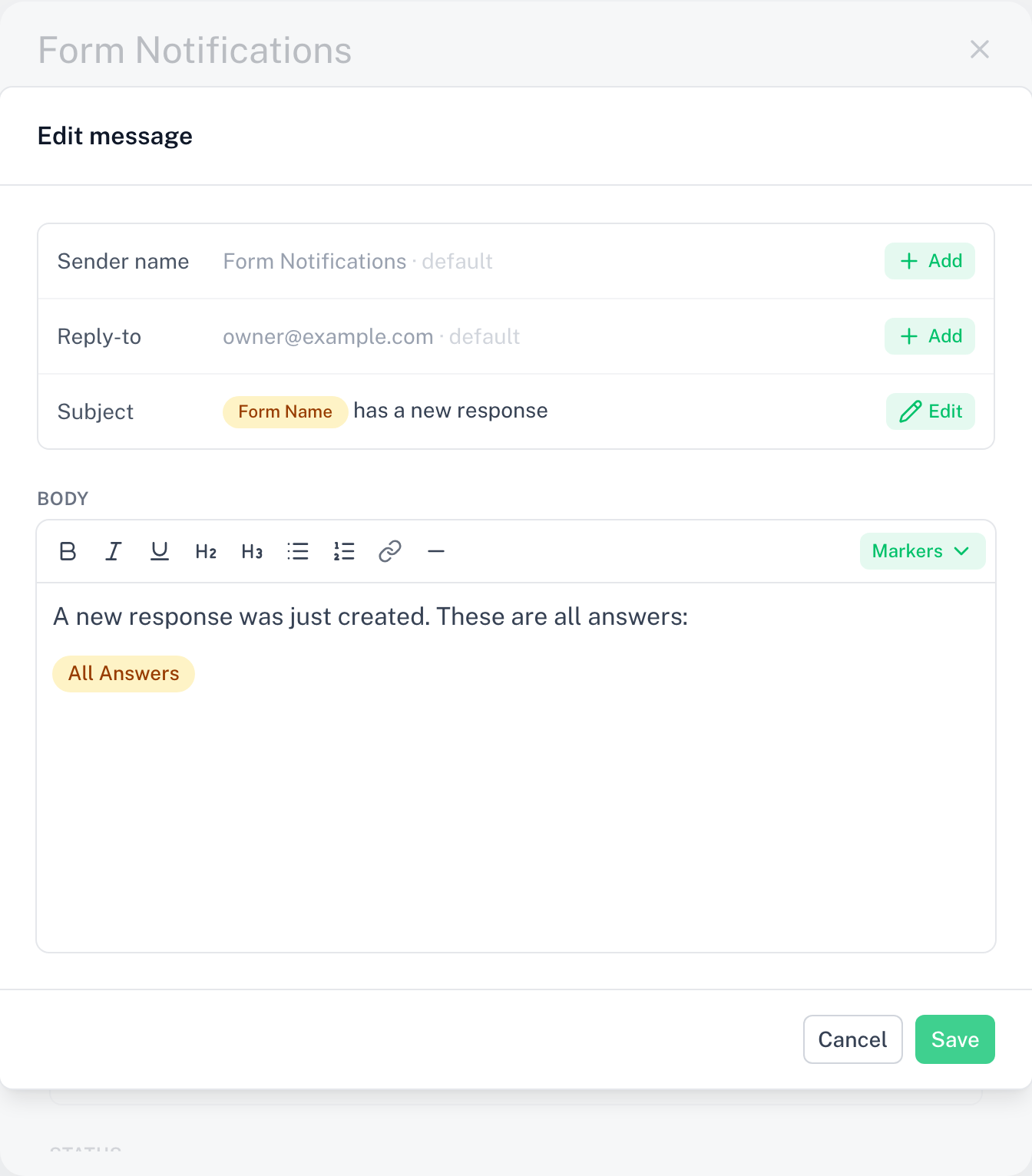
Merge tags
Drop response values straight into the subject, body or chat post: any question's answer, plus built-ins like All Answers, Form Name, Response Date and Respondent Email. Learn more.
Flexible recipients
An email rule can send to a fixed address, the person who submitted the form, or an address collected in one of the form's questions, in any combination, plus CC and BCC. Learn more.
Conditions
Add Only if conditions so a rule sends for some responses only. For example, send "Priority = High" to a manager. Learn more.
Slack, Discord and Microsoft Teams
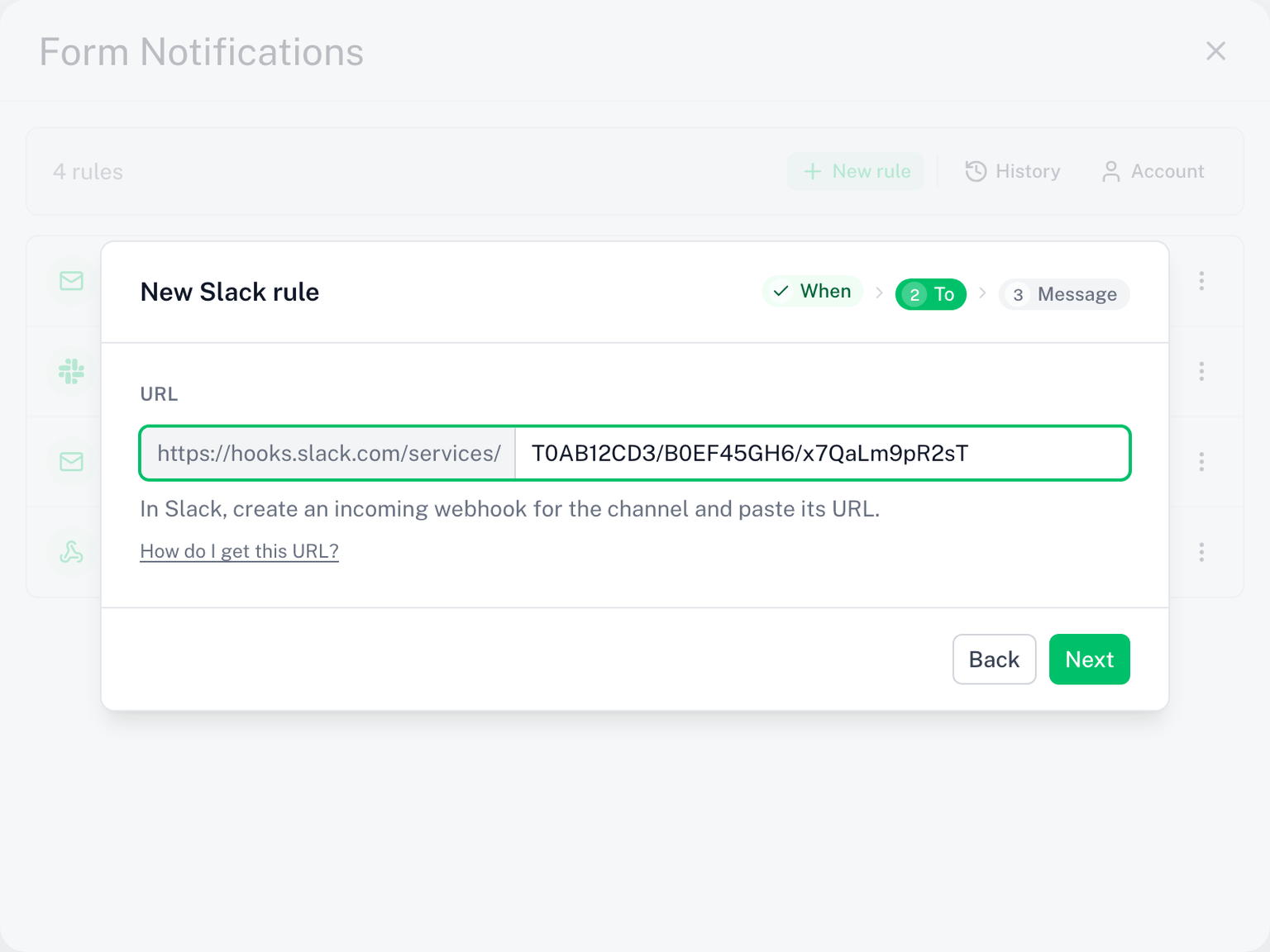
A rule can post each response to a chat channel instead of an inbox. Pick the channel under + New rule, paste the channel's webhook URL, write the text with merge tags, and test it with one click. Learn more.
Webhooks
A rule can send every response as signed JSON to your own endpoint, or to Zapier, Make or n8n. Each request carries an HMAC signature you can verify. Learn more.
Approval
Add an approval step to any rule: it holds matching responses for an approver, a person by email, or a Slack, Discord or Teams channel with Approve and Reject buttons, and sends only once they decide. Learn more.
Send when
Every rule sends on one event: every response, only after approval, or when rejected. Post approvals to a channel, or email the respondent when their request is rejected. Learn more.
Templates
A form with no rules offers three templates: Email me every response, Post every response to Slack, and Hold for approval, then email. Each opens the wizard with the fields filled in.
Sent history
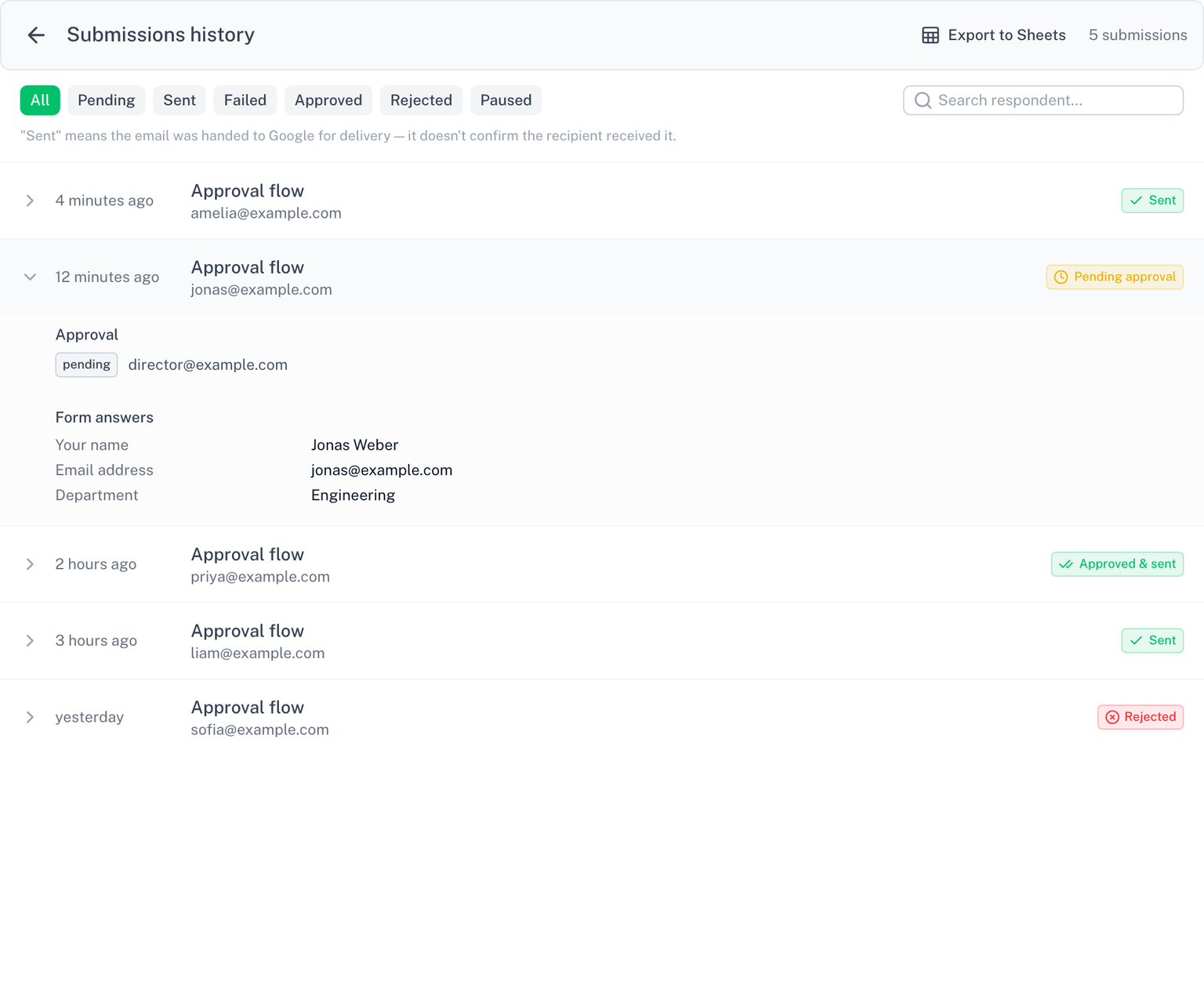
Every send is logged. See which rules fired for each submission, what is pending approval, and what failed, with the submitted answers attached. Chat and webhook deliveries show the HTTP status the endpoint returned. Open it from the History button in the editor.
Export to Sheets creates a new Google Sheet with the full log: one row per submission with its status, approval decision and answers. The sheet is created in your own Drive; the add-on only ever touches files it creates. Exporting uses the Drive-files permission. If you declined it at install, the button offers to grant it (details).
Sent from your account
Email rules send from your own Google account, so the emails arrive as coming from you. Learn about sending & limits.