
Rules
A form has a flat list of rules. Each rule is one complete instruction: when to send, only if which answers match, via which channel, to where, and what message. Nothing is sent until the form has at least one rule.
The rule list
Open the editor and you see every rule on the form, one row each. The chips on a row read like a sentence:
- when: the event the rule sends on (every response, only after approval, when rejected)
- if: its conditions, shown only when it has some
- via: the channel (Email, Slack, Discord, Microsoft Teams, Webhook)
- to: the recipients, or the masked channel or webhook URL
- held for approval: shown on a rule with an approval step, because its send waits for the decision
The switch on the right turns the rule on or off. The pencil opens it for editing. The menu (three dots) offers Edit, Duplicate, Change channel…, Turn off and Delete.
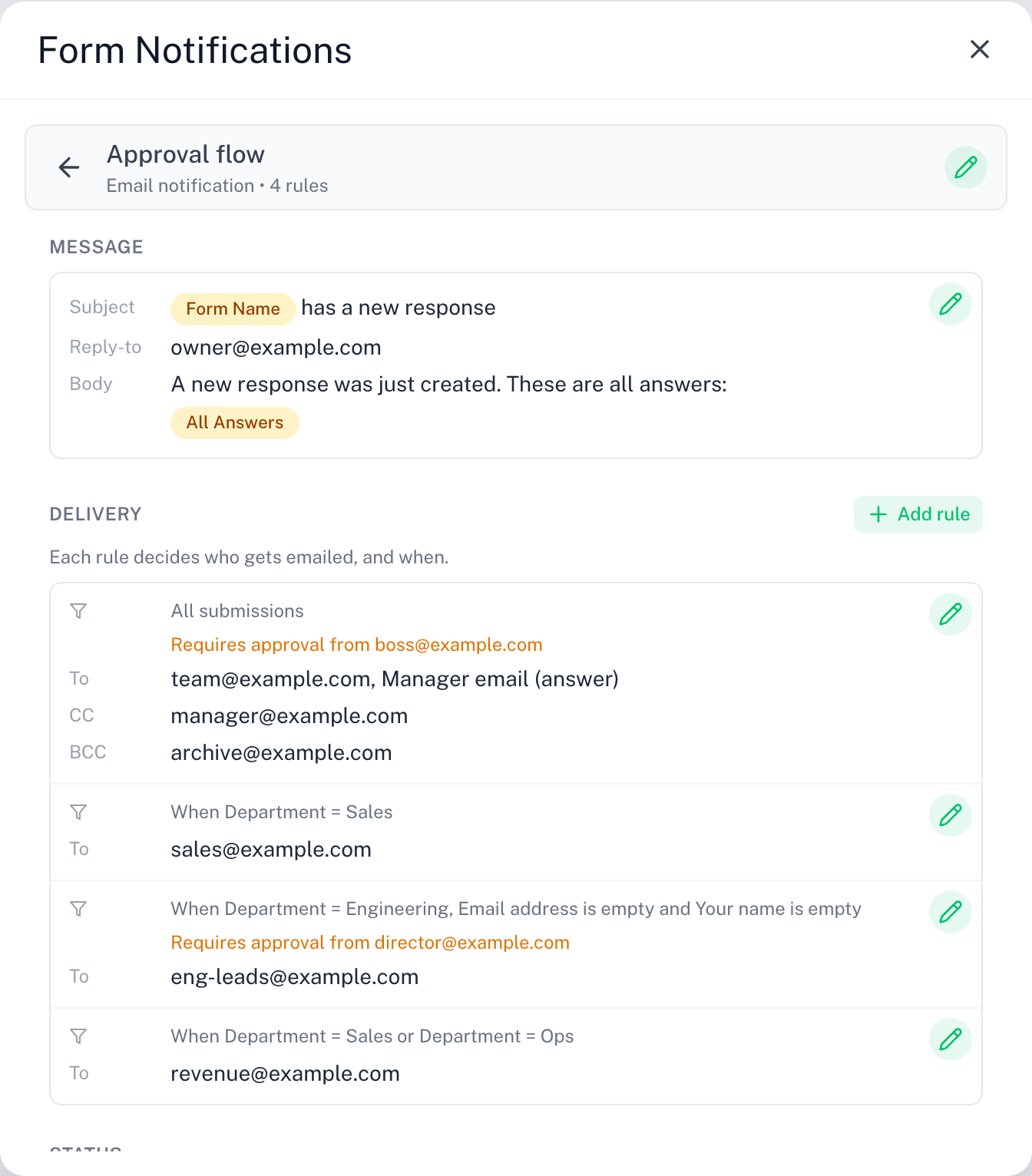
A rule can add an optional approval step: only after approval, or when rejected, by a person or a channel. See Approval.
Create a rule: the wizard
Click + New rule and pick the channel: Email, Slack, Discord, Microsoft Teams or Webhook. The wizard opens as New Email rule (or the channel you picked) and walks you through three steps: When, To and Message. A webhook rule has no message, so it stops at To. The preview chips fill in as you go.
1. When
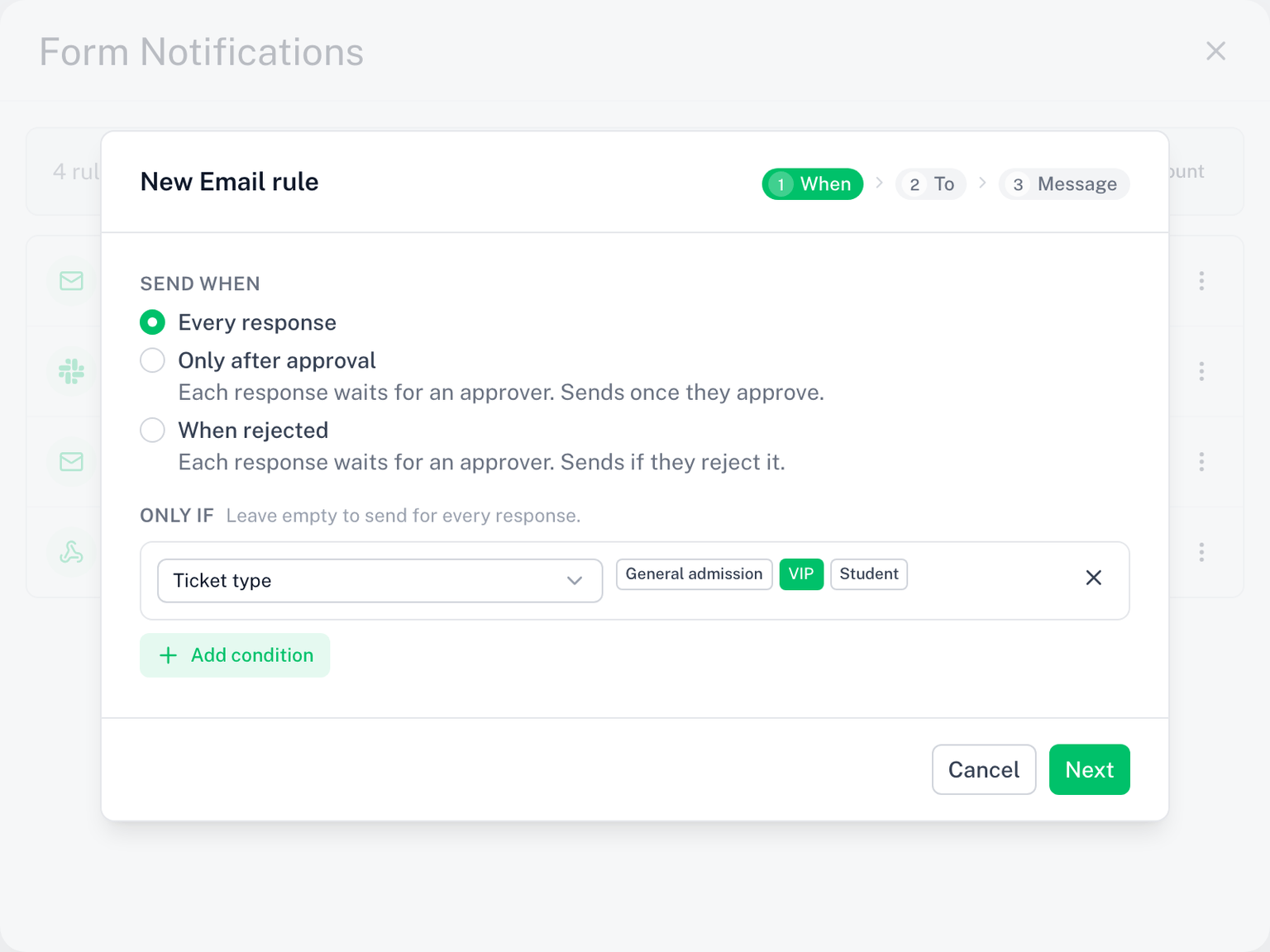
- Send when: pick one event. Every response is the default and sends on each new response. Only after approval or When rejected add an approval step: pick the approver (a person or a channel) right there; see Send When.
- Only if: click Add condition to send only when the answers match. Leave it empty to send for every response. See Conditions.
2. To
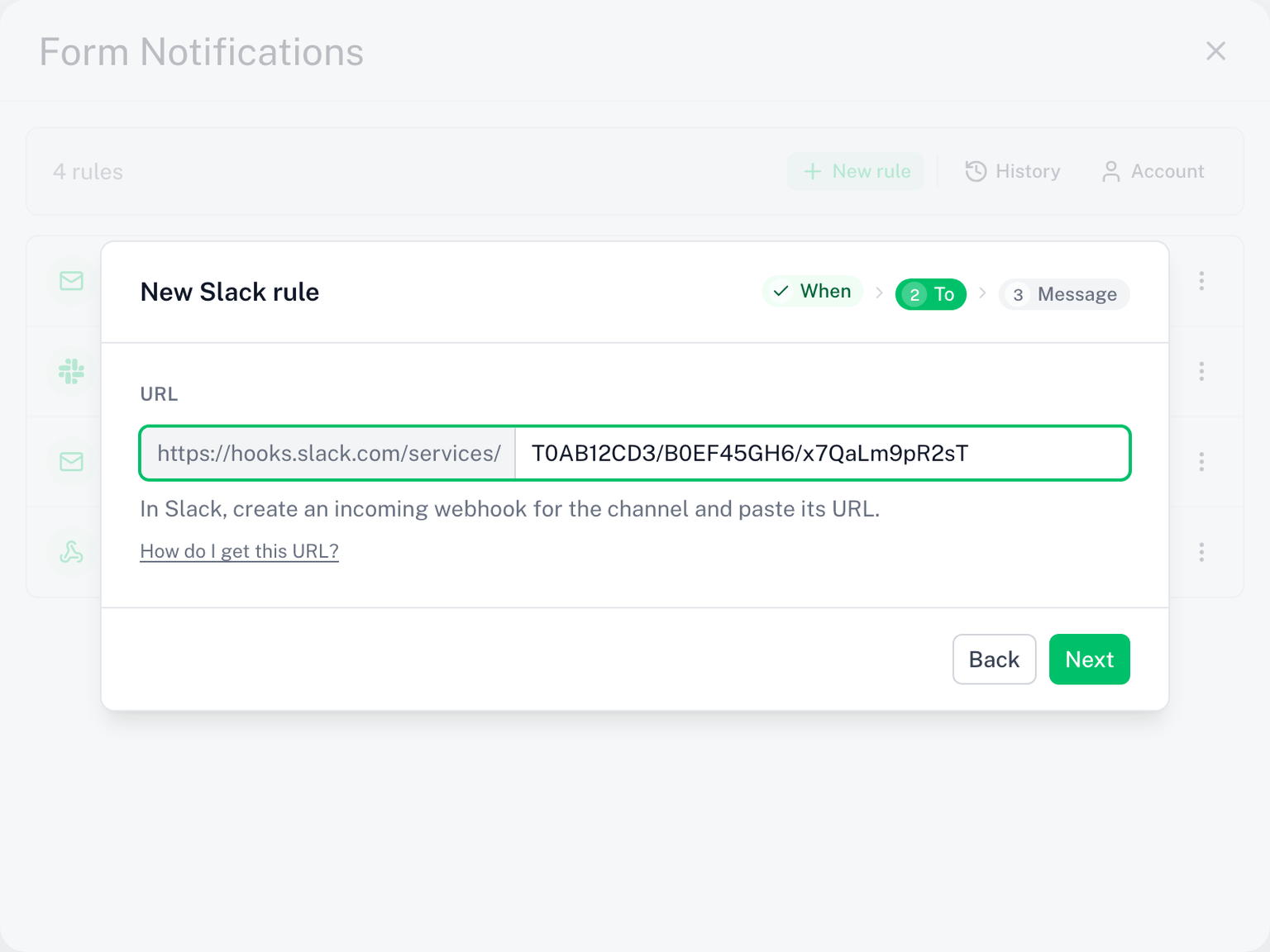
The channel is already set by your pick under + New rule; this step is its destination.
- For Email, add at least one recipient under To: a typed address, the respondent, or a form field. CC and BCC are optional. See Recipients.
- For a chat channel, paste the channel's incoming webhook URL under URL. See Slack, Discord & Teams.
- For Webhook, paste your endpoint URL under URL. See Webhooks.
3. Message
- Email: a subject and a rich-text body. A default is filled in. Under Sender and reply-to you can set the sender name and a reply-to address.
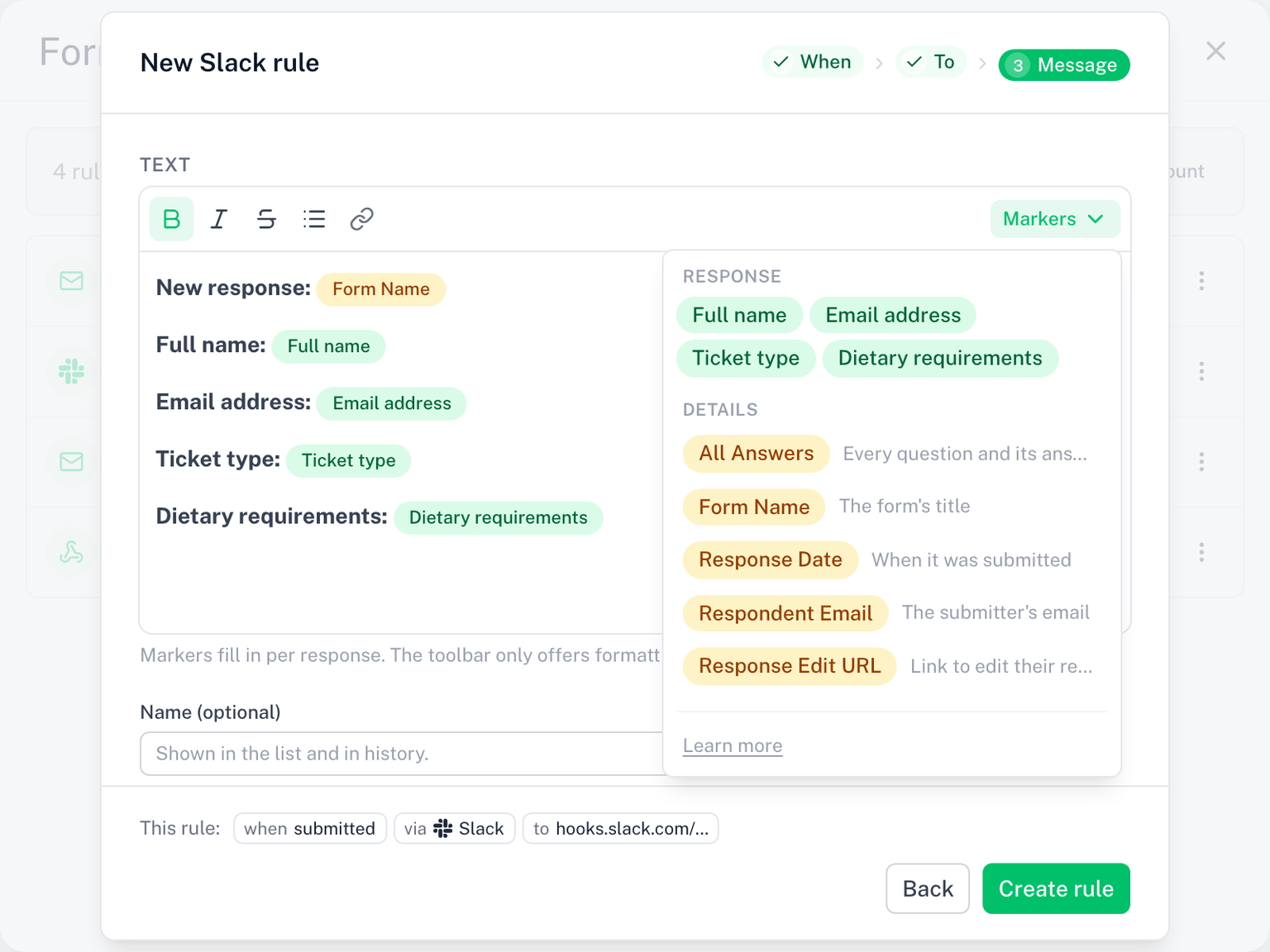
- Slack, Discord, Teams: one text block, posted as a plain message. It starts with every question filled in; remove what you do not need.
- Webhook: no Message step. The rule sends fixed, signed JSON.
Use the Markers menu to insert merge tags.
On the last step you can add a Name (optional). Click Create rule. The rule is on at once.
Templates
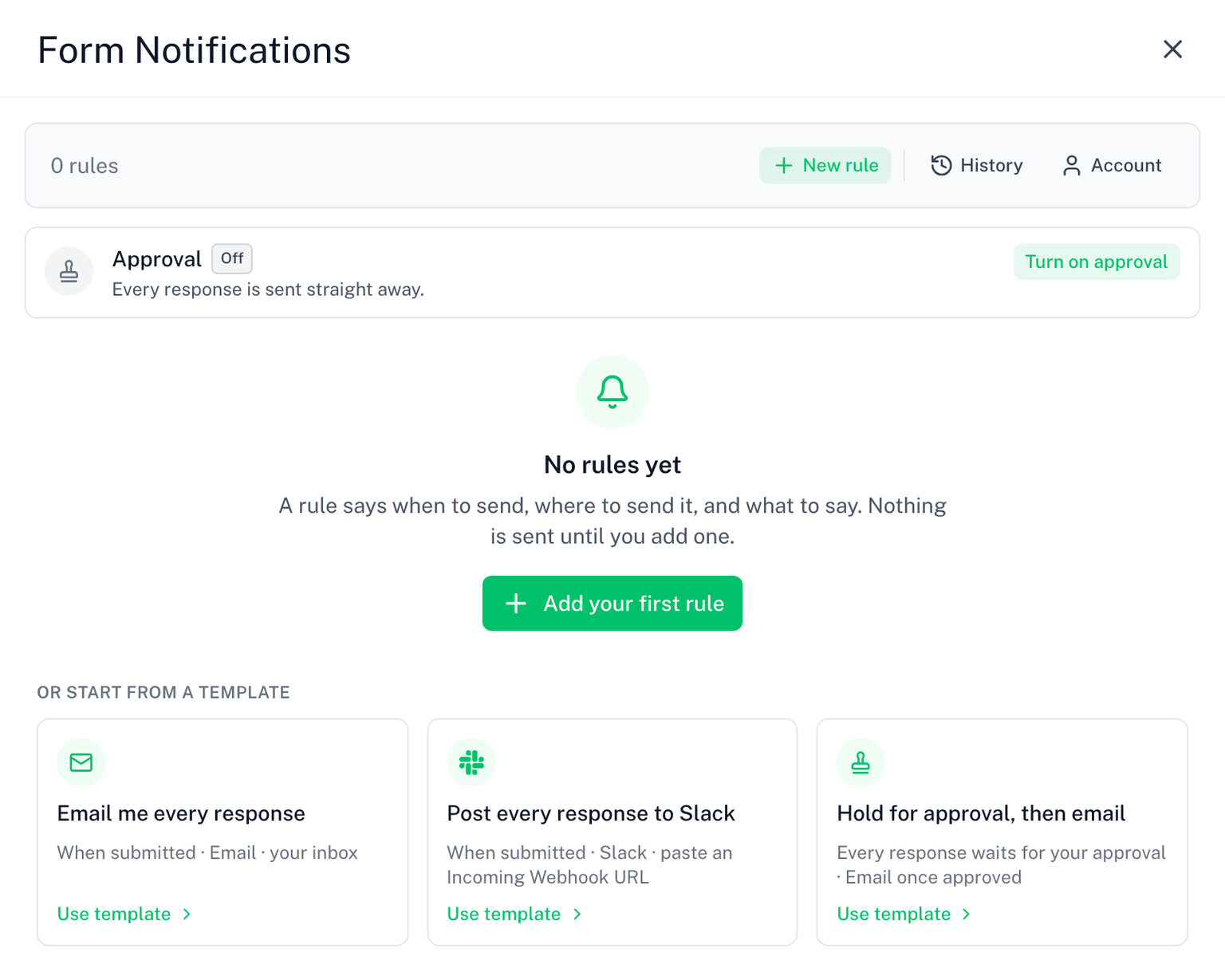
A form with no rules shows three templates under Or start from a template. Each opens the wizard with the fields filled in, so you only confirm or adjust:
- Email me every response: every response, via Email, to your own address
- Post every response to Slack: every response, via Slack, paste an Incoming Webhook URL
- Hold for approval, then email: one rule, only after approval by you, via Email
Edit a rule
Click the pencil on a row, or Edit in its menu. The rule opens in the same stepped modal as the wizard, titled Edit Email rule (or its channel). Here the steps When, To and Message are tabs: jump to any of them and click Save from any step. A step with a problem is marked so you can find it. The chips at the top read the rule back to you as you change it.
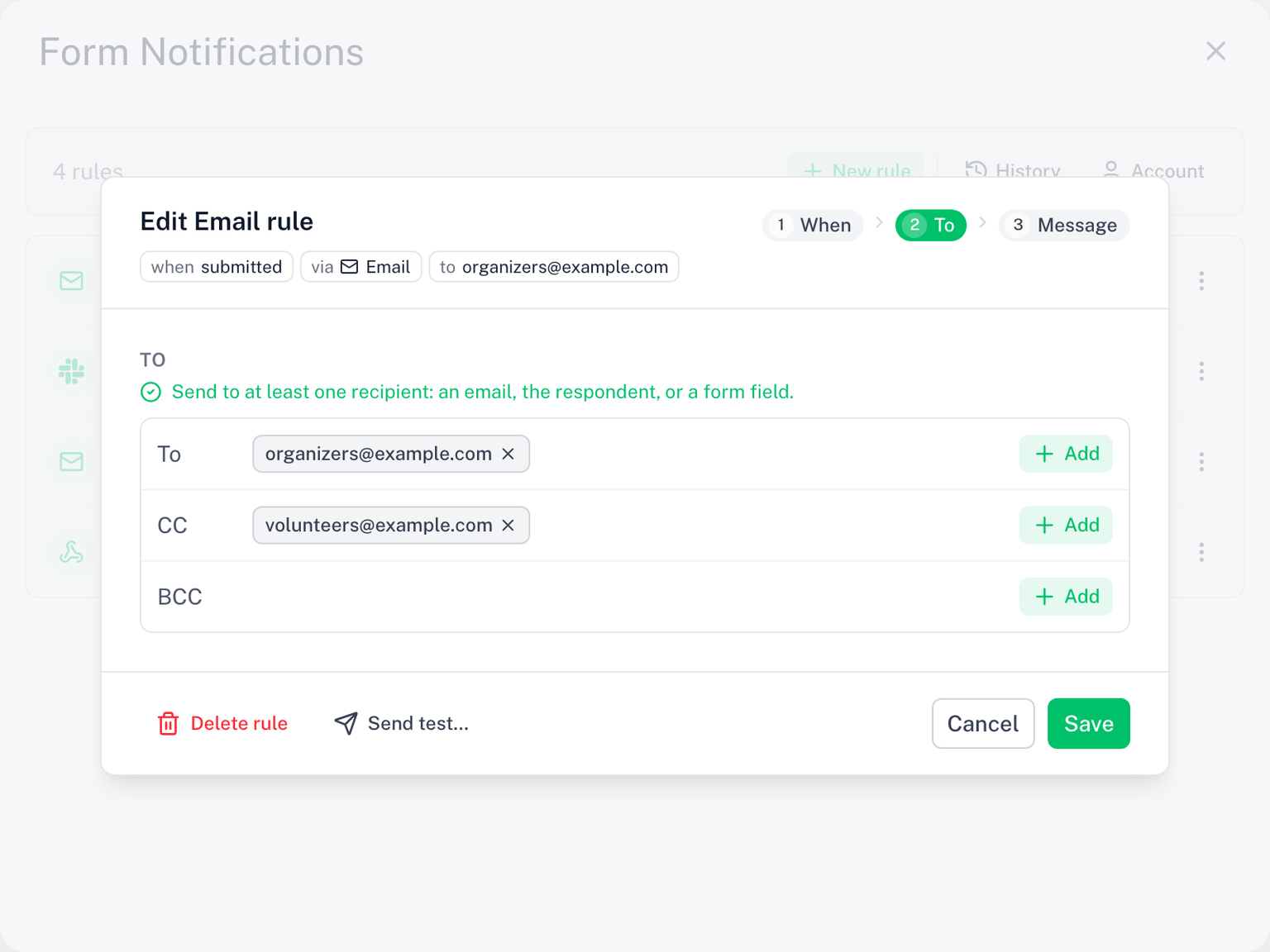
- Name (optional) sits on the last step. It shows in the list and in the history, never in the message.
- The channel is fixed in this modal. To move a rule to another channel, use Change channel… (below).
- Send test sends a sample to you or to the saved recipients (email), or a sample post or payload to the URL (chat and webhook). See Testing Your Rules.
- Delete rule at the bottom removes it. There is a confirm; deletion cannot be undone.
Change a rule's channel
Open the row's menu and choose Change channel…. The Change channel modal shows every channel, with the rule's own marked Current. Pick another one, then give its destination: the recipients for Email, or the URL for a chat channel or webhook. Click Change channel to save.
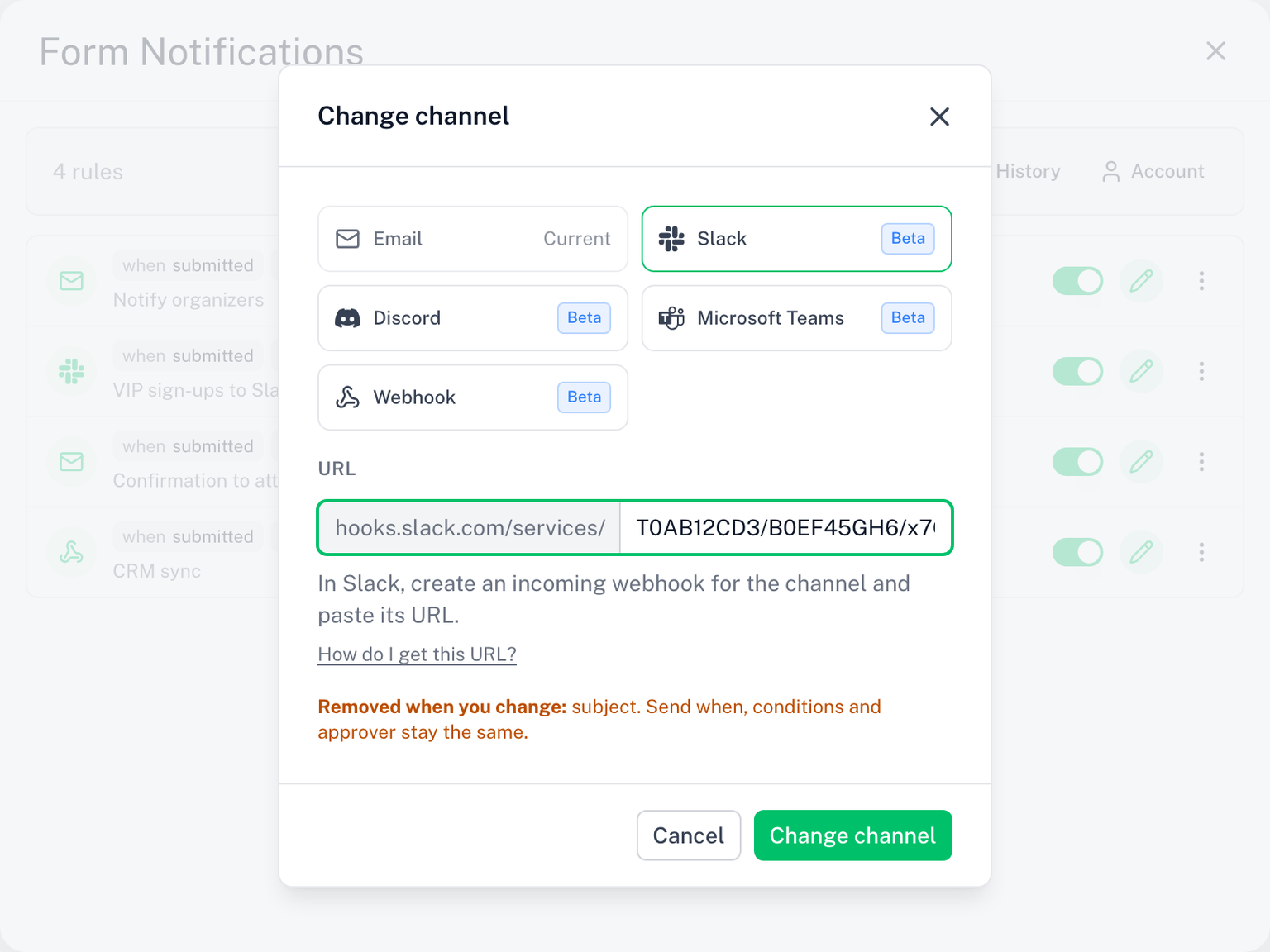
- Send when, Only if conditions and the approver stay the same.
- The old destination is replaced by the new one.
- The message is converted, and you can edit it afterwards: an email body becomes the chat text, a chat text becomes the email body with a default subject. A webhook sends a fixed JSON payload, so switching to Webhook drops the message.
- Before you confirm, the modal lists anything the rule loses, for example the subject, sender name, reply-to, CC or BCC, or formatting the new channel cannot show.
Duplicate a rule
Open the row's menu and choose Duplicate. The copy has the same when, destination and message, named with "(copy)". Use it when two rules should differ in one thing, for example the same email to a second team with another condition.
Turn a rule off
Flip the switch on the row, or choose Turn off in its menu. A rule that is off keeps its settings and sends nothing. Turn it back on any time.
A rule also turns itself off when it has an error it cannot send with, for example a merge tag or condition that points at a deleted question. The row shows Has errors. Open the rule, fix it, and turn it on again.
Rules and your license
After the 7-day trial, an email rule that sends on every response stays free. Slack, Discord, Teams and webhook rules, and any rule with an approval step, need an active license. The trial counts. See what needs a license.
While you are unlicensed, the paid options carry a Paid badge under + New rule, in Change channel and on the When step, and picking one shows an upgrade prompt. + New rule itself is always available.
If you used Form Notifications before
Earlier versions grouped recipients under a "notification". Those were converted to rules automatically, one rule per recipient group, and the editor shows a one-time banner: Your notifications are now rules. Nothing changed in what gets sent. A notification that required approval became a rule set to only after approval, by the approver it already had. Approvals already in flight at the time of that change kept running and completed normally.