
Approval
Approval is a step on a rule, not a setting for the form. A rule can send on every response, only after approval, or when rejected. The second and third kinds put a person or a channel in the loop: the response waits for their decision, and the rule fires once it comes.
Add an approval step to a rule
- In the rule's When step, when creating or editing, under Send when, pick Only after approval or When rejected
- The approver field appears. Pick A person, and type their email address, or A channel, and paste a Slack, Discord or Microsoft Teams webhook URL (see getting a webhook URL)
- Optionally write a Request message. It is shown above the answers in the approval request, for example "Please check the budget line before approving."
- Finish the rule as usual: Only if conditions, the destination it sends to once approved (or rejected), and the message
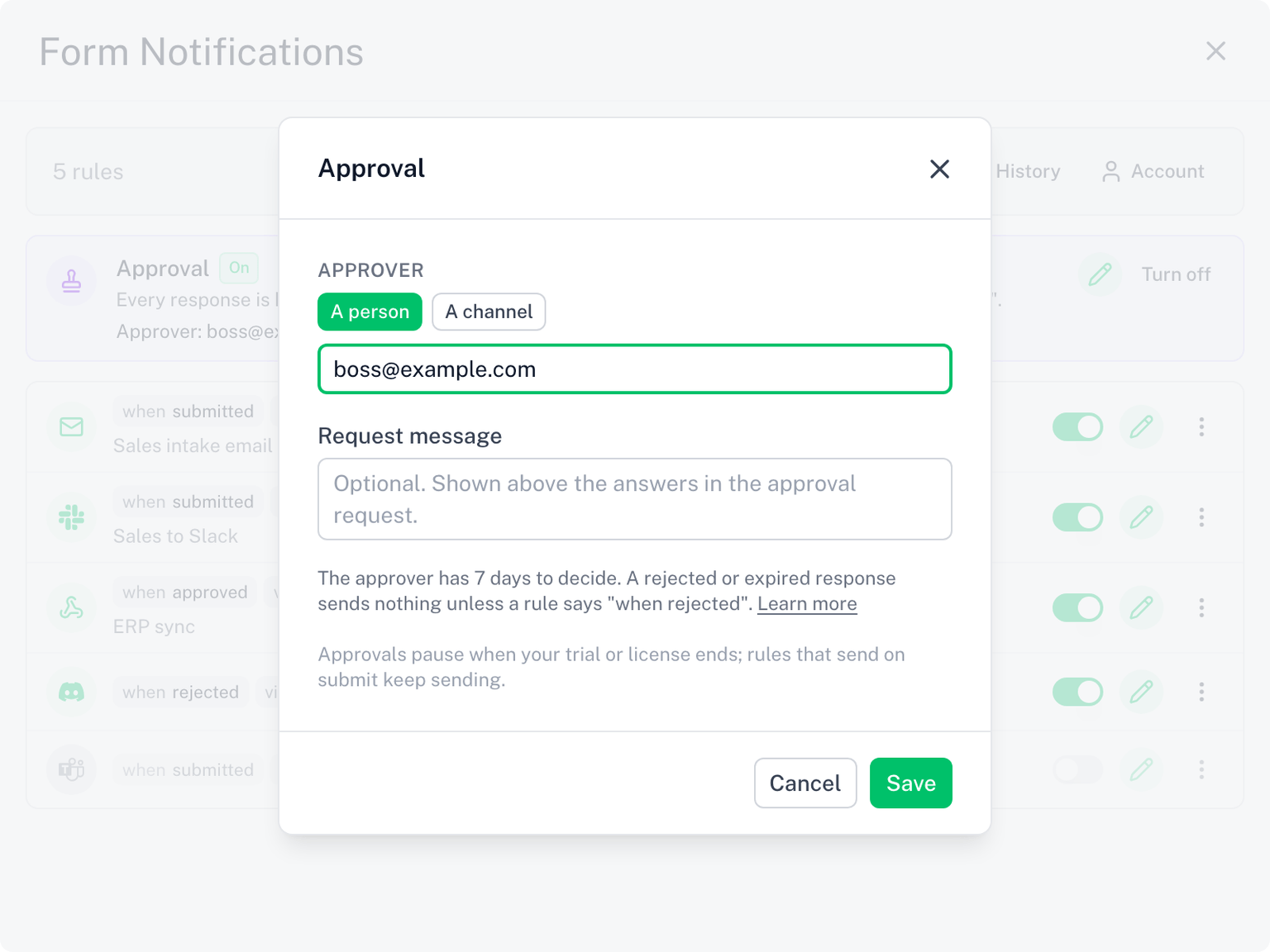
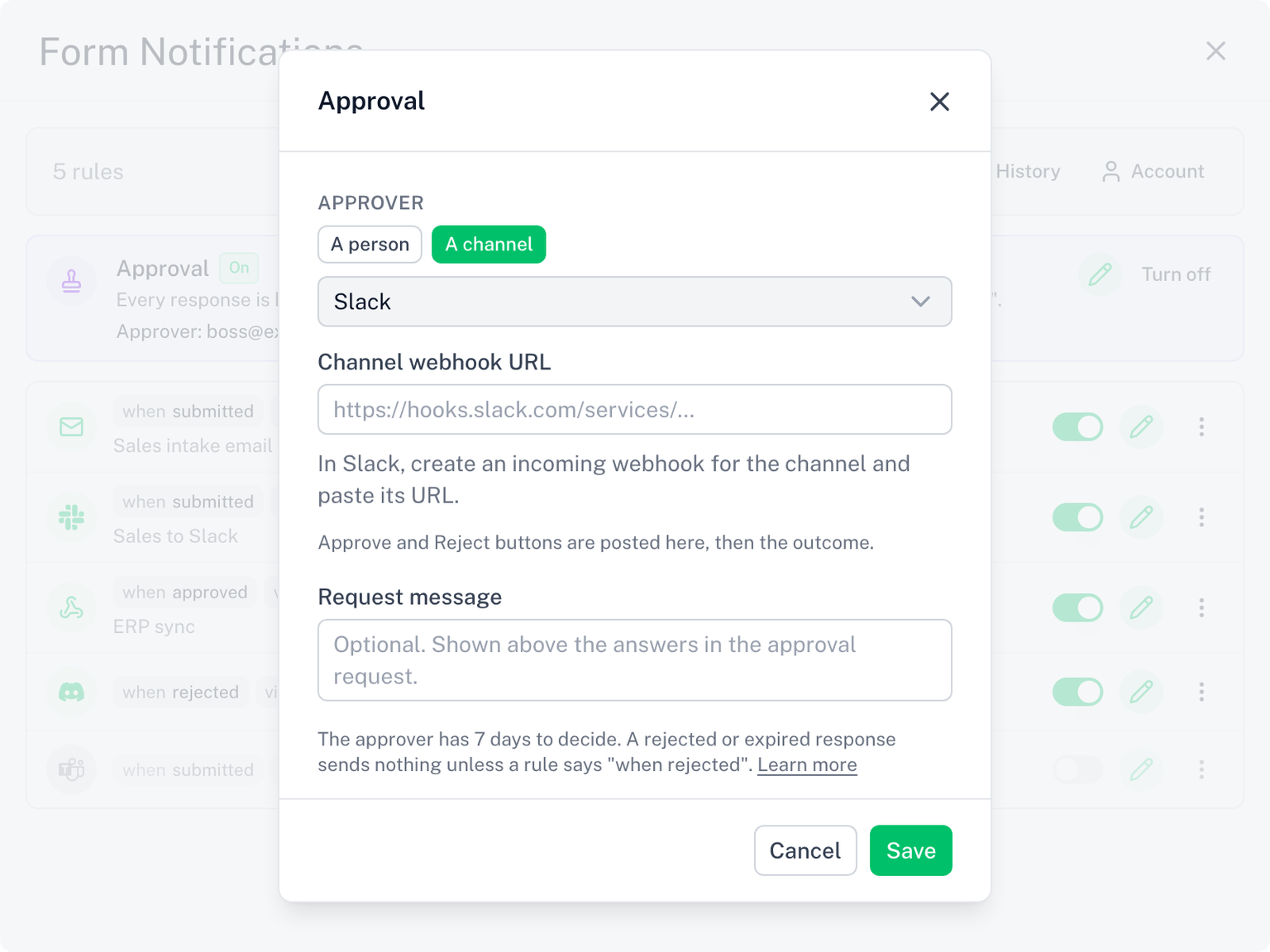
The rule's chips show held for approval once it has this step.
One request per approver, not per rule
Several rules can wait on the same approver. When a response matches more than one of them, that approver still gets one approval request, with Approve and Reject buttons. Their decision fires every matching rule that was waiting on them: approving fires the only after approval rules, rejecting fires the when rejected rules.
Rules waiting on a different approver are untouched; that approver gets their own, separate request.
Example: a form has four rules: two send only after approval by Anna, one sends when rejected by Anna, and one sends only after approval by Ben. A response that matches all four creates exactly two requests: one to Anna, one to Ben. Anna approving fires her two approved rules only, not the rejected one. Ben decides independently, on his own request.
Only rules whose Only if conditions match the response wait on it. If none of a response's approval rules match, no request is sent at all.
What the approver receives
- A person gets an email, sent from your Google account, with your request message, the answers, and the two buttons
- A channel gets a post in the Slack, Discord or Teams channel, with the same two buttons. Anyone in the channel can decide. Once decided, the outcome is posted back to the channel, with the name the approver gave
- If the post to the channel fails, the request is emailed to the rule's owner instead, with a line saying why, so the response can still be decided. If the channel's webhook URL no longer exists (HTTP 404 or 410), the approver is also paused: the rule shows Approver paused, and requests go to the owner by email until you paste a new URL in the approver field
The approve page
Each button opens a page that asks Approve this submission? (or Reject), shows the answers, and has an optional Your name field. Nothing is decided until the approver clicks the button on that page, so a link preview in Slack or an email scanner cannot approve by accident. The name typed there is shown to the form owner, in the history, and in the outcome post.
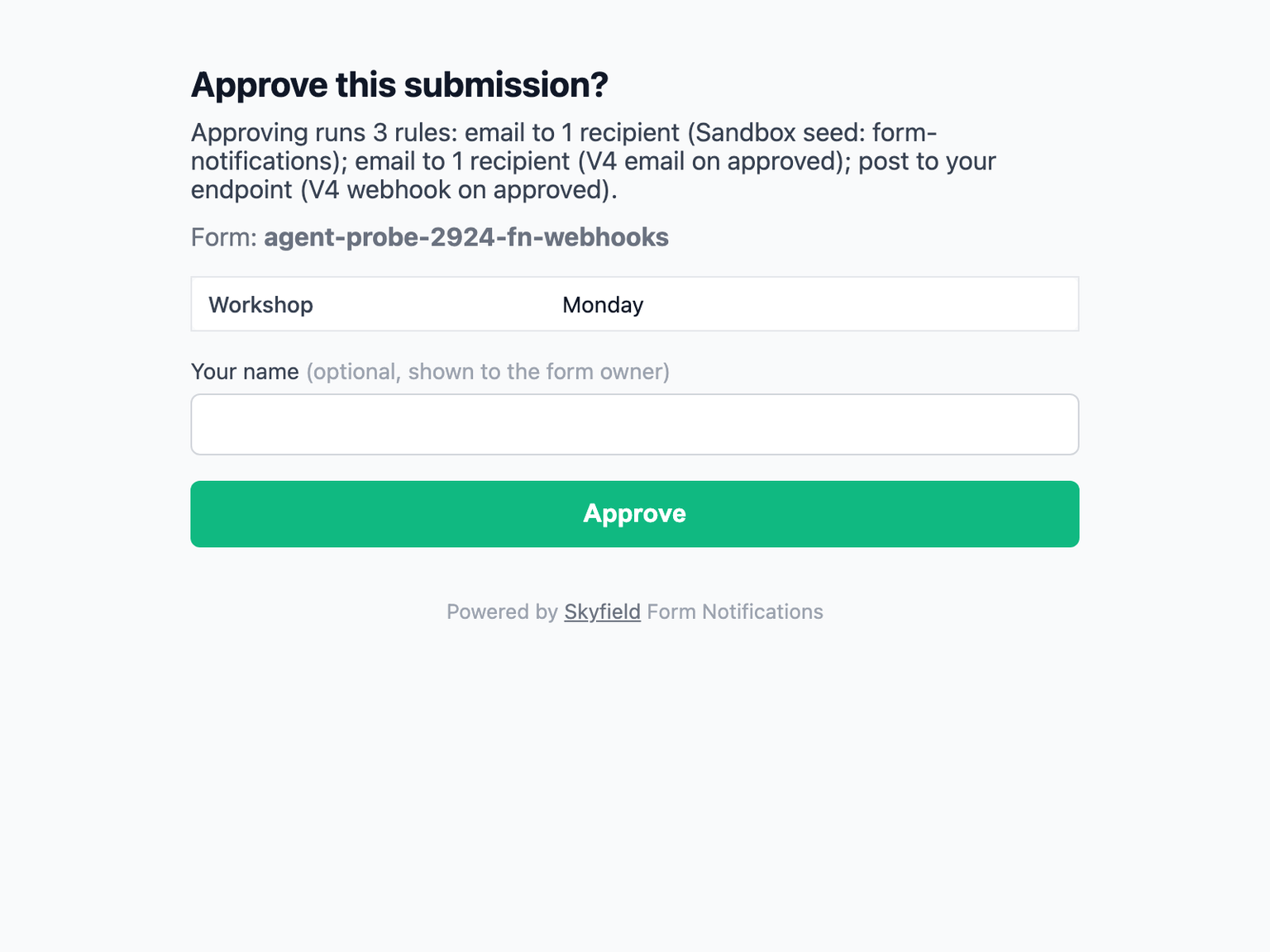
- Approve fires every matching rule set to only after approval that was waiting on this approver
- Reject fires every matching rule set to when rejected that was waiting on this approver. The form owner also gets an email about the rejection
Both decisions are recorded in the History.
The 7-day window
An approval request is valid for 7 days. If the approver does not decide in that time, the request expires: none of the rules waiting on it send, not even the when rejected ones. An expiry is not a rejection.
Good to know
- A rule sending via Email on only after approval or when rejected goes out from Skyfield's mail servers, not from your Google account, because no form submission is happening at that moment. Your sender name and reply-to are kept. See Sending & Delivery Limits
- Only if conditions still apply, so a rule with an approval step only waits on responses it would otherwise send for
- A webhook rule with an approval step receives
approval.decisionandapproval.decidedByin its payload. See Webhooks - Changing a rule's Send when away from an approval event clears the approver; a pending request already sent to it is unaffected
Approval and your license
A rule with an approval step needs an active license. The 7-day free trial counts, so it works in full during the trial. When the trial ends without an upgrade, approval rules pause: matching responses are logged in the history as skipped, and no request is sent. Rules sending on every response keep sending. Upgrading resumes approval rules for new responses; skipped ones are not sent retroactively. A request already sent before the pause is unaffected and still fires its rule on decision.