
Merge Tags
Merge tags drop live values from each submission, like the answers, the form name or the date, straight into the message of a rule. They show as coloured chips in the editor and are replaced with real values when the message is sent. They work in email subjects and bodies, and in the text of a Slack, Discord or Teams post.
Adding a merge tag
- Open a rule's Message step, when creating or editing it
- In the subject, body or text, open the Markers menu in the editor toolbar
- Pick a tag. It is inserted as a chip wherever your cursor is
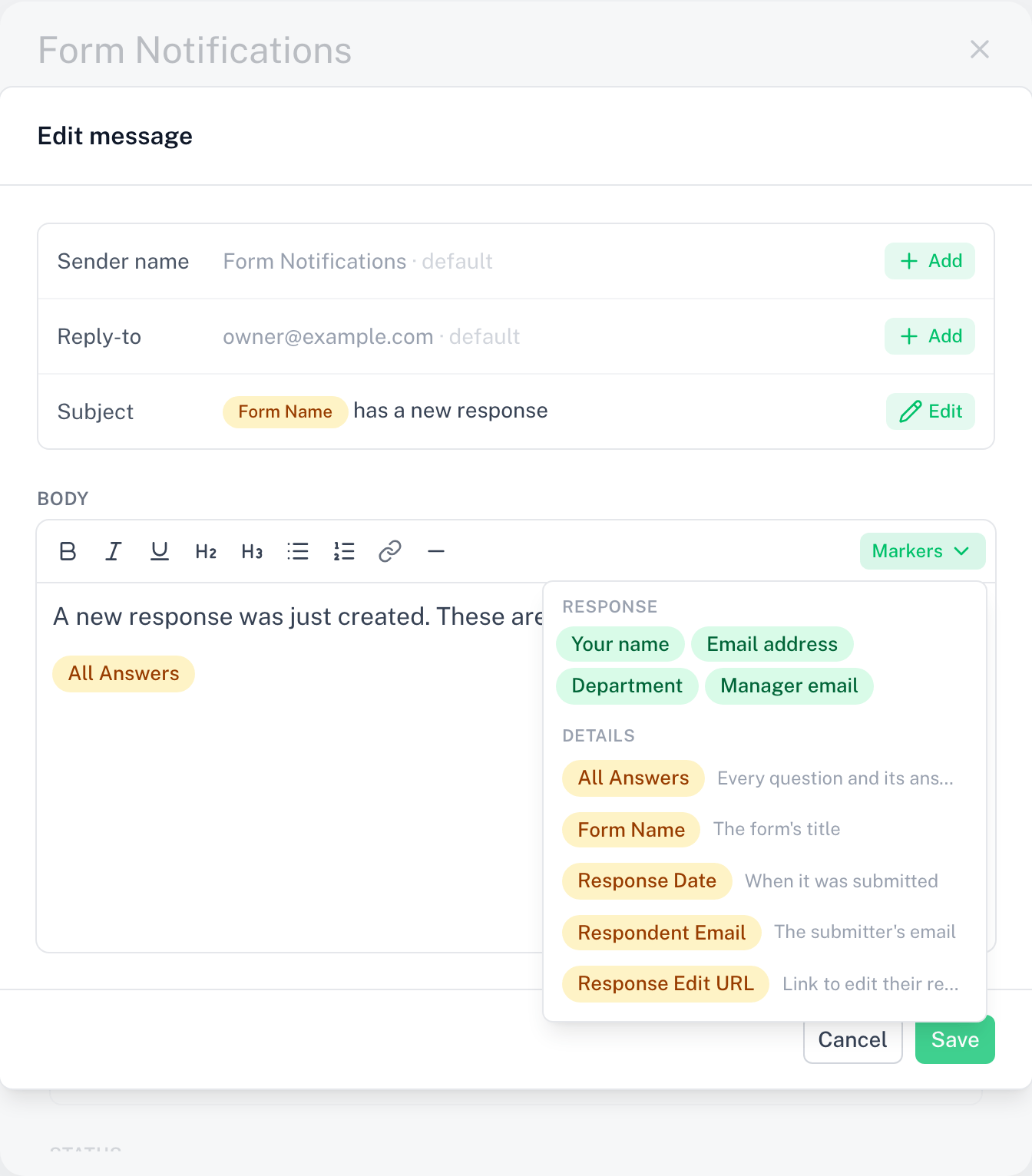
Available tags
From your form's questions
- Any individual question: inserts that question's answer for the submission
Built-in tags
- All Answers: every question and its answer, as a block
- Form Name: the form's title
- Response Date: when the response was submitted
- Respondent Email: the submitter's email (if the form collects it)
- Response Edit URL: a link the respondent can use to edit their reply
Example
A subject of:
New response to
[Form Name]
...arrives as:
New response to Volunteer Sign-up
Chat posts
The text of a Slack, Discord or Teams rule starts with every question filled in as a merge tag. Remove the ones you do not need and add your own words around the rest. Bold is kept; other formatting is flattened to plain text. See Slack, Discord & Teams.
Webhook rules have no message to tag: every answer is in the JSON payload. See Webhooks.
If a tag's question is deleted
If you delete a form question that a tag refers to, that tag renders as empty in the sent message. The editor flags this as an error and turns the rule off so it cannot send a broken message. Remove or replace the tag, then turn the rule back on.
Sender name
Under Message, Sender and reply-to, you can also set a sender name for an email rule: the name recipients see the email is from. Leave it blank to use the default. See Sending & Delivery Limits for how the sender address works.