
Testing Your Rules
Nothing is more frustrating than finding out an email never arrived, after the responses you cared about came in. This guide shows how to verify a rule end to end in under a minute, and explains the automatic checks that catch the most common delivery problems while you are still setting up.
Send a test email
Every email rule has a Send test button at the bottom when you edit it. It asks where to deliver the test:
- My inbox: sends a sample to your own email address. This is the quickest check that your subject, message and merge tags look right.
- The saved recipients: sends the same sample to the recipients saved on the rule: the complete journey your real emails will take, ending in the same inboxes.
The test email uses placeholder answers (the first choice of each question, or a sample phrase) so your merge tags render with realistic content. No form submission is created, and nothing appears in your history. A banner at the top marks it clearly as a test.
Tests are sent from your Google account through the exact same channel as live emails. That is deliberate: if a test arrives, live emails will too.
Recipients from form answers are skipped in tests. A rule that sends to the respondent or to an email address answered in the form needs a real submission to know the address, and a test has none. Test those by submitting the form once yourself.
Save the rule first: a new rule has to exist before it can send a test.
Testing a chat channel or webhook
On a Slack, Discord, Teams or webhook rule, Send test sits next to the URL in its To step, once the rule exists. It posts a sample message (or a signed sample payload) to that URL and reports the HTTP status the endpoint returned, for example Test delivered (HTTP 200). A failure names the cause: a redirect, a timeout after 5 seconds, or the status code.
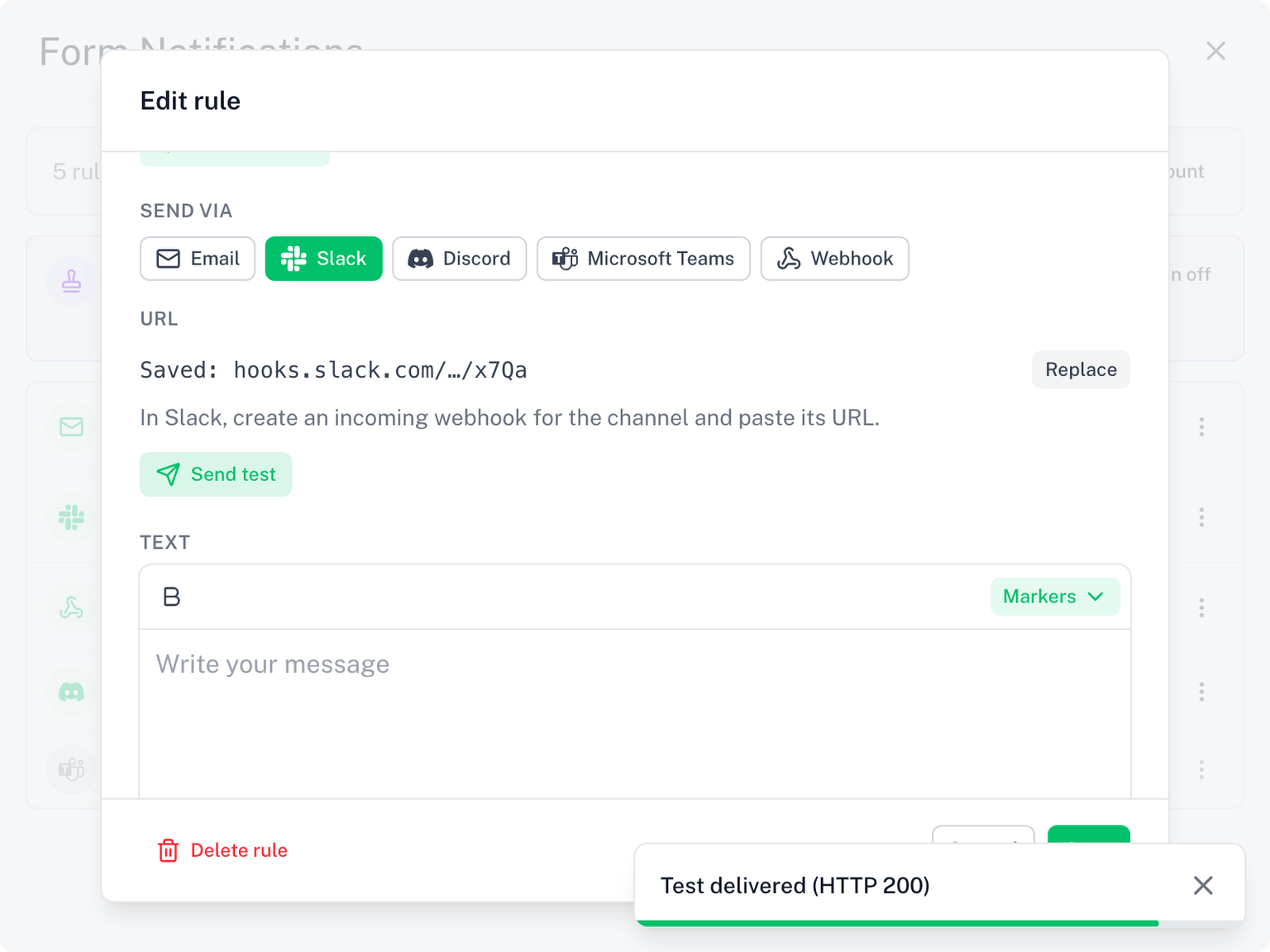
A channel approver has its own Send test, next to the webhook URL on a rule's approval step.
The recipient address check
When you add recipients to an email rule, Form Notifications quietly checks each address's domain (the part after the @) against public DNS: does this domain exist, and can it receive email at all?
If a domain cannot receive mail, because it does not exist, is misspelled, or has no mail service, you see a warning right in the rule:
Mail to
examle.comcan't be delivered: the domain doesn't exist or has no mail service. Check for typos.
This catches the most silent failure in email: a typo in the domain. The message would be handed to Google without error and reported as Sent, but it can never arrive, and the only trace is a bounce in the sender's inbox that is easy to miss.
The warning is advisory: you can still save the rule. Some internal company domains only resolve inside their own network, so a warning on an address you know works can be safely ignored.
A recommended pre-launch routine
- Create your rule with its recipients, conditions and message.
- Send a test to my inbox: check the subject, message and merge tags.
- Send a test to the saved recipients: ask one recipient to confirm it arrived.
- Submit the form once yourself: this exercises the real trigger, plus any conditions and respondent or form-field recipients.
If all three emails arrived, your setup is verified end to end.
When a test doesn't arrive
- Check spam first. A recipient's filter may hold the first message from a new sender.
- Recipient domain warning showing? Fix the typo in the address.
- Nothing in your own inbox either, even spam? Your email provider may be rejecting mail that Google sends for your address. See when your domain blocks Google-sent mail.
- Conditions on the rule? A test ignores conditions, but real submissions do not. Make sure your test submission actually matches them.
- Still stuck? See troubleshooting or contact us.