
Slack, Discord & Microsoft Teams
Besides email, a rule can post each response to a chat channel. Pick Slack, Discord or Microsoft Teams under + New rule, paste the channel's webhook URL, and write the text of the post with merge tags.
Slack, Discord and Microsoft Teams posting is in beta. If a post looks wrong or never arrives, contact us.
One rule, one channel
Every rule sends via one channel, picked under + New rule:
- Email sends from your Google account (the default, and free on submit)
- Slack, Discord, Microsoft Teams post a message to one channel
- Webhook sends signed JSON to your own endpoint; see Webhooks
To send the same response both by email and to Slack, create two rules. Duplicate the first and use Change channel… on the copy. Each keeps its own message and conditions.
Create a chat rule
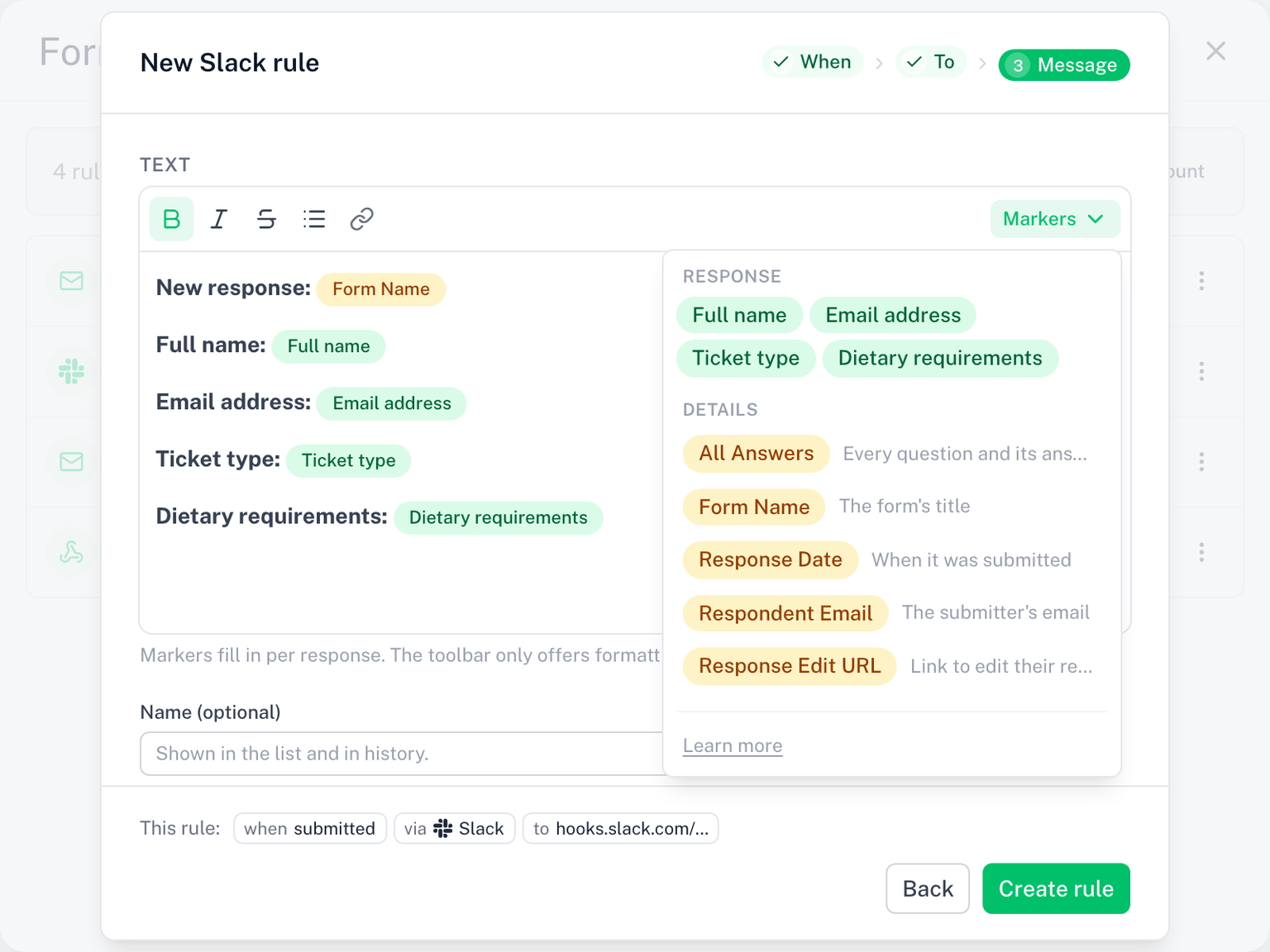
- Click + New rule and pick Slack, Discord or Microsoft Teams (or pick the template Post every response to Slack)
- When: keep Every response, or pick Only after approval / When rejected and set an approver. Add Only if conditions to post only matching responses, for example Department equals Ops for
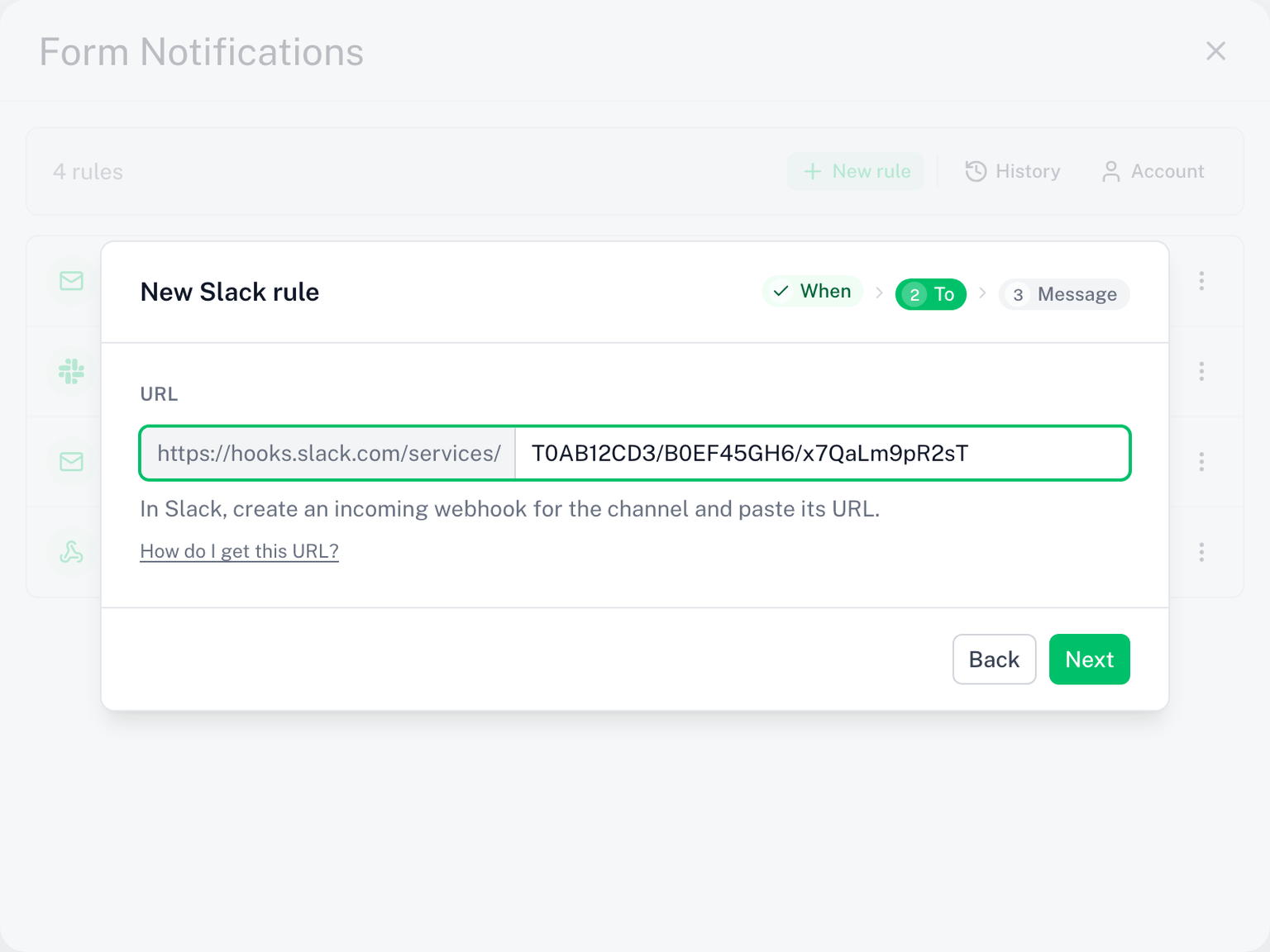
#facilities - To: paste the channel's webhook URL
- Message: one text block, posted as a plain message. A default is filled in; edit it and use the Markers menu for merge tags. The editor's toolbar offers only the formatting the channel can show: bold, italic and strikethrough on Slack; those plus underline on Discord; bold and italic on Teams. Links and bulleted lists are kept; headings, tables and images are flattened to plain text
- Click Create rule
Getting a webhook URL
Each chat rule needs an incoming webhook URL from the chat app. The URL identifies one channel; create one per channel you want to post to.
Slack
- In Slack, open the channel and choose Integrations (or search the app directory for Incoming WebHooks)
- Add an incoming webhook for the channel and copy the URL (
https://hooks.slack.com/services/...)
Discord
- Open the channel's settings (gear icon)
- Go to Integrations, then Webhooks, then New Webhook
- Click Copy Webhook URL (
https://discord.com/api/webhooks/...)
Microsoft Teams
Teams uses the Workflows app for incoming webhooks:
- Next to the channel, click More options (...), then Workflows
- Pick the template Post to a channel when a webhook request is received (also listed as Send webhook alerts to a channel)
- Save the workflow and copy the URL it gives you (it ends in
powerplatform.com/powerautomate/...)
Microsoft's guide: Create an Incoming Webhook with Workflows. The older Microsoft 365 Connectors webhooks are being retired by Microsoft; use Workflows.
The editor checks that the URL belongs to the chosen app, so a Discord URL cannot be saved on a Slack rule.
The saved URL
After you save, the URL is stored encrypted and only shown masked (hooks.slack.com/.../x7Qa), in the list and in the rule's To step. Click Replace to paste a new one.
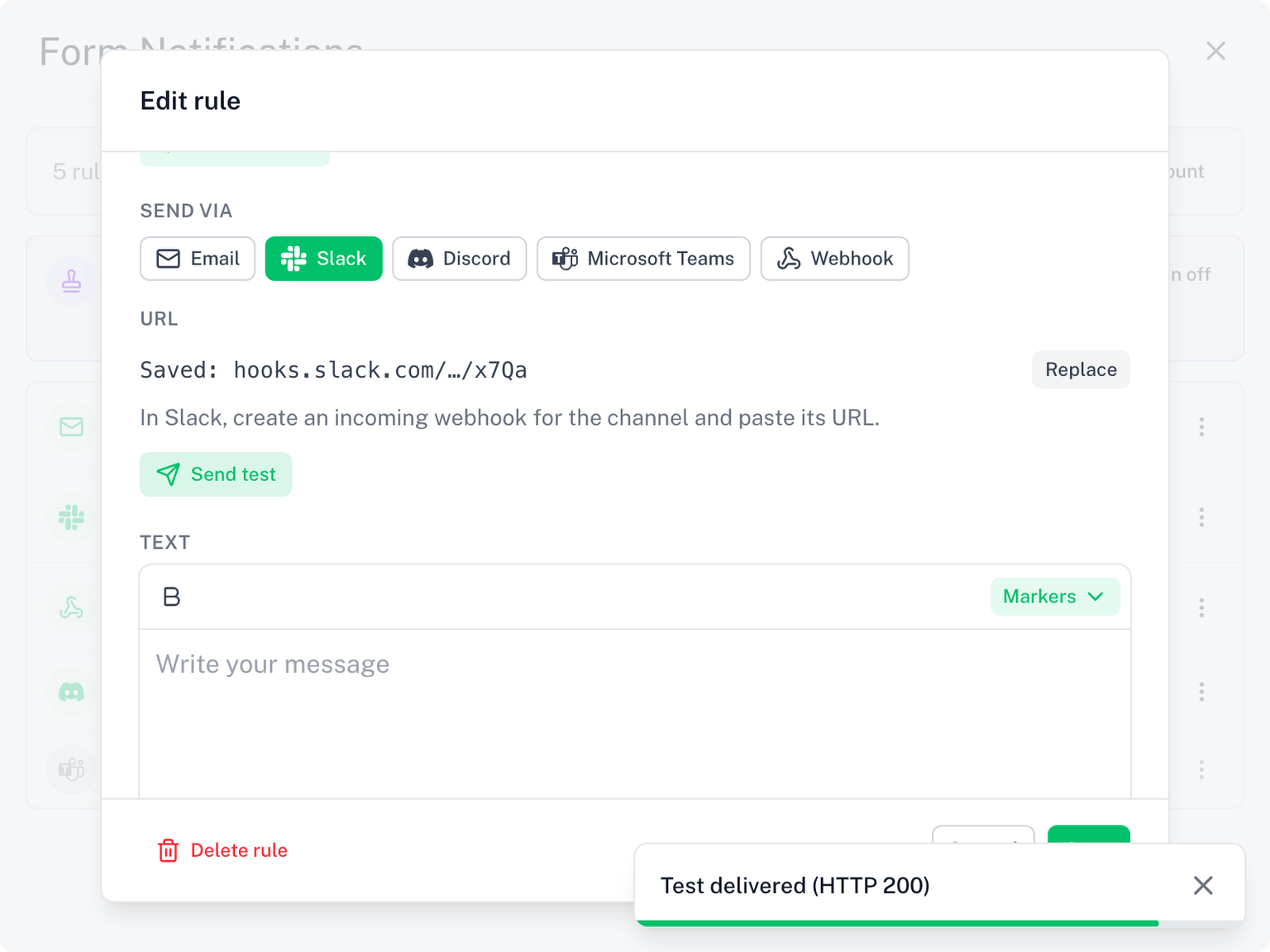
Once the rule exists, Send test in the rule's To step posts a sample message with placeholder answers to the URL, so you can confirm the channel receives it. The result shows the HTTP status the app returned, for example Test delivered (HTTP 200).
Send when
By default a chat rule posts on every response. It can instead post only after approval or when rejected, with its own approver. See Send When.
Approval and chat
A chat rule can carry its own approval step. Set Send when to Only after approval and pick the approver: it posts only once that approver has approved. The approver itself can also be a channel: Approve and Reject buttons are posted there, and the outcome is posted back. See Approval.
When a channel stops working
- If the chat app answers 404 or 410 (the webhook was deleted), the rule is paused and you get one email about it. Edit the rule, paste a new URL under Replace, and it resumes
- Other errors (a timeout, a 5xx) are retried once and then logged. Nothing is paused
- The History page shows each post with the HTTP status the app returned, so a failing channel is easy to spot
Good to know
- Posts are sent from Skyfield's servers, not from your Google account, so they do not count against your Gmail sending limit
- Answers are posted as plain text: a respondent cannot ping
@everyoneor trigger formatting in your channel - Long responses are trimmed to the app's limit (about 2,000 characters on Discord, 3,000 on Slack)
- Chat rules need an active license. The free trial counts. When a trial ends without an upgrade they pause; email on submit keeps sending. See Sending & Delivery Limits