
Quiz Mode
A Google Form with Make this a quiz switched on works on the live form. Responses sent through the live link never reach Google, so Google cannot grade them. The live form grades them instead, with the answer key, points and feedback you set in Google Forms.
The Quiz tab is there on every live form. On a form that isn't a quiz yet, it explains how to switch on Make this a quiz in Google Forms.
What is graded
The live form grades the same question types Google grades automatically:
- Multiple choice and dropdown. The picked option must match the answer key.
- Checkboxes. Every selected option must match the key. There is no partial credit.
- Short answer. The text must match one of the accepted answers. Case and extra spaces are ignored.
- Multiple-choice grid and checkbox grid. Each row is graded on its own.
Paragraph, linear scale, date, time and file upload questions are not graded automatically. They count 0, and the response is marked needs review in the dashboard. Their points still count towards the total.
Where scores appear
Click Responses in the sidebar, or open the form in your live forms. On a quiz, each response has a Score column: the points earned out of the total, with a needs review marker where a question could not be graded.
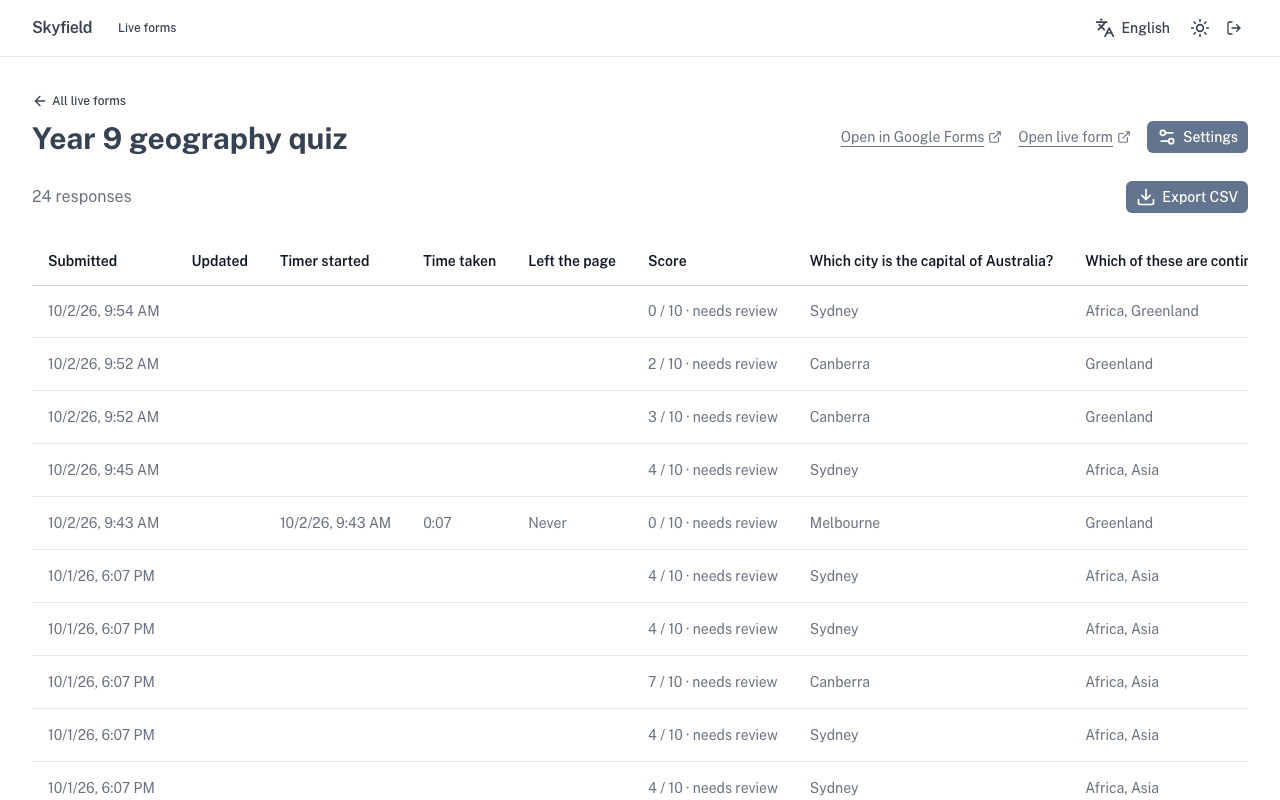
- Export CSV adds three columns: Score, Out of and Needs review.
- The Google Sheet copy, connected on the Connect to sheet tab of Live form settings, gets the same three columns.
When you change the answer key
Fix the answer key, points or correct answers in Google Forms as usual. When the form next syncs, every response is scored again against the new key. It syncs when you open the add-on in Google Forms, or, if you connected your Google account, when someone opens the live form. The dashboard then shows how many scores were updated.
What respondents see
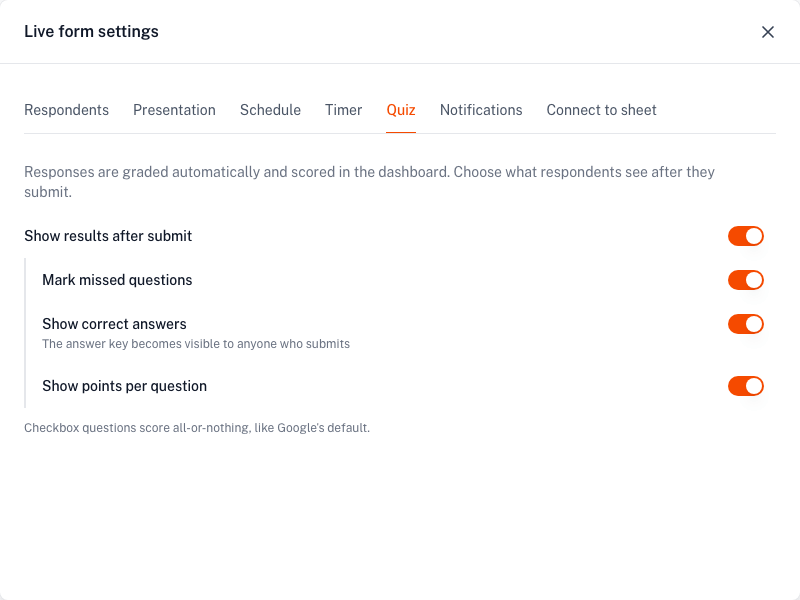
By default, nothing. Respondents see your confirmation message and no score. To change that, open Live form settings and go to the Quiz tab. Any live form licence covers it: Form Timer, Choice Eliminator Live, Form Limiter Live or Styled Forms.
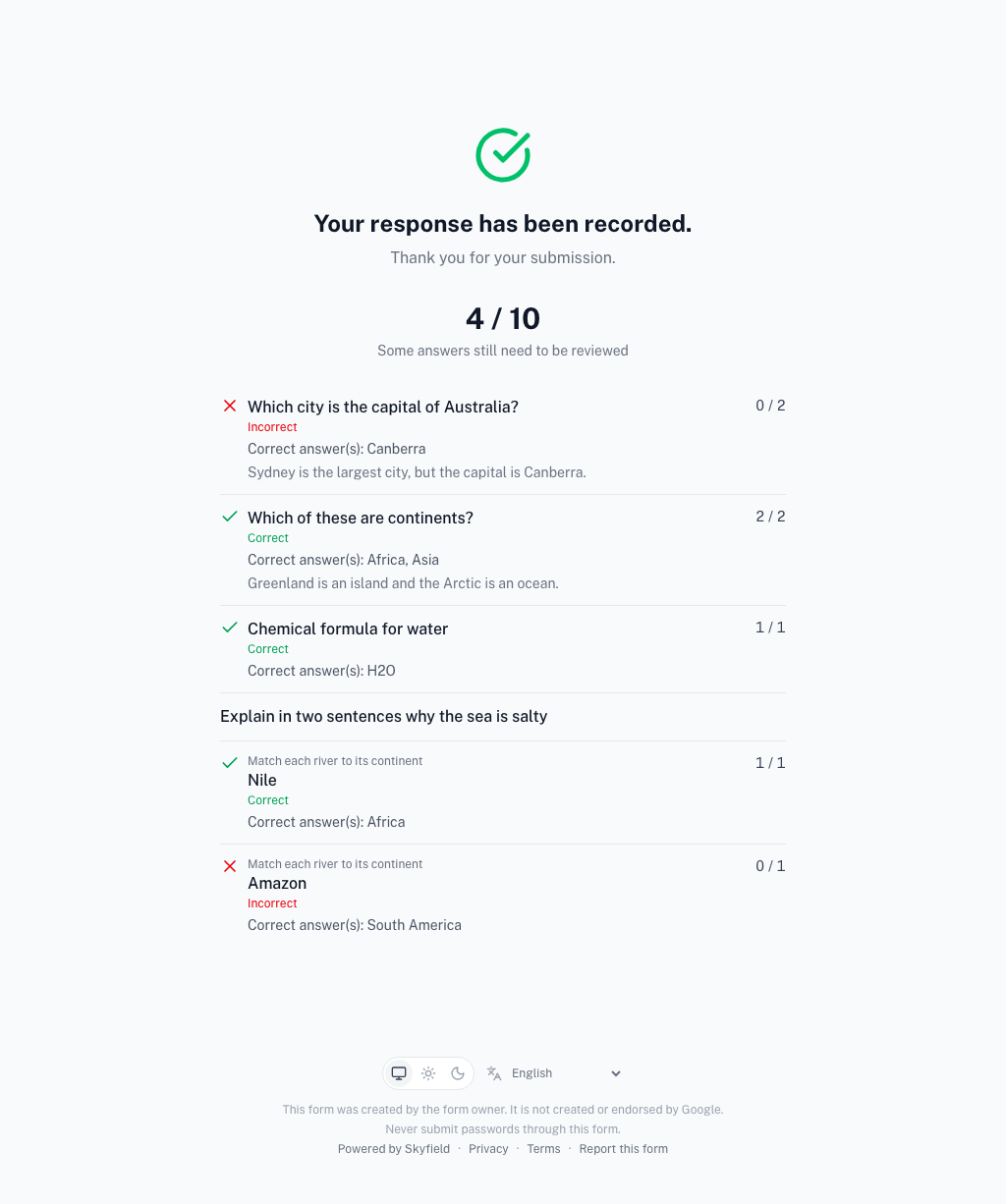
- Show results after submit. Turns on the result page under the confirmation message. It always shows the total score, for example 7 / 10, with a note that the score may change if some answers still need review. The other three switches add detail per question.
- Mark missed questions. Each question is marked Correct or Incorrect.
- Show correct answers. The accepted answers are listed under each question. The answer key becomes visible to anyone who submits, so leave this off while others can still take the quiz.
- Show points per question. The points for each question. The total is already shown.
Feedback you wrote in Google Forms, for a right answer, a wrong answer or in general, is shown with each question whenever results are on. Questions with nothing to show are left out.
On a quiz, Show correct answers and Allow response editing on the Respondents tab can't both be on, or a respondent could read the answer key and then change their answers. While one is on, the other is locked, with a short note saying why.
On a quiz that shows results, the link to submit another response is hidden. If response editing is on, a respondent who edits their response sees their updated result.
With a time limit
A quiz can have a time limit like any other live form. When time runs out with Submit the answers so far, the answers so far are graded and unanswered questions count 0. See When time runs out.
Limits
- Grades do not appear in the Responses tab of Google Forms. Live form responses never reach Google.
- Google Classroom cannot import grades from this quiz. Classroom's grade import reads native Google Forms quizzes only. A Connect to Classroom option is planned. See Use it with Google Classroom for what works today.
- Scores update after the live form syncs, not the moment you edit the key in Google Forms.
Tip: a name next to every score
On the Respondents tab, set Collect email addresses to Verified. Each score is then tied to a signed-in Google account, and you can switch on Limit to 1 response so each account gets one attempt. See One attempt per person.