Set a Time Limit
The time limit lives on the Timer tab of Live form settings. Open it with the pencil on the sidebar's Live form settings row, or from Settings on the form's page in your live forms. Every control saves as you change it.
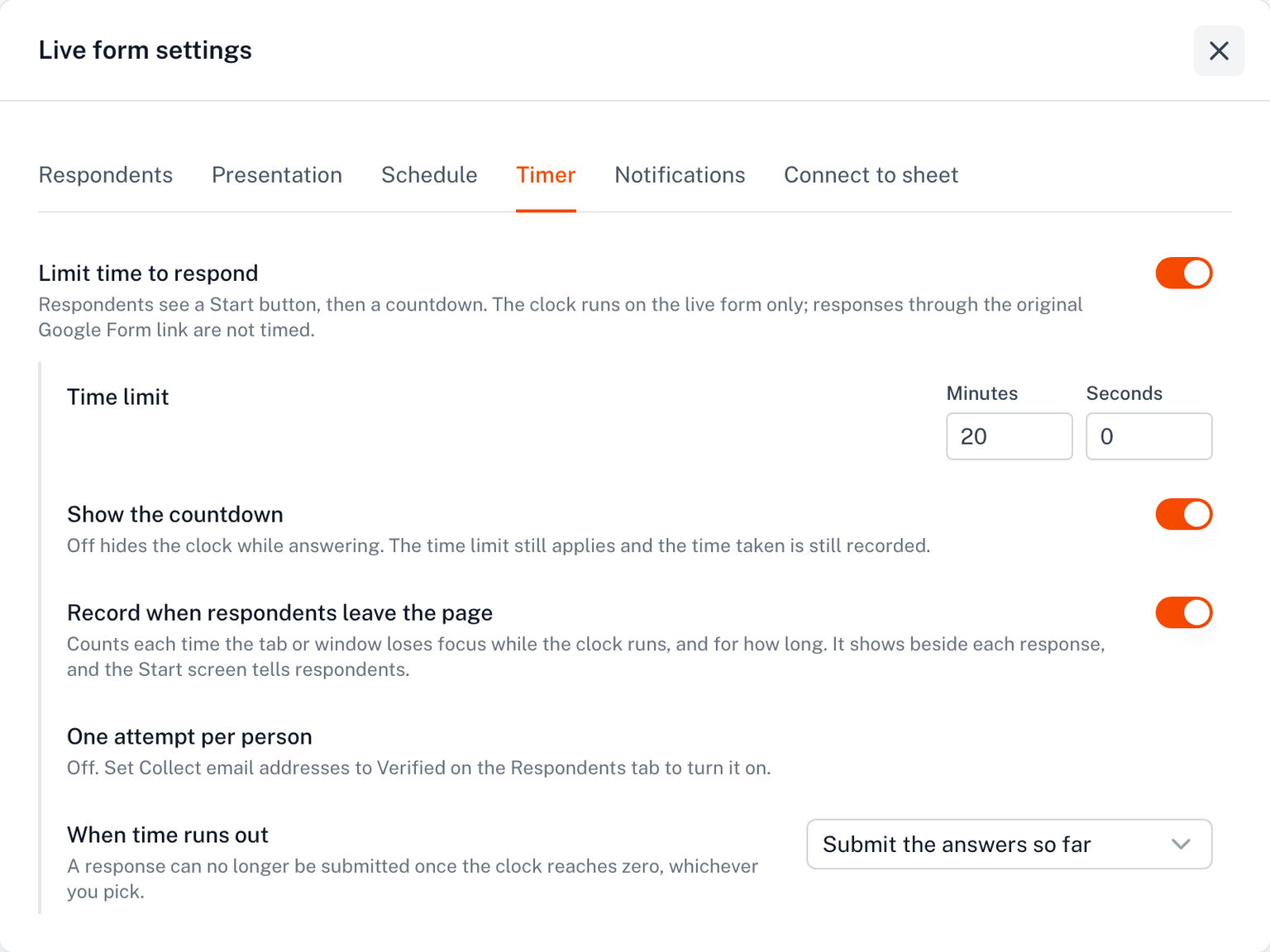
Limit time to respond
The main switch. On, respondents see a Start screen and then a countdown. Off, the live form is served without a timer and the rest of the tab is hidden. Your other live form settings are kept either way.
Time limit
Minutes and seconds, anywhere from 10 seconds to 24 hours. The limit covers the whole form, counted from the moment a respondent presses Start.
Set the limit before you share the link. Changing it while people are answering moves their deadline too, and the clock on their page only catches up after a refresh.
Show the countdown
On by default. Off hides the clock while answering; the Start screen tells respondents the clock will not be shown. The time limit still applies, and the time taken is still recorded.
Record when respondents leave the page
On by default. See The focus record.
One attempt per person
This row reports whether the rule is in force; it follows the Respondents tab. See One attempt per person.
When time runs out
Submit the answers so far or Lock the form and discard the answers. See When time runs out.
Instructions before the timer starts
Plain text shown on the Start screen under the form's description. Use it for what respondents should know before the clock starts: what they may use, how many questions to expect, that the clock cannot be paused.
Licence
The Timer tab needs an active Form Timer licence to change. If your plan ends, the saved time limit keeps running on the live form, and editing is on hold until you renew.