
Getting Started
Choice Eliminator Live caps each answer choice in your Google Form and publishes the form at a live link, where those caps hold even when everyone submits at the same moment. This guide takes you from install to a working live form.
If you have not read what a live form is, start there. It explains what moves and what stays the same.
Installation
- Install Choice Eliminator Live from the Google Workspace Marketplace
- Click Install and follow the prompts
- Grant the permissions it asks for
Connect your Google account, once
The live form has to read your questions and choices to mirror them, so the first time you open the sidebar it asks you to connect your Google account at skyfield.cloud.
- Open any Google Form with a multiple choice, checkbox, or dropdown question
- Click the Add-ons (puzzle piece) icon, then Choice Eliminator Live, then Start
- The Questions tab shows One step left to go live. Click Connect Google account
- Sign in with the account that owns the form and approve access
- Come back to the form and open the sidebar again
This is a one-time step for your account, not per form. Until it is done, nothing can sync.
Set your first limits
- Open the Questions tab
- Click a question to open its limits
- Type a number next to each choice. Leave a choice blank to keep it unlimited
- Click Save
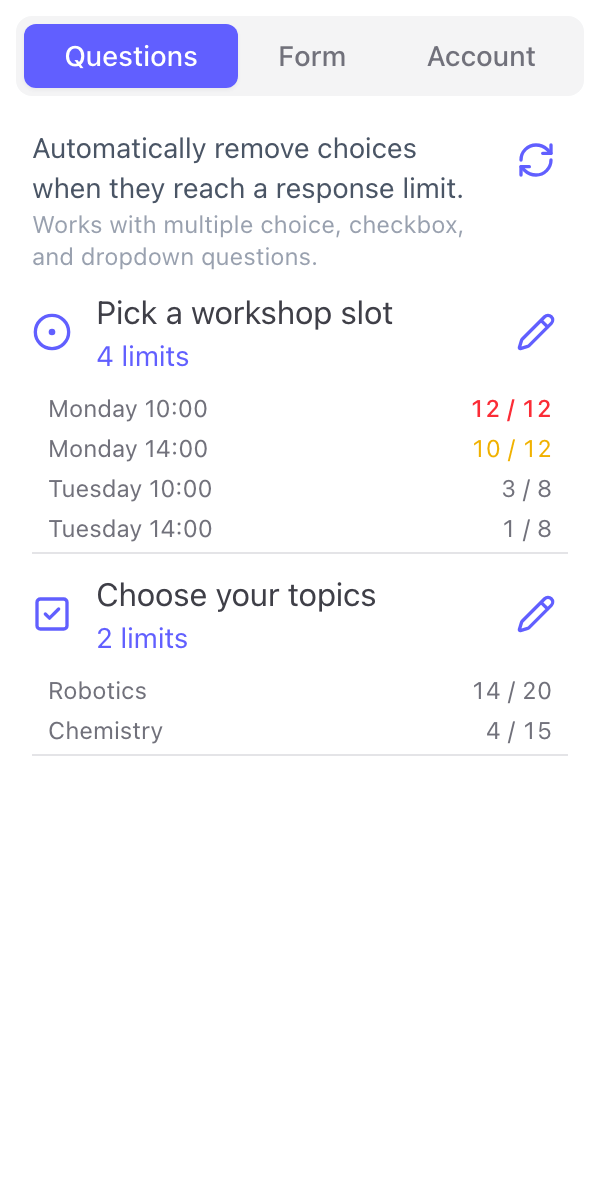
The sidebar confirms Limits are live once the caps have reached the live form. If it instead says Limits not live yet, your numbers are saved locally but are not yet being enforced. See Sync and connection errors.
Close the original and share the live link
The first time a save makes your form enforceable, the add-on asks whether to close the original Google Form. Answers sent through the original Google Forms link are not capped, so closing it is the recommended choice. Respondents who open the old link are pointed at the live one.
Then open the Form tab, click Share link, and copy the live link or download its QR code. That link is what you hand out.
Check the live form's own settings
The live form starts with sensible defaults: anyone with the link can respond, remaining spots are shown, and there is no opening or closing date. Everything about that is yours to change under Live form settings on the Form tab. See Live form settings.