
Live Form Settings
Your Google Form has settings, and so does the live form. They are separate. Changing one never changes the other, and the live form's settings only apply to responses sent through the live link.
Opening the dialog
From Google Forms:
- Open the Form tab in the sidebar
- Click Live form settings
From your dashboard:
- Go to your live forms on skyfield.cloud
- Open the form
- Click Settings
The same dialog opens in both places, with the same tabs.
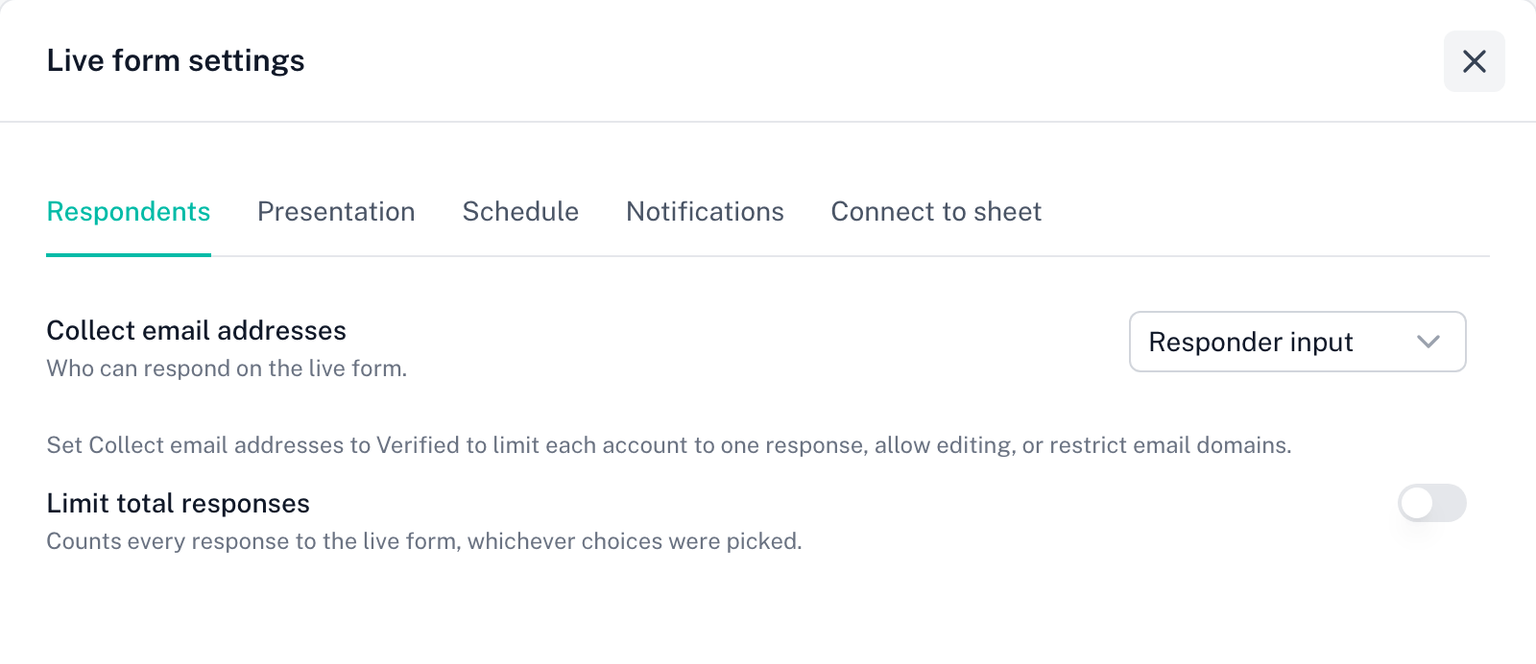
The tabs
| Tab | What it covers | Guide |
|---|---|---|
| Respondents | Who can respond, one response per account, editing after submission, allowed email domains, a total response limit | Respondents and sign-in, Total response limit |
| Presentation | Whether remaining spots are shown, what a full choice looks like, the messages respondents read | Presentation |
| Schedule | An opening and closing date and time | Schedule |
| Timer | A time limit on the live form. Needs a Form Timer licence | Set a Time Limit |
| Quiz | What respondents see after submitting a quiz | Quiz Mode |
| Notifications | Emails when the form or a question fills, and around a scheduled close | Notifications |
| Connect to sheet | A Google Sheet in your Drive that receives every response | Connect to sheet |
The Timer tab needs a Form Timer licence. Without one it shows locked, with a Get Form Timer button.
Every change saves as you make it. There is no Save button; a spinner next to a control means it is being written, and an error under it means it was not.
Quiz
The Quiz tab is there on every live form. On a form that isn't a quiz yet, it explains how to switch on Make this a quiz in Google Forms. On a quiz, the live form grades every response with the answer key you set in Google Forms, and this tab chooses what respondents see after they submit. Any live form licence covers it: Form Timer, Choice Eliminator Live or Form Limiter Live.
- Show results after submit. Off by default: respondents see your confirmation message and no score. Switch it on to show the total score under the confirmation message. The three switches below appear once it is on, and each starts off.
- Mark missed questions. Each question is marked correct or incorrect.
- Show correct answers. The accepted answers are listed under each question, so the answer key becomes visible to anyone who submits.
- Show points per question. The points for each question.
Show correct answers and Allow response editing on the Respondents tab can't both be on, or a respondent could read the answer key and then change their answers. While one is on, the other is locked.
Multiple choice, dropdown, checkbox, short answer and grid questions are graded automatically. Checkboxes score all or nothing. Paragraph, linear scale, date, time and file upload questions are not: they count 0, and the response is marked needs review. Scores appear in the Score column of the form's responses on the dashboard, in the CSV export and in a connected sheet. For the full detail, see Quiz Mode.
When the live form and the Google Form differ
Some settings exist on both sides, Collect email addresses and Limit to 1 response among them. When your Google Form has one of these set differently from the live form, the row shows a note: Your Google Form has Collect email addresses set to Verified. The live form is set separately, and your Google Form is not changed.
The note is information, not an error. If you want the two to match, change the live form's value; the add-on never edits your Google Form's settings.
The sidebar's Form tab also warns when your Google Form is stricter than the live form, for example when the Google Form requires sign-in and the live form does not. The live link is then more open than the original, which may or may not be what you want.
The summary row
The Live form settings row in the sidebar summarises the state in one line: Stops at 120 when a total response limit is set, Scheduled when a date window is, and the respondent setting otherwise, for example Google sign-in or Anyone, anonymous.
Licence
Respondents, Schedule and Connect to sheet need an active licence to change. When a trial or subscription has ended, those tabs show one banner, Changes need an active license, and their controls are disabled. Your saved settings keep working on the live form. Presentation and Notifications stay editable. Only the form's owner can upgrade; a co-editor sees who that is. See Plan changes.