
Responses and Export
Responses to the live form are collected by Skyfield, not by Google Forms, so they do not appear on your form's Responses tab. They live on your dashboard, and can also be copied to a Google Sheet.
Finding them
- Open the Form tab
- Click Responses
That opens the form's page on your dashboard in a new tab, signed in as the account that owns the form. You can also go straight to your live forms and open the form there.
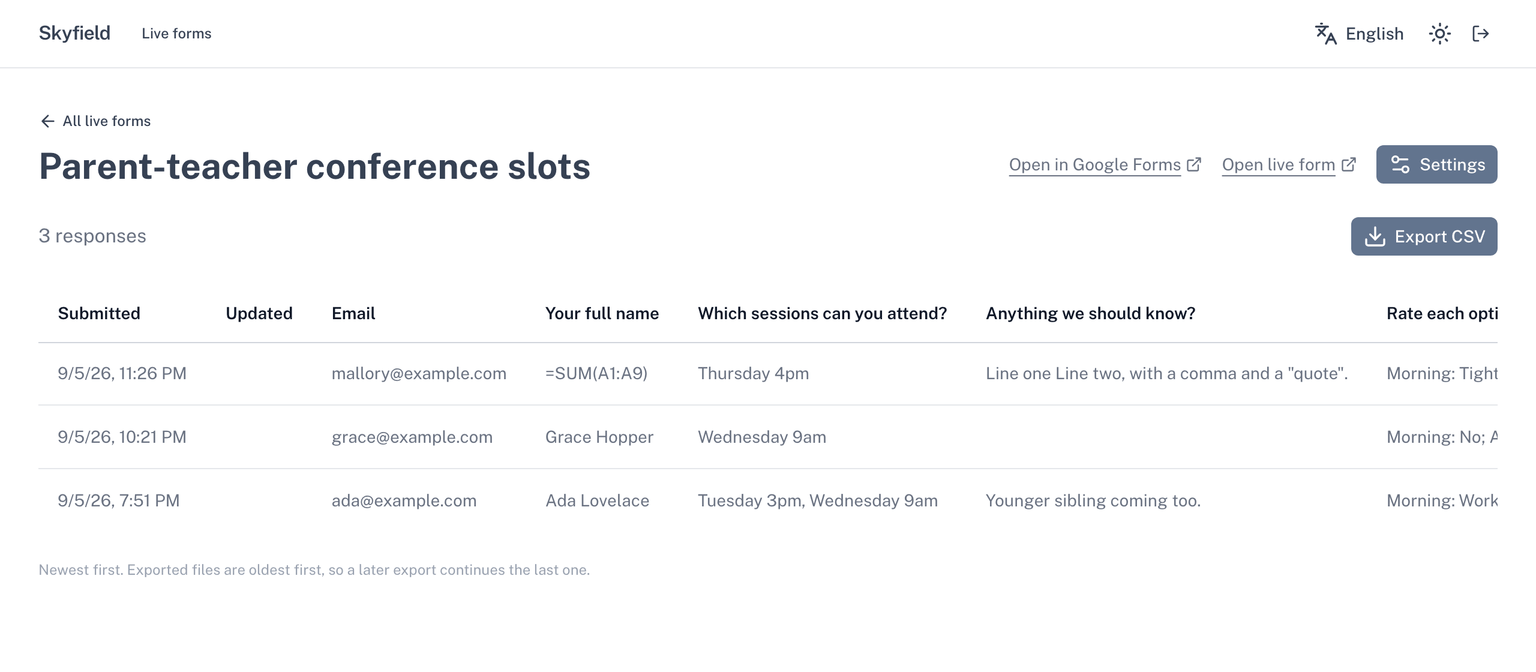
The page shows the newest responses first, with the time submitted, the time last edited if editing is allowed, the respondent's email when one is collected, and one column per question. From the same page, Settings opens the live form's settings and Open live form opens the link respondents use.
Exporting
Click Export CSV. The file opens in Google Sheets, Excel, or Numbers. A large export shows its progress as it is prepared, and you can cancel it.
Exported files are oldest first, the opposite of the screen, so a later export continues the last one: append the new rows and nothing is out of order.
A Google Sheet instead
If you would rather have the responses in a spreadsheet that fills itself, connect a sheet: every response collected so far is copied in, and each new one is added as it arrives. See Connect to sheet.
Access is permanent
Response retrieval and export are never gated. They keep working while your plan is active, after a trial ends, after a subscription lapses, and after you cancel. It is your data.
Responses collected before you switched
Answers submitted through your original Google Forms link stay on the Google Form, on its own Responses tab, exactly as before. The add-on does not move, copy, or delete them.