Share the Live Link
Respondents answer at the live link, not at the Google Forms link. The Form tab is where you find it.
Getting the link
- Open the Form tab
- Click Share link
- Copy the link, click Open form to check it, or click Download QR
If the row says Not synced yet, the form has not reached the live version yet. Open the Questions tab and press Sync now.
The QR code
The downloaded QR code is a PNG that points at the same live link. It is meant for a poster, a slide, or a handout, so a room full of people can reach the form without typing anything.
Why not the Google Forms link
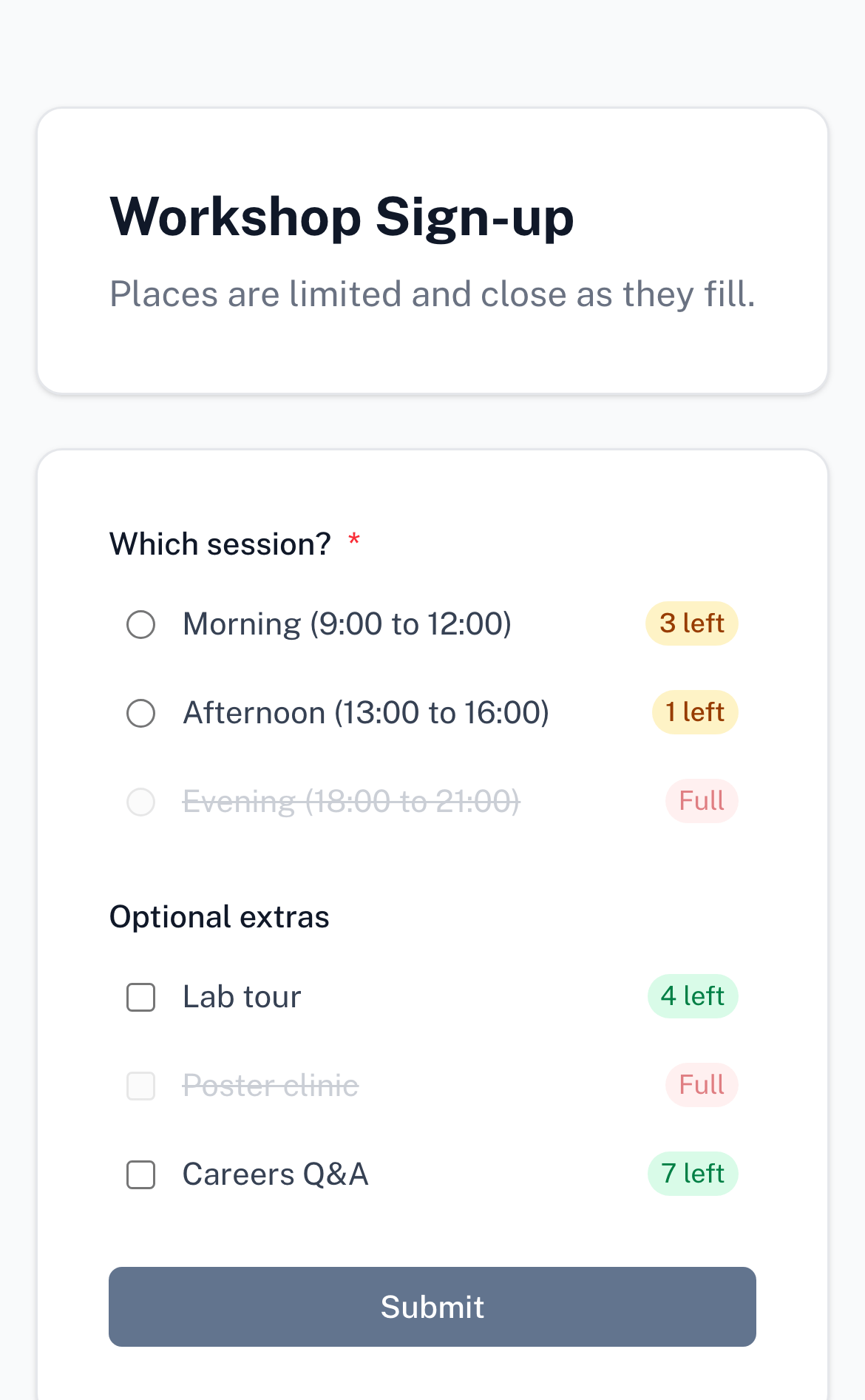
Answers submitted through your original Google Forms link never pass through the live form, so none of your caps apply to them. A form shared through both links is a form whose limits can be walked past.
That is why the add-on offers, once, to close the original. See Closing the original form.
Checking it before you share
Open the live link yourself, from Live form on the Form tab or from the share dialog. You should see your questions, your choices, and a badge on every choice you capped. If a badge is missing, the limit for that choice has not reached the live form; the Questions tab will say so.