Schedule
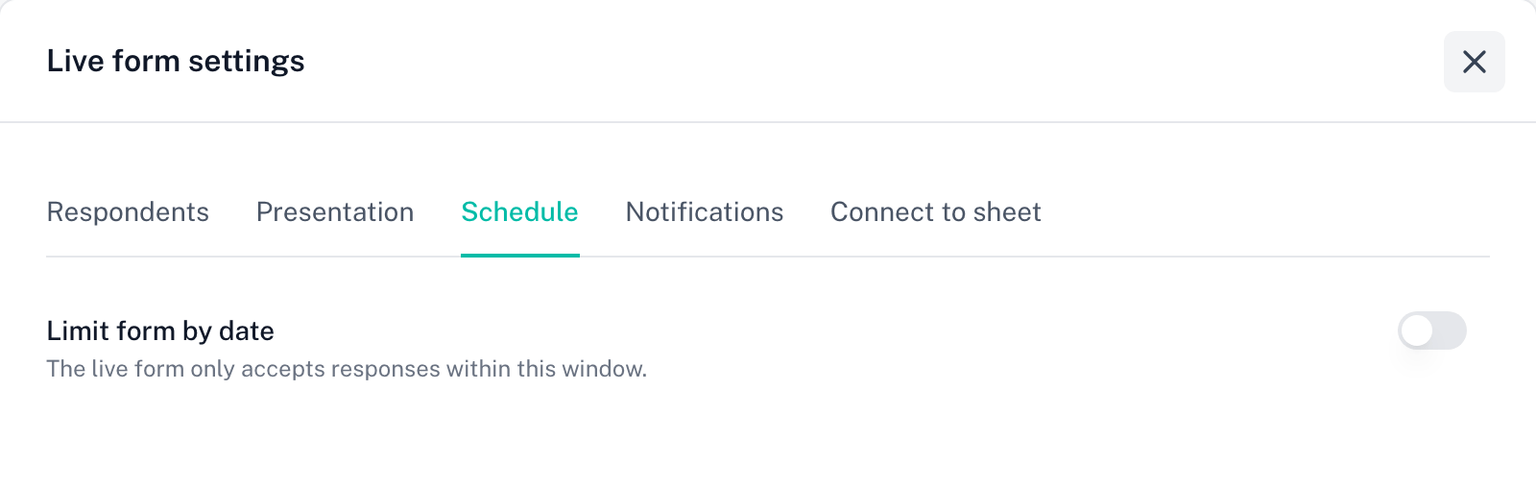
The Schedule tab of Live form settings puts a window around the live form. Outside the window, respondents see a closed message instead of the questions.
Setting a window
- Turn on Limit form by date
- Set an Open date and time, a Close date and time, or both
- Optionally, write a Form closed message. It is the same text as the Respondents tab's message once the limit is reached: one message covers every way the form can be closed
The tab shows which timezone the times are in. The close date must be after the open date.
Back in the sidebar, the Live form settings row reads Scheduled.
What respondents see
- Before the open date: the closed message, with a line naming when the form opens.
- After the close date: the closed message, with a line naming when it closed.
- Once a total response limit is reached: the same message.
- If someone already has the form open when it closes: the page switches to the closed message at the close time, without a reload. In the last five minutes a "Closes in" countdown shows above the questions, so they can send their answers in time.
- If someone opens the link before the open date: the page shows the form the moment the window opens, without a reload.
The date line is added automatically; you do not need to repeat the date in your message.
Opening at a fixed hour
This is the case the live form was built for. Set the open date, share the link in advance, and everyone arrives to a form that opens at the same instant for all of them. The caps hold from the first second.
Notifications around the close
The Notifications tab can email you 24 hours before the close date and again once it passes. Both need a close date here. See Notifications.
Licence
This tab needs an active licence to change. A saved window keeps working on the live form after a plan ends.